|
|
Review All – Submission Review Screen |
Review All – Submission Review Screen
The Review All tab displays one student’s full submission at a time, allowing you to score responses, leave feedback, and manage the submission.
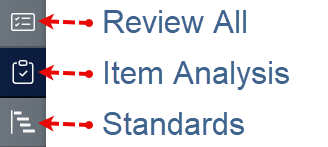
Switch Between Students

Navigate between submissions in two ways:
- Use the left and right arrows at the top of the screen to move between students.
- Use the dropdown menu to jump directly to a specific student.
Assignment Info Panel
The panel at the top of the screen shows a summary of the student's submission.
- Status – Shows whether the student has started, submitted, or had the assignment returned.
- Time on Task – Displays how long the student worked on the assignment and their activity history.
- Score Type
- Auto – Fully scored by the system.
- Auto + Teacher – System score with manual adjustments.
- Custom – Fully manual scoring that ignores auto grading.
- Final Score – The score shown to the student based on the selected scoring type.
Comment Box
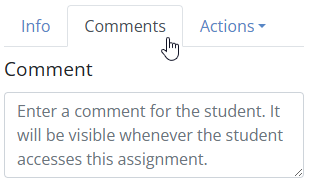
Use the comment box to leave feedback for the student.
- Type comments directly into the box.
- Comments automatically save while you type.
- Students see comments after the submission is returned.
Actions Menu
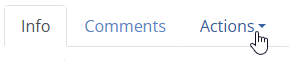
The Actions menu in the top right allows you to manage the submission.
- Reopen / Reset – Reopen the assignment for continued work or clear the student's responses.
- Set as Completed – Mark the assignment complete even if unfinished.
- Return Submission – Send the scored assignment and comments back to the student.
- Edit Student Names – Correct formatting or spelling of student names.
- Print Submission – Generate a printable version of the student's work.
- Delete Submission – Permanently remove the student's attempt.
Return to Assignment Detail
When finished reviewing submissions, click the Close button in the top right corner to return to the Assignment Detail screen.
Are you new to Classwork.com? Welcome!
Click here to start your 30 day risk-free PRO trial today.
Was this article helpful?
That’s Great!
Thank you for your feedback
Sorry! We couldn't be helpful
Thank you for your feedback
Feedback sent
We appreciate your effort and will try to fix the article