|
|
Assignment Submissions Actions (⋯) - Assignment Detail Screen |
Assignment Submissions Actions (…) - Assignment Detail Screen
Applies to: Flex Editor & Slide Editor
The three-dot menu at the top right of the Submissions list on the Assignment Detail screen manages student work, one student at a time or many at once.
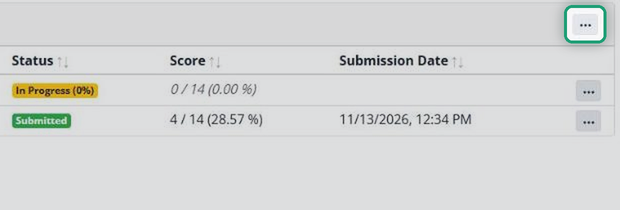
Some options always work. The rest stay greyed out until you check one or more students in the boxes to the left of their names. The checkbox in the header selects everyone.
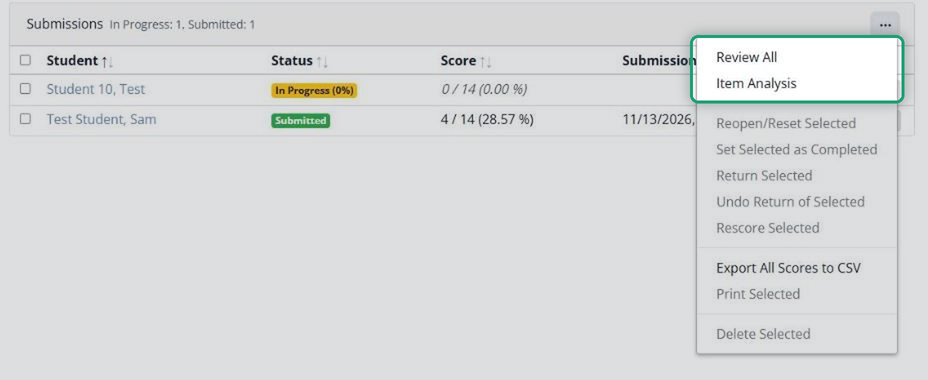
Always available
- Review All: go through every student’s work in order.
- Item Analysis: the whole class’s results by question, to spot trends and what to reteach.
- Export All Scores to CSV: download a spreadsheet with names, scores and other submission data.
For the students you check
- Reopen/Reset Selected: Reopen lets students keep working with their answers in place (you can choose to show what’s missing or incorrect); Reset clears their answers so they start over. Your comments are kept either way.
- Set Selected as Completed: marks unfinished work as submitted, for students who didn’t click Submit. Classwork.com asks you to confirm; the score doesn’t change.
- Return Selected: sends the work back so students can see their scores and feedback. Scores go to Google Classroom, Canvas or Schoology at this point.
- Undo Return of Selected: takes a return back, so the work shows as submitted again.
- Rescore Selected: re-sends these students’ scores to your LMS.
- Print Selected: printable PDFs of the students’ work, for portfolios or offline review.
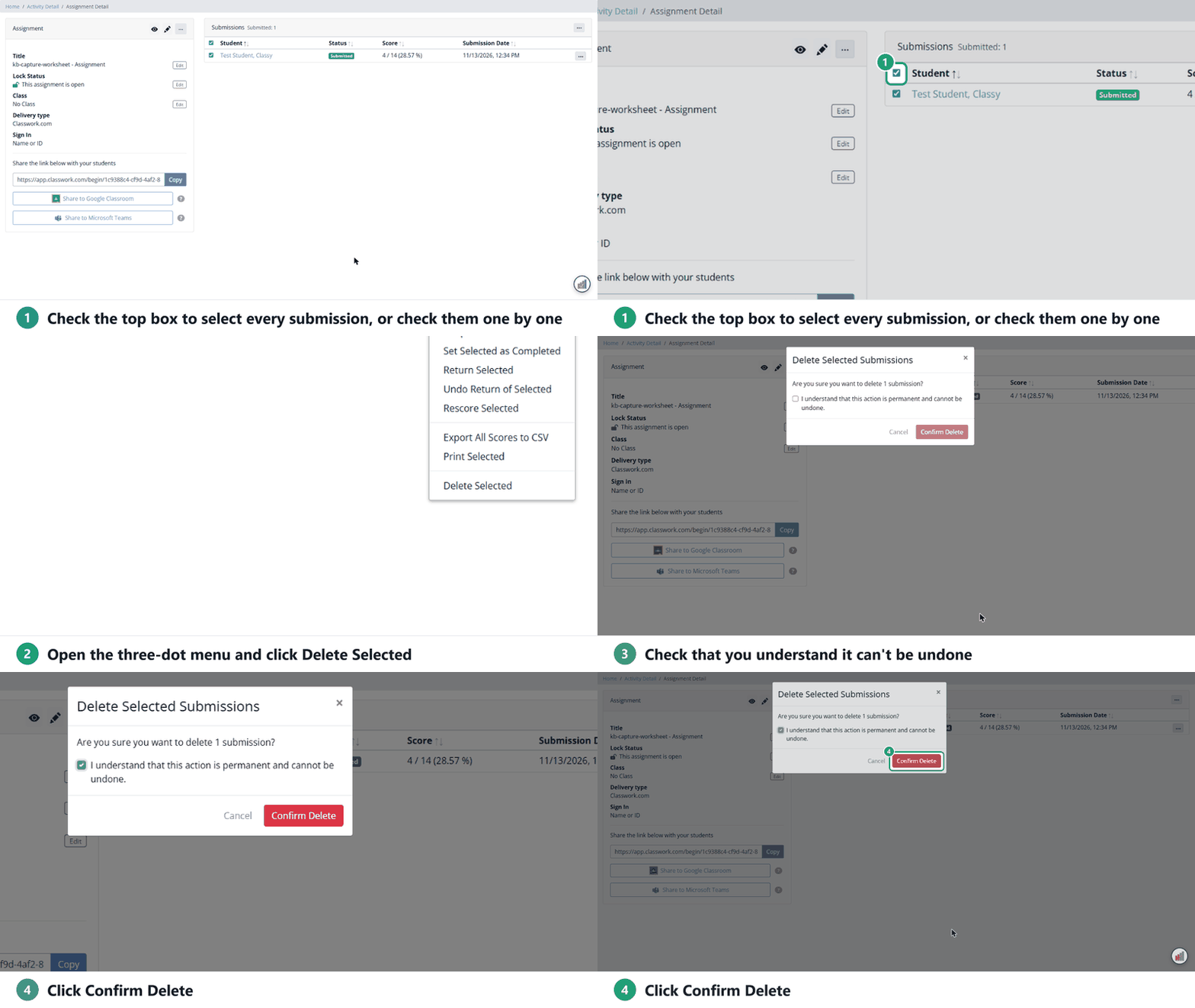
- Delete Selected: permanently deletes the submissions. You have to check “I understand that this action is permanent and cannot be undone.” before Confirm Delete.
Each student’s own three-dot menu has the same actions for just that student: Review Submission, Reopen/Reset, Set as Completed, Return Submission, Rescore Submission, Print Submission and Delete Submission.
Are you new to Classwork.com? Welcome!
Click here to start your 30 day risk-free PRO trial today.
Was this article helpful?
That’s Great!
Thank you for your feedback
Sorry! We couldn't be helpful
Thank you for your feedback
Feedback sent
We appreciate your effort and will try to fix the article