|
|
Assignment Submissions Actions (⋯) - Assignment Detail Screen |
Located in the upper-right corner of the Submissions panel on the Assignment Detail screen, the Assignment Submissions Actions menu (⋯) gives you ways to manage student submissions individually or in bulk.
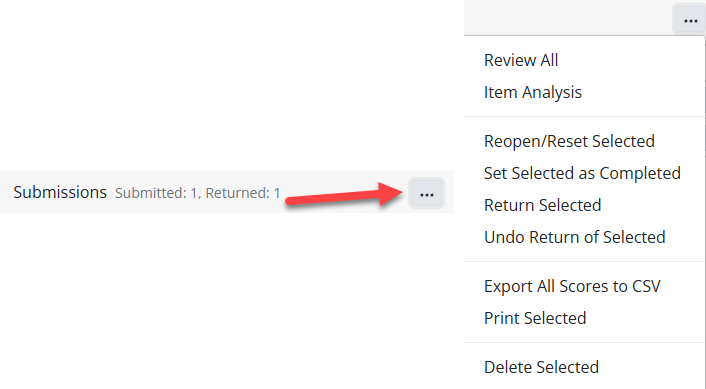
Some options are always available, while others remain greyed out until you select one or more students using the checkboxes to the left of their names. You can also use the top checkbox to select all.
Always Available Actions
Review All Submissions
Opens a scrollable view of every student's work in sequence.
Item Analysis
Displays a whole-class breakdown of performance by question — great for spotting trends and reteach opportunities.
Export Scores to CSV
Downloads a spreadsheet with names, scores, and other submission data.
Actions Requiring Student Selection
These options become available only after selecting students:
Reopen / Reset Selected
- Reopen – Lets students resume work with all previous answers intact.
- Reset – Clears all answers and starts the student over.
Set Selected as Completed
Forces the submission to a completed state (useful for students who didn’t click Submit).
Return Selected
Sends work back to students so they can view their scores and feedback.
Undo Return for Selected
Reopens the assignment for editing after it’s been returned.
Print Selected
Generates printable PDFs of student work — useful for portfolios or offline review.
If no students are selected, these conditional options remain inactive to help prevent accidental bulk actions.
Was this article helpful?
That’s Great!
Thank you for your feedback
Sorry! We couldn't be helpful
Thank you for your feedback
Feedback sent
We appreciate your effort and will try to fix the article