|
|
Edit Activity Content (Pencil Icon) - Assignment Detail Screen |
Edit Activity Content (Pencil Icon) – Assignment Detail Screen
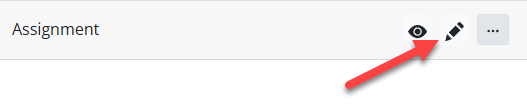
From the Assignment Detail screen, clicking the Pencil icon in the top-left panel opens the assigned activity in the Activity Editor.
What you are able to edit depends on whether the activity has already been assigned to students.
If the Activity Has Not Been Assigned
If the activity has never been assigned, you will have full editing access.
You can:
- Add or delete questions
- Change the layout
- Insert or remove text and images
- Fully redesign the activity
If the Activity Has Already Been Assigned
If the activity has already been assigned, the editor opens in Answer Key Mode.
This mode limits certain changes in order to protect student submissions and prevent grading conflicts.

Changes You Can Make
- Update correct answers
- Adjust point values
- Modify scoring settings
- Move or resize existing elements
Changes That Are Restricted
- Adding or deleting scorable or draggable items
- Changing the number of answer choices in questions such as Multiple Choice or Dropdown
- Rearranging slides or changing the activity structure
Making Major Changes to an Assigned Activity
If you need to make significant structural changes for a new group of students, create a copy of the activity first.
Use Make a Copy from the Activity Detail screen rather than the Assignment Detail screen.
This ensures existing student submissions remain unchanged while allowing you to edit the copied activity freely.
Was this article helpful?
That’s Great!
Thank you for your feedback
Sorry! We couldn't be helpful
Thank you for your feedback
Feedback sent
We appreciate your effort and will try to fix the article