|
|
How To Use the Texas OER Math Question Bank |
How To Create an Activity from the Texas OER Math Question Bank
If your district has adopted the Texas OER Math curriculum or Bluebonnet Learning™, you’ll be delighted to know that Classwork.com offers a question bank that lets you instantly create interactive activities aligned to every one of the OER lessons in Grades 3 through Algebra. It’s part of the OER Math Companion, so your school or district must subscribe to Classwork.com’s OER Companion content to see this option.
The Big Picture
You’re going to tell the system which lessons you want to find questions for, preview them, and add them to an activity. If it’s a new activity, each question is added to a slide. If you’re editing an existing activity, the questions are added after the slide you’re currently viewing.
How To Start?
You can open the OER Math Item Bank from either editor.
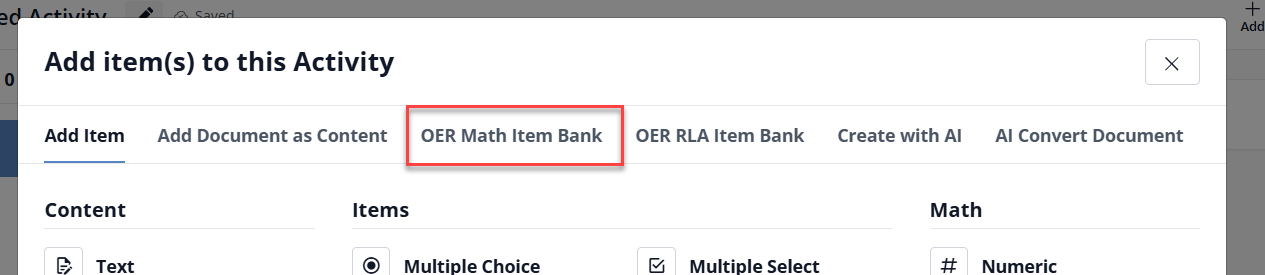
In the Flex Editor: click + Add, then choose the OER Math Item Bank tab across the top of the Add item(s) to this Activity window.
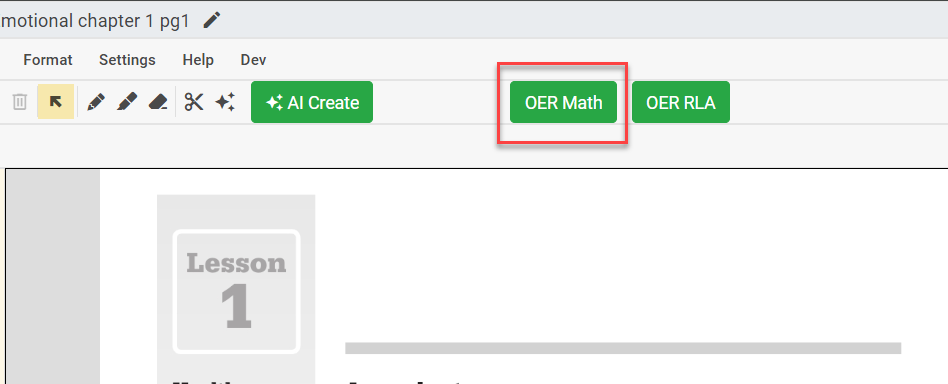
In the Slide Editor: click the green OER Math button on the editing toolbar.
Both open the same OER Math Item Bank Wizard, walked through below.
Using the OER Math Wizard
Let’s look at each step of the Wizard.
Select Your Grade Level
The first step of the Wizard is to choose your grade level.
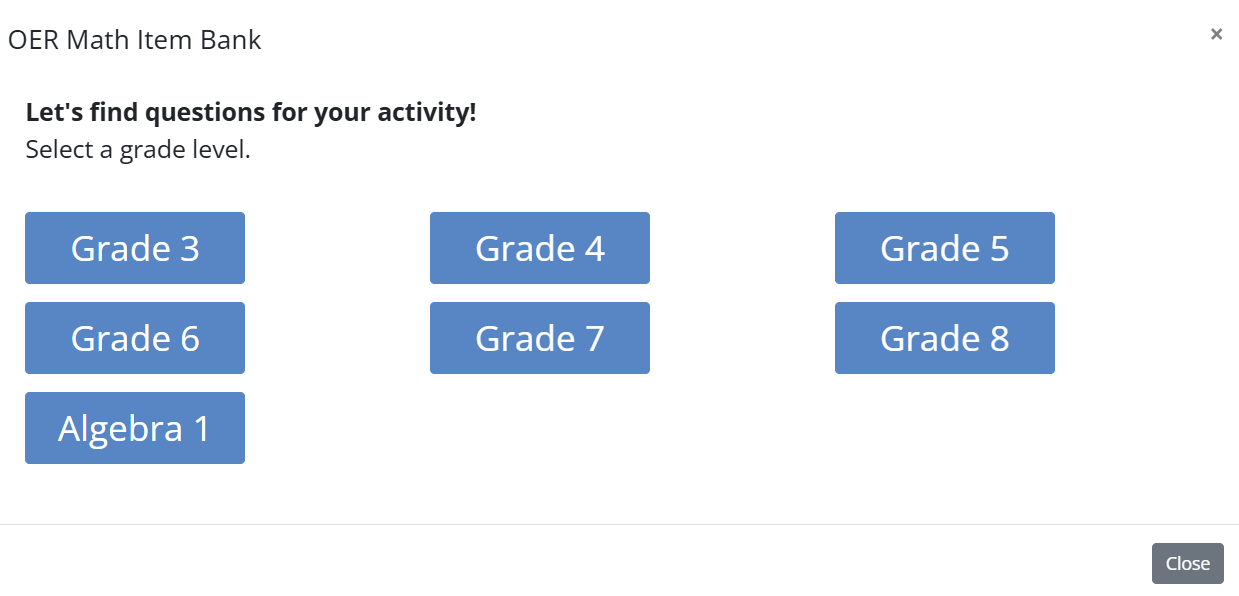
Click a grade level button to continue to the next step.
Choose a Module
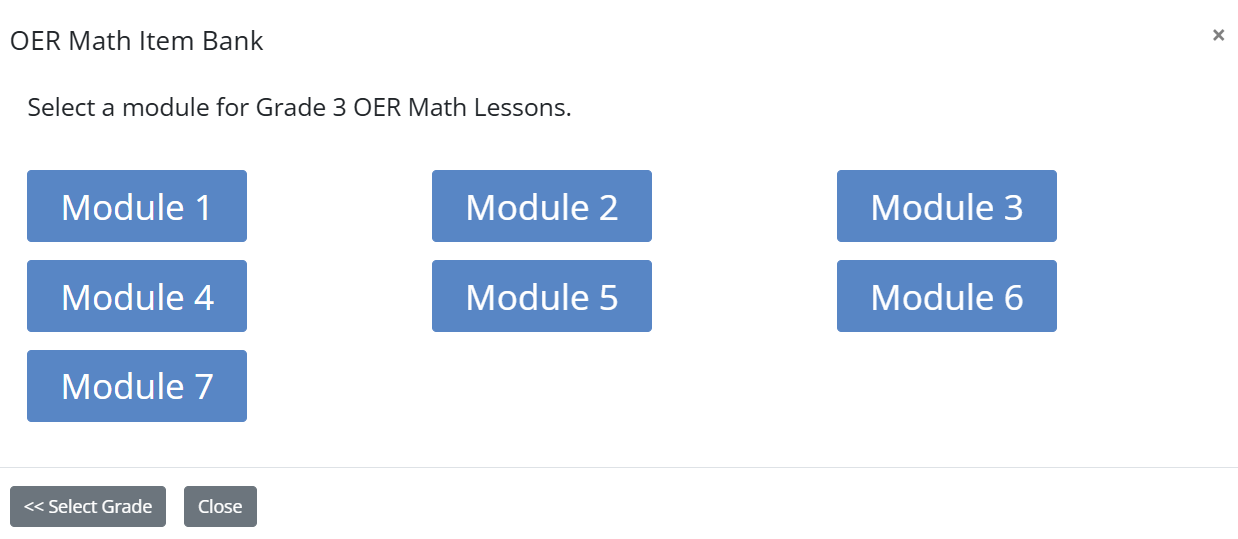
Select the Module from which you’d like to choose questions.
Choose Lessons
Click the Lessons to include when searching for questions.
Use the convenient checkbox for each Topic to select or de-select all the lessons for that Topic.
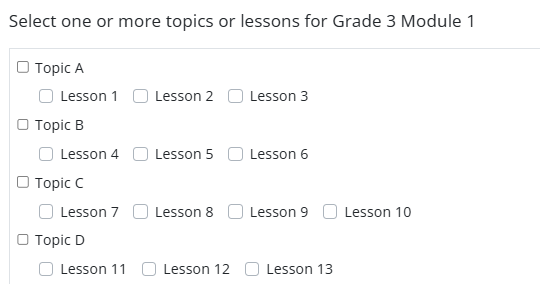
Click Next when you’re ready to proceed.
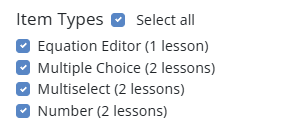
Choose the Question Types to Include
Depending on which lessons you have selected, you’ll see a selection of question types. Check the ones you’d like to add to your activity.
Exclude Already Used Questions
If you’d like to only see questions you have not used before, select In any of my activities. If you’ve already added questions to this activity and want to make sure you don’t see those in this search, choose In current activity.

Choose How to Generate the Questions
You can decide whether to choose a number of questions at random, or to browse through all the questions that met your criteria.

Click the Go! button next to your choice.
If You Chose Random Questions
If you chose to see a number of random questions, the next step in the Wizard shows you the questions selected for you, and lets you request new ones or discard a question altogether.
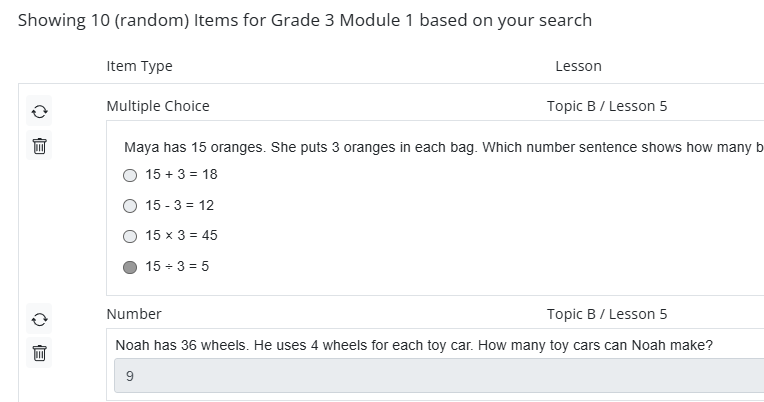
The refresh icon next to each question gets you a new question that matches the question type and Lesson for that question. The trashcan icon removes the question from the list, leaving you with one fewer question than you asked for. You can always go back and add more in the editor.
Once you’ve got the questions you prefer, click Add Selected Items to go to the last step.

If You Chose to See All Questions
If you chose to see all questions that matched your selected Lessons, you can browse through them and check which ones you’d like to add to your activity.
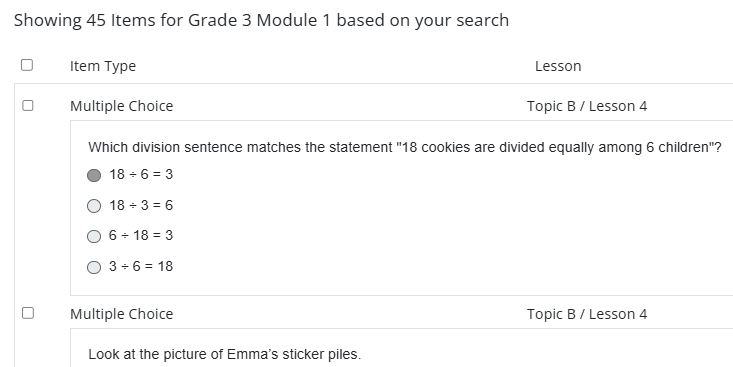
Use the controls at the bottom to move from page to page.

When you’re done, click Add Selected Items to go to the last step.

Choose Layout Options
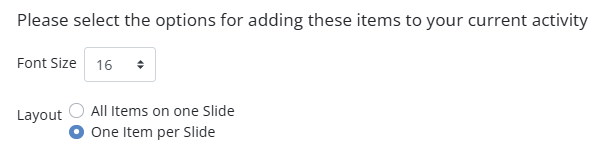
Set the font size for your questions. In the Slide Editor, you can also choose whether to show all the questions on one slide, or one question per slide. In the Flex Editor, each question is its own item, so this step only sets the font size.
Add the Questions to Your Activity
Click the Add Items button and the items are added to your activity.

Preview the Activity
Once the questions have been added, preview the activity using Preview to see an approximation of what your students will see.

Looking good? Then assign it to your students and take a breath. You’ll soon have a detailed digital view of their understanding of the OER lessons.
Was this article helpful?
That’s Great!
Thank you for your feedback
Sorry! We couldn't be helpful
Thank you for your feedback
Feedback sent
We appreciate your effort and will try to fix the article