|
|
How to Import a List of Users |
Import Users Using a CSV File
This article applies to User Administrators only.
Classwork.com User Administrators can import a list of users into their accounts using a CSV file. The import process will:
- Create new accounts as needed
- Add any existing accounts to your subscription
- Remove users from your license if they are not included in the latest import
All newly subscribed users will receive an email welcoming them to your license. It includes the sign-in instructions and a temporary password, so you don't have to do a thing!
Create the CSV File
To import users, construct a CSV file containing all teachers. The required columns, in this exact order, are:
- Last Name
- First Name
- E-mail Address
- Second E-mail
- School (see the section below for important help)
- User Roles (see the list below)
Use the template attached to this article as your starting point.
Important: You must include all users, even those previously imported. Any user not included in the file will lose PRO status and no longer be included in reporting.
School Column
Here are some special notes for filling in the "School" column.
For District Licenses
Classwork.com already has a list of schools in your district and the value you put in this column should match one of the schools in our list. If you receive an error during import that a school was not found for the district, you can check the available names by visiting "User List" then selecting any user. Click the drop down titled "Works at" and you'll see the defined schools? Don't see a school? Contact us at support@classwork.com
School Column (for School Licenses)
If you purchased Classwork.com for your school rather than your district, just leave the "School" column empty.
District Administrators and Other Users
If you have users employed at the district, just leave "School" blank on their rows. They will be assigned to the district.
User Roles Column
For teachers, you can leave this column blank.
To assign a special role to a user, include one of the following values. You can include more than one if you want the user to serve more than one role. Just separate multiple roles with commas.
| user_admin | Can add, edit and remove users from the organization. You have this role if you're importing users. |
| district_admin | Will have district-wide reports. |
| school_admin | Will have school-wide reports. |
| curriculum_author | Can write curriculum that will become available to all teachers in the district. |
| curriculum_reviewer | Texas only - allowed to approve curriculum to satisfy HB1605 HQIM requirements. |
| curriculum_manager | Configure organization-level settings (score bands, school year calendar, activity types) and manage district curriculum with full authoring rights. |
| teacher | If a teacher needs one of the above roles and also all the teacher functionality, include this. Example: curriculum_author, teacher |
Import the User List
Once your CSV file is ready:
- Sign in to Classwork.
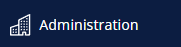
- Click Administration in the main menu.
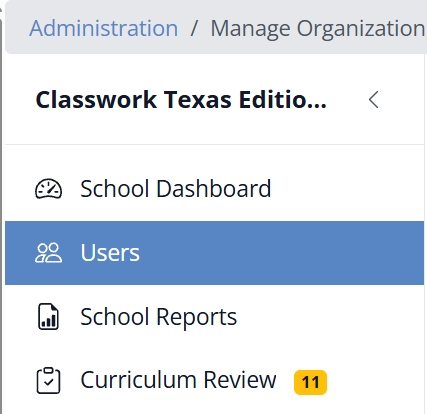
- Click the Users tab.
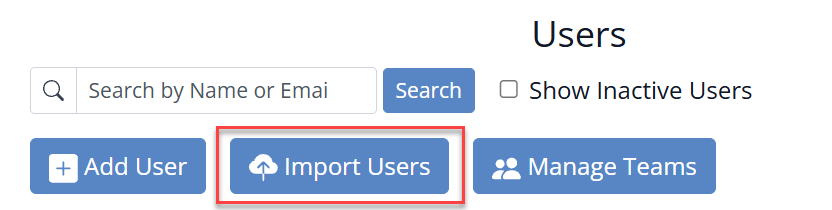
- Click Import Users.
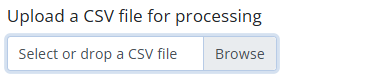
- Click Browse to select your CSV file, or drag and drop it into the upload field.
The system performs a dry run of your import to validate your spreadsheet and provide feedback before making changes.
If your data is valid, you will see a confirmation screen with counters summarizing:
- New users to be created
- Existing users to be modified
- Users to be removed
- Warnings or errors

Review all on-screen messages carefully.
- If everything looks correct, click Import Users.
- If not, modify your CSV file and click Upload a new file.
After the import completes, the screen refreshes and confirms success.
Warnings and Errors
During the dry run, you may see messages like the following:
| Message | Meaning |
|---|---|
| Would cancel personal subscription for... | The user has been paying individually. Their personal subscription will be canceled and refunded for remaining annual time. Monthly subscriptions are not refunded. |
| Removing from license... | The user is currently on your license but not included in the import file. They will be removed. The message includes their last login date for reference. |
| Two different users already exist for... | The user has two existing accounts under separate emails. Both will be added to your subscription. This may exceed your license count. Contact support@classwork.com if you want the accounts merged. |
| License teacher limit exceeded during import. | Your license limit has been exceeded. Contact support@classwork.com. |
If you see any other messages or have questions about your import results, contact support@classwork.com. We are happy to help.
Was this article helpful?
That’s Great!
Thank you for your feedback
Sorry! We couldn't be helpful
Thank you for your feedback
Feedback sent
We appreciate your effort and will try to fix the article