|
|
Microphone Access for Audio Features in Chrome |
Microphone Access for Audio Features in Chrome
The first time a student records audio in Classwork.com, Chrome asks for permission to use the microphone. The student needs to click Allow. This applies to recording an audio answer and to Speech to Text (Dictate in Flex activities), when you’ve turned those on in the assignment’s Student tools.
Allow the microphone the first time
When the student starts recording, Classwork.com waits for the microphone and shows a spinning icon:

At the same moment, Chrome shows a box under the address bar: app.classwork.com wants to use available microphones. Have the student click Allow while visiting the site.

If the student blocked the microphone
If the student clicked Never allow, Chrome won’t ask again, and Classwork.com shows this message:

To turn the microphone back on for Classwork.com:
- Click the 3-dot menu at the top right of Chrome, next to the profile picture.

- Click Settings.

- Click Privacy and security on the left.

- Click Site settings.

- Click app.classwork.com.
- Next to Microphone, change Block to Allow.
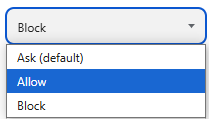
- Close the Settings tab. Chrome saves the change on its own.
- Refresh the assignment (press F5) and try recording again.
Shortcut: on the assignment page, click the icon at the left end of Chrome’s address bar and turn Microphone on, then refresh.
On a school-managed Chromebook, your IT team may control the microphone setting. If the steps above don’t stick, ask them to allow the microphone for app.classwork.com.
Was this article helpful?
That’s Great!
Thank you for your feedback
Sorry! We couldn't be helpful
Thank you for your feedback
Feedback sent
We appreciate your effort and will try to fix the article