|
|
How Do I Split a Slide Into Multiple Slides? |
Split a Slide into Multiple Slides
Classwork makes it easy to convert paper-based materials into digital Activities. If a slide feels too long, you can split it into smaller sections for better screen use.
Open the Split Slide Tool
Step 1: In the Editor, click Slides in the top menu bar, then choose Split Slide Into Parts near the bottom of the dropdown.
 |  |
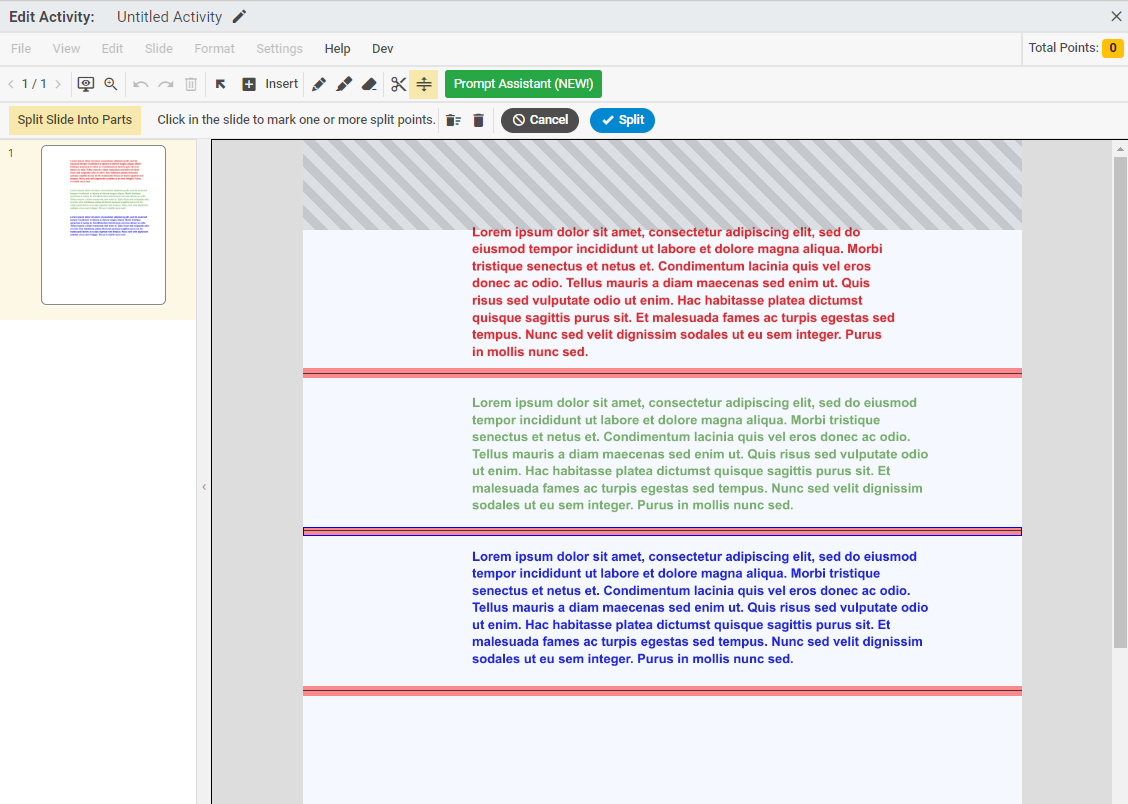
The Slide Splitter toolbar will appear.

Place Split Lines
Click on the slide to place a horizontal line where you want to split it. Click and drag the line to position it exactly where needed.
You can place multiple lines to create multiple slides.
Important:
- The minimum slide height is 100 pixels.
- Crosshatched areas show where lines cannot be placed.
- Existing question types are protected areas and cannot be split through.
Remove a Split Line
To delete a split line, click the line and then click the trash can icon.

Complete the Split
When you're ready, click Split.
Was this article helpful?
That’s Great!
Thank you for your feedback
Sorry! We couldn't be helpful
Thank you for your feedback
Feedback sent
We appreciate your effort and will try to fix the article