|
|
Deleting a Question |
How Do I Delete a Question?
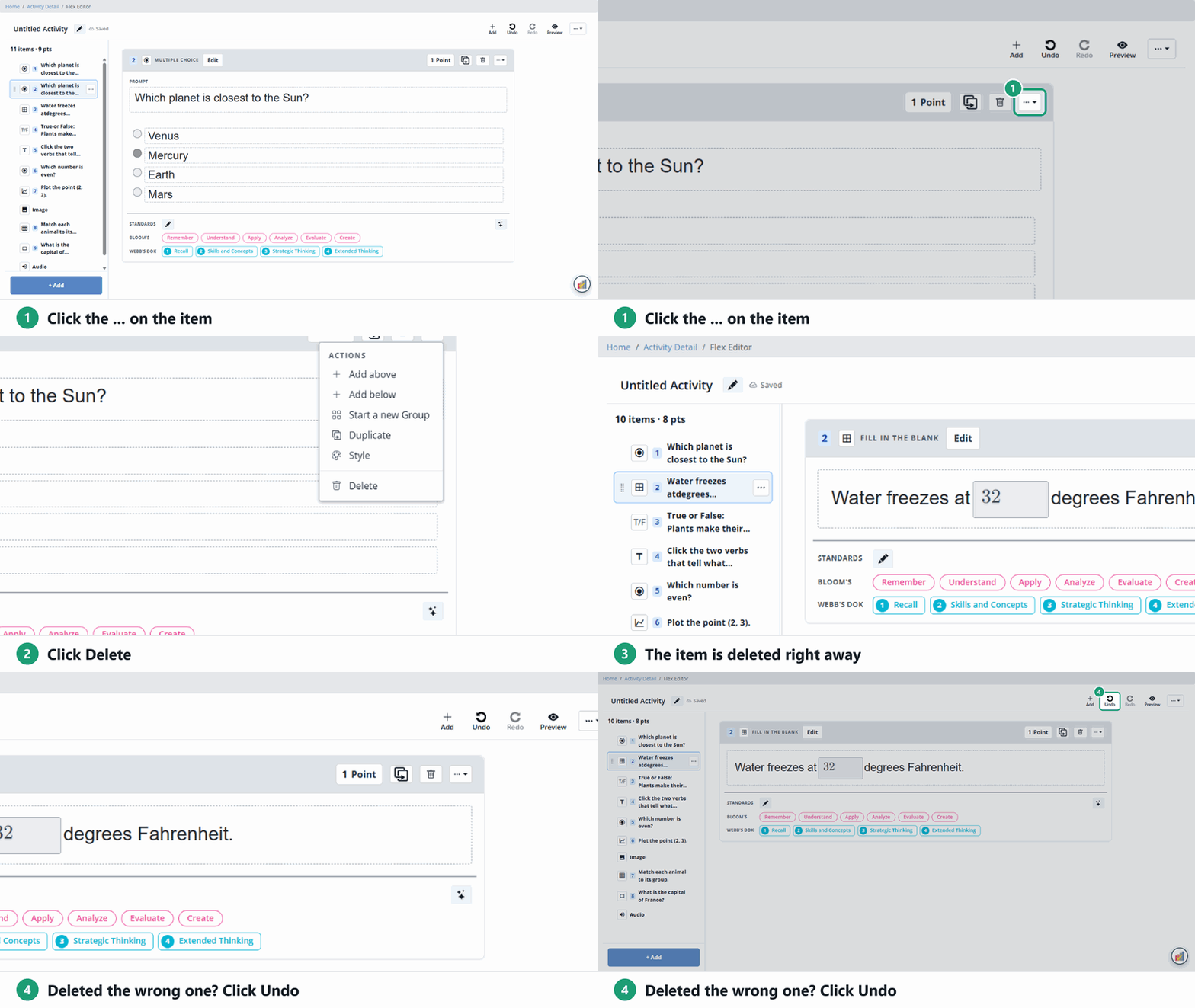
In the Flex Editor, use the trash icon or the … menu on the item. In the Slide Editor, select the question and click the trash icon in the toolbar. The question is deleted right away, without a confirmation, so use Undo if you delete the wrong one. Once an Activity has been assigned, it opens in Answer Key Mode, and you can’t delete questions anymore.
Flex Editor
- Click the … at the top right of the item.
- Click Delete. (Or click the trash icon next to the ….)
- Deleted the wrong one? Click Undo at the top of the editor.
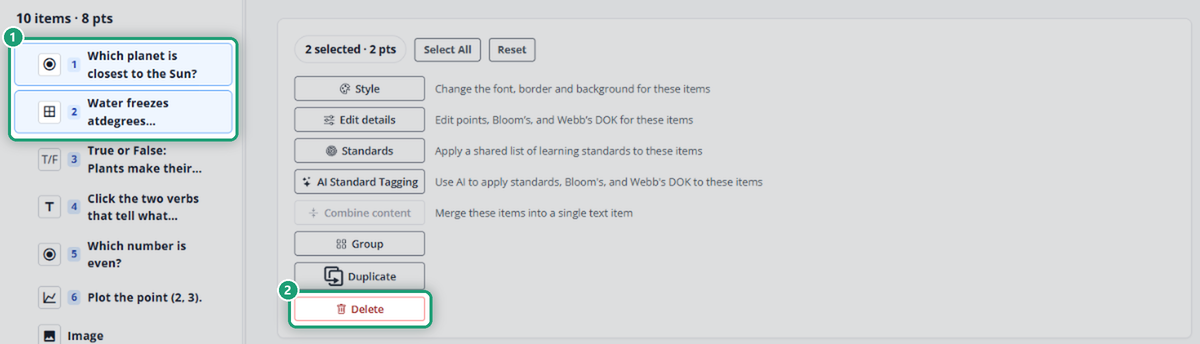
Several at once: in the item list on the left, click the first item, hold Shift and click the last one. Then click Delete in the panel that opens.
Slide Editor
- Click the question on the slide to select it.
- Click the trash icon (Delete) in the toolbar. You can also use Edit → Delete, or press Delete on your keyboard.
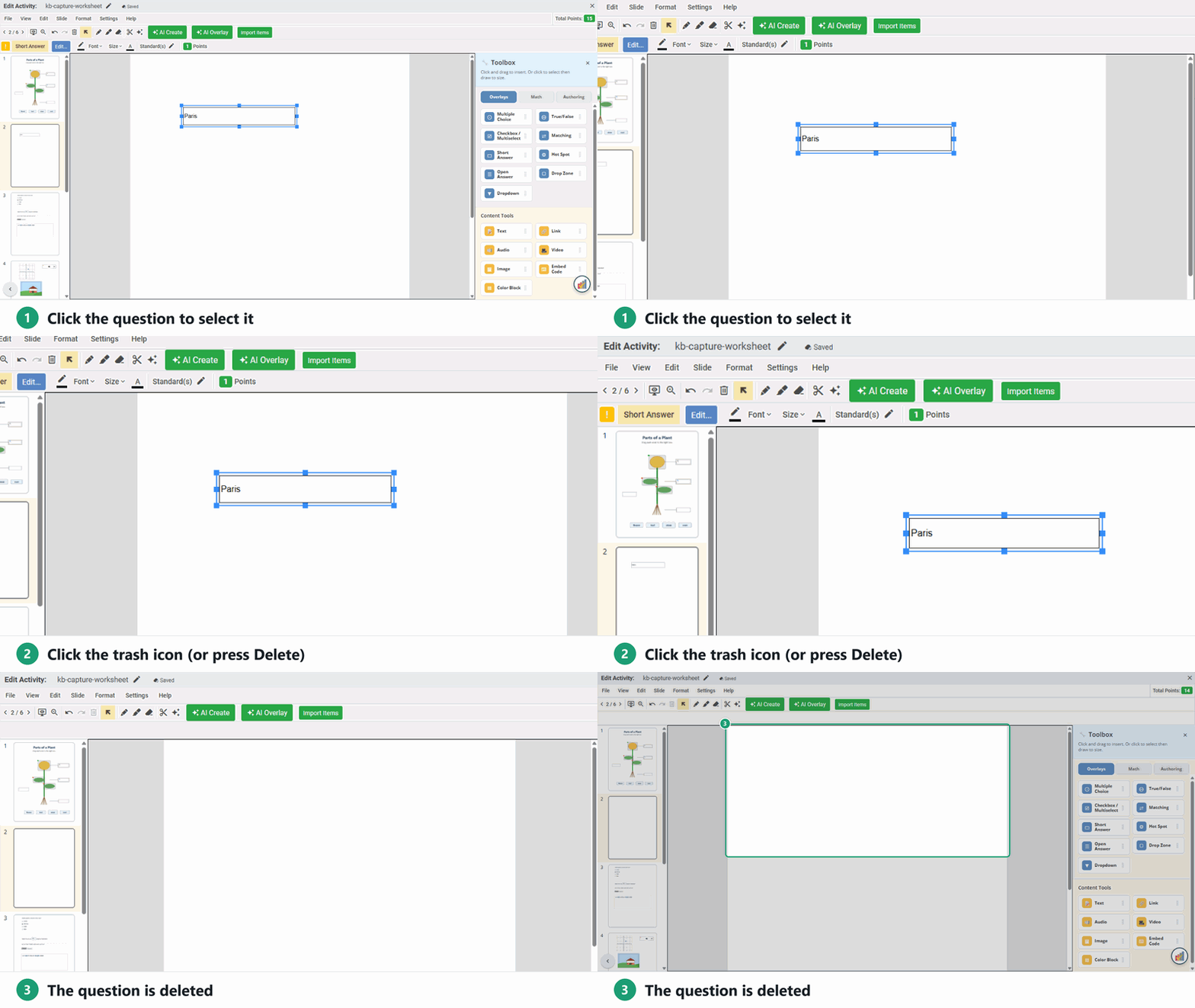
Deleted the wrong thing? Click Undo (Ctrl+Z). To remove a whole slide, use Slide → Delete Slide.
After you assign the Activity
An assigned Activity opens in Answer Key Mode in both editors. You can change correct answers, fix choices and typos, and add teacher content, but you can’t delete questions or add new ones. Students already have them.
Need a different set of questions? Make a copy of the Activity, edit the copy, and assign it.
Was this article helpful?
That’s Great!
Thank you for your feedback
Sorry! We couldn't be helpful
Thank you for your feedback
Feedback sent
We appreciate your effort and will try to fix the article