|
|
Are there Time Management Features in Classwork.com? |
Are There Time Management Features in Classwork.com?
Yes. Classwork provides several time management tools that help you control when assignments open, when they close, when work is due, and how long students can spend working.
You can configure these options during Step 3 of creating an assignment.
The four time management tools available are:
- Open Date
- Close Date
- Due Date
- Time on Task Limit
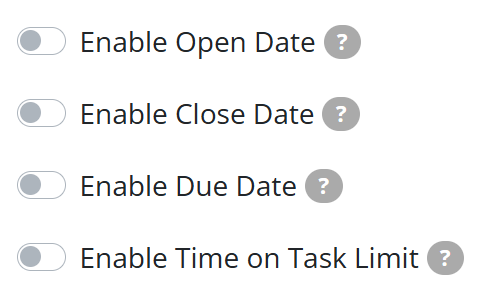
Here is how each option works.
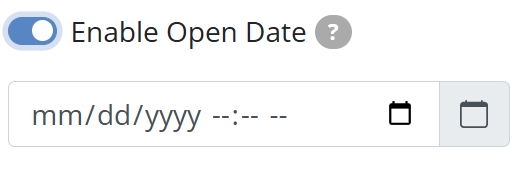
Enable Open Date
The Open Date lets you schedule when an assignment becomes available to students.
If students attempt to open the assignment before the open date, they will see a message telling them when the assignment will become available.
This is useful when you want to:
- Schedule assignments in advance
- Control when tests begin
- Prepare assignments for substitute teachers
Enable Close Date
The Close Date determines when an assignment becomes unavailable.
After the close date passes, students cannot open the assignment.
If a student is actively working when the close time occurs, their work is automatically saved and they will see a notification.

This feature is helpful for:
- Ending tests at the end of a class period
- Automatically closing homework submissions
- Preventing late access to assessments
Using Open and Close Dates Together
Open and close dates can be used together or independently.
For example:
- You can set an Open Date without a close date.
- You can set a Close Date without an open date.
- You can schedule both to define a specific availability window.
Both settings can be edited after the assignment has been created.
These dates only apply inside Classwork. They do not change any availability settings in your LMS.
Enable a Due Date
The Due Date marks student submissions as late but does not block access to the assignment.
Students can still submit work after the due date. When they do, the submission will be marked as late in the assignment review screen.

This helps teachers track late work while still allowing students to complete the assignment.
Like open and close dates, due dates only apply within Classwork and do not affect LMS due date settings.
Enable a Time on Task Limit
The Time on Task Limit lets you set a timer for the assignment.
The timer starts when the student opens the assignment and continues running even if the student leaves the page.
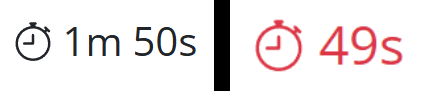
The timer appears in the top right corner of the student's screen.
- When less than one minute remains, the timer turns red.
- When time expires, the assignment is automatically submitted.
If you reset or reopen a student's submission, the timer restarts for that student.
Was this article helpful?
That’s Great!
Thank you for your feedback
Sorry! We couldn't be helpful
Thank you for your feedback
Feedback sent
We appreciate your effort and will try to fix the article