|
|
How Do I Import or Paste Content with AI Create? |
How Do I Import or Paste Content with AI Create?
AI Create is a set of tools in the activity editor. When you open the AI Create menu, you can Use AI to Make Content (generate passages and questions from a prompt), Upload a File, Create Questions from Standards, or Import or Paste Content. This article covers Import or Paste Content: turning text you wrote in an outside AI chat tool into interactive, autograded questions.
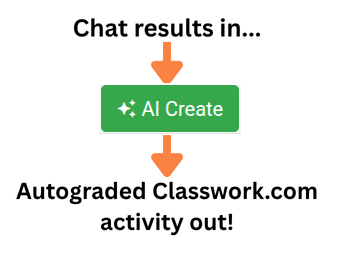
Do you use ChatGPT, Claude, Gemini, LLaMA, Grok, or another AI tool to write materials for your classes? If so, Classwork.com’s AI Create can instantly convert the results of your chat sessions into interactive activities to give to your students. Use your chat tool to create text with questions, then paste it into Classwork.com’s AI Create tool. The tool processes your chat results, finds all the questions within the text, and automatically creates interactive, autograded Classwork questions in your activity. It will even set the answer key for you. You can create an interactive, instructionally robust activity in seconds.
Start Import or Paste Content
Import or Paste Content appears in Classwork’s activity editor, so your first step is to create a new activity. Because AI Create generates a new slide every time you convert your chat results, select Slide View for your activity. You probably want to start with a blank activity, rather than uploading a background. (See Creating an Activity for more help.)
To start, click the AI Create button in the editor.

A menu of content options appears. Select Import or Paste Content.

A dialog box appears. Copy and paste your chat results into the large text box.

PRO TIP: Many chat tools provide a convenient Copy button that may look something like this:

Set the point value per question, font, and font size as you wish.

Then click the Go! button:

The system processes the input for a few seconds (magic takes time!) then inserts a new slide into your activity. The questions are included with their answer keys already set.

PRO TIP: If you’d like questions to be on individual slides, copy and paste each question one at a time. Classwork inserts a new slide every time you use AI Create.
How to Prompt Your Chat Tool
Each chat tool works a little differently, but in general, tell the tool what you intend to teach, then ask it for specific types of questions.
For instance, the quiz above was generated with this prompt to ChatGPT:
I teach tenth grade physics. I need a quick quiz about the first law of thermodynamics. Generate two multiple choice questions with a single correct answer, two multiple choice with two answers each marked with asterisks, two fill-in-the-blank questions, one numeric answer, and an essay question.
It helps to begin by telling the chat bot what you’re teaching, both subject and grade level. That helps the bot generate questions with the appropriate reading and complexity level.
PRO TIP: Chat bots these days can interpret requests that include specifications about Bloom’s Taxonomy and Webb’s Depth of Knowledge. You can try adding guidance to your prompts to achieve those levels of rigor.
It’s important to tell your chat tool which types of questions you wish to generate and how many of each. The AI Create Tool will create the following question types:
| Classwork.com Question Type | How to Write Prompt |
|---|---|
| Multiple Choice | “Multiple Choice with a single answer.” Some chat tools will generate Multiselect/Checkbox questions if you don’t specify “with a single answer.” Note: Classwork will read the question and attempt to identify the correct answer for you. You can always override the system’s interpretation by changing the correct answer after the import. |
| Multiselect / Checkbox | “Multiple choice with more than one correct answer.” It’s better to specify the number of correct answers. You can also ask the bot to mark correct answers with asterisks. |
| Short Answer | “Fill in the blank.” Classwork will do its best to create the correct answer during the import. |
| Number | Any time Classwork recognizes a question that can best be answered with a number, it will create a Number question type. The Number question is more mathematically friendly than the Short Answer type. |
| Algebraic Expression | As with the Number type, Classwork automatically recognizes complex algebraic expressions and creates the appropriate question type. Classwork will handle LaTeX coding (a standard for rich formatting) in both text and questions. |
| Open Answer | “Essay question.” |
Check Your Work
SUPER PRO TIP: Do not trust AI to get everything right.
Chat tools represent the cutting edge of current Artificial Intelligence technology. They unquestionably have flaws:
- They may generate language that is misleading.
- They may invent factual information that has no basis in reality.
- They may generate repetitive content, such as questions with two answers meaning the same thing.
- and so on.
ALWAYS CHECK YOUR WORK BEFORE GIVING IT TO STUDENTS. Classwork’s preview feature lets you see the activity as a student would and test the scoring and correctness of the generated questions.
Related Articles
- Creating an Activity (all the ways to start an activity, including the other AI Create options)
Was this article helpful?
That’s Great!
Thank you for your feedback
Sorry! We couldn't be helpful
Thank you for your feedback
Feedback sent
We appreciate your effort and will try to fix the article