|
|
Changing Point Values for All Questions At Once |
Changing Point Values for All Questions at Once
Yes. Set a default point value for the questions you add, and in the Slide Editor you can also change every question that’s already there in one step.
Flex Editor
Set the points for new questions
- Click the … menu at the top right.
- Click Set Default Point Value, type the points and click Save.
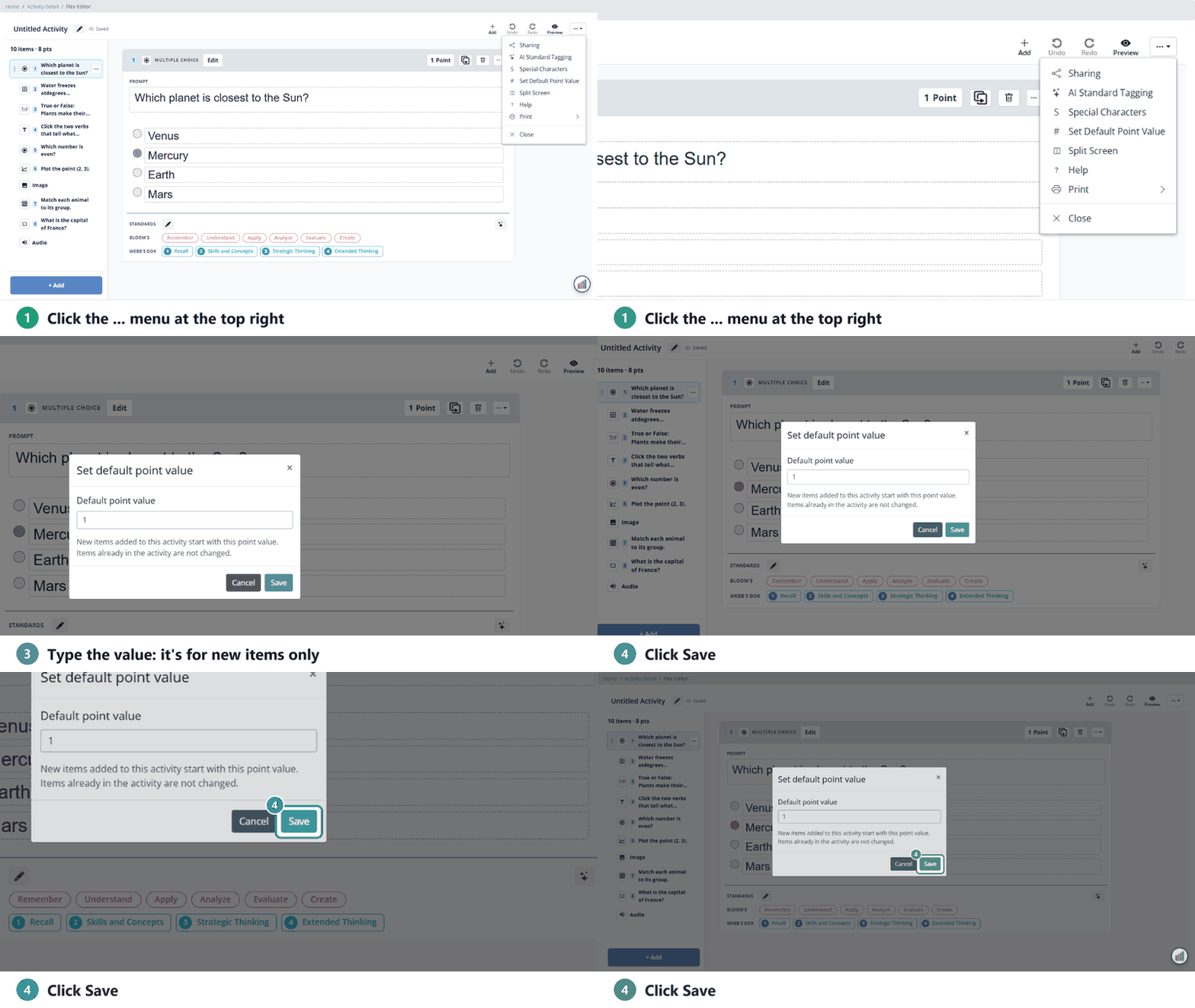
Every question you add from now on gets that value. Questions already in the Activity keep their points.
Change questions that are already there
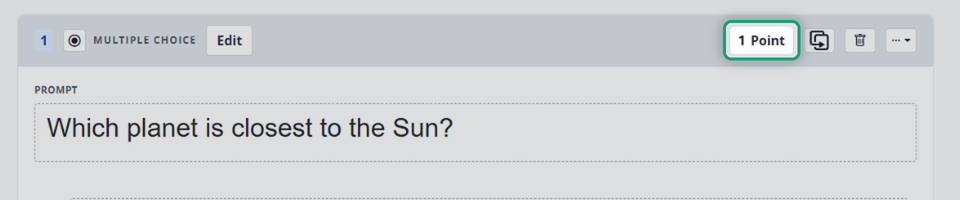
Click the points at the top of a question (for example, 1 Point) and type the new value.
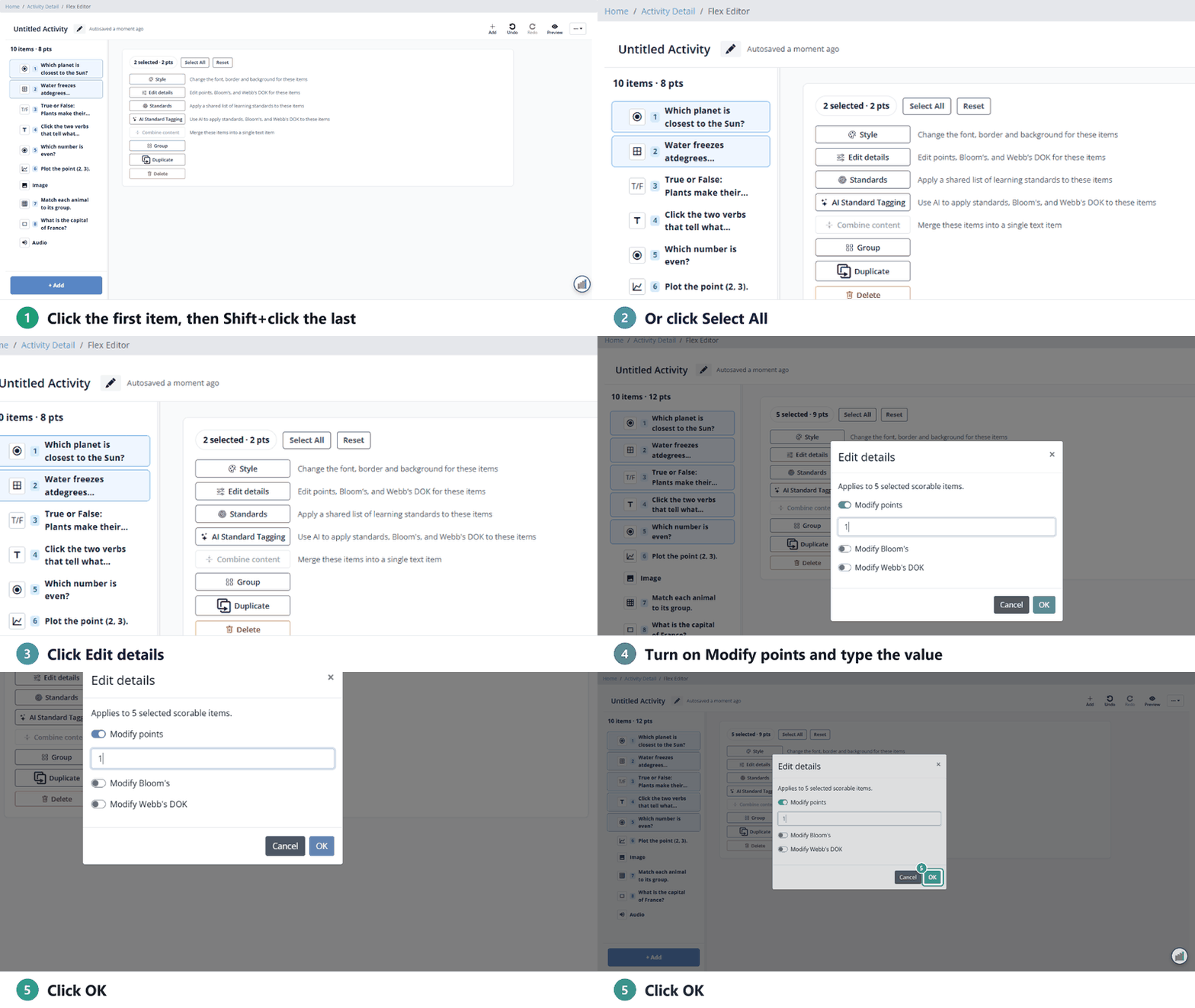
To change several at once, click the first question in the item list, hold Shift and click the last (or click Select All in the panel that opens). Click Edit details, turn on Modify points, type the value and click OK.
Slide Editor
Change every question that’s already there
- Click Settings in the menu bar and point to Update All Scores.
- Pick 1 to 10 points, or Do Not Score.
- A Confirm Score Changes window says how many items will change. Click Change Scores.
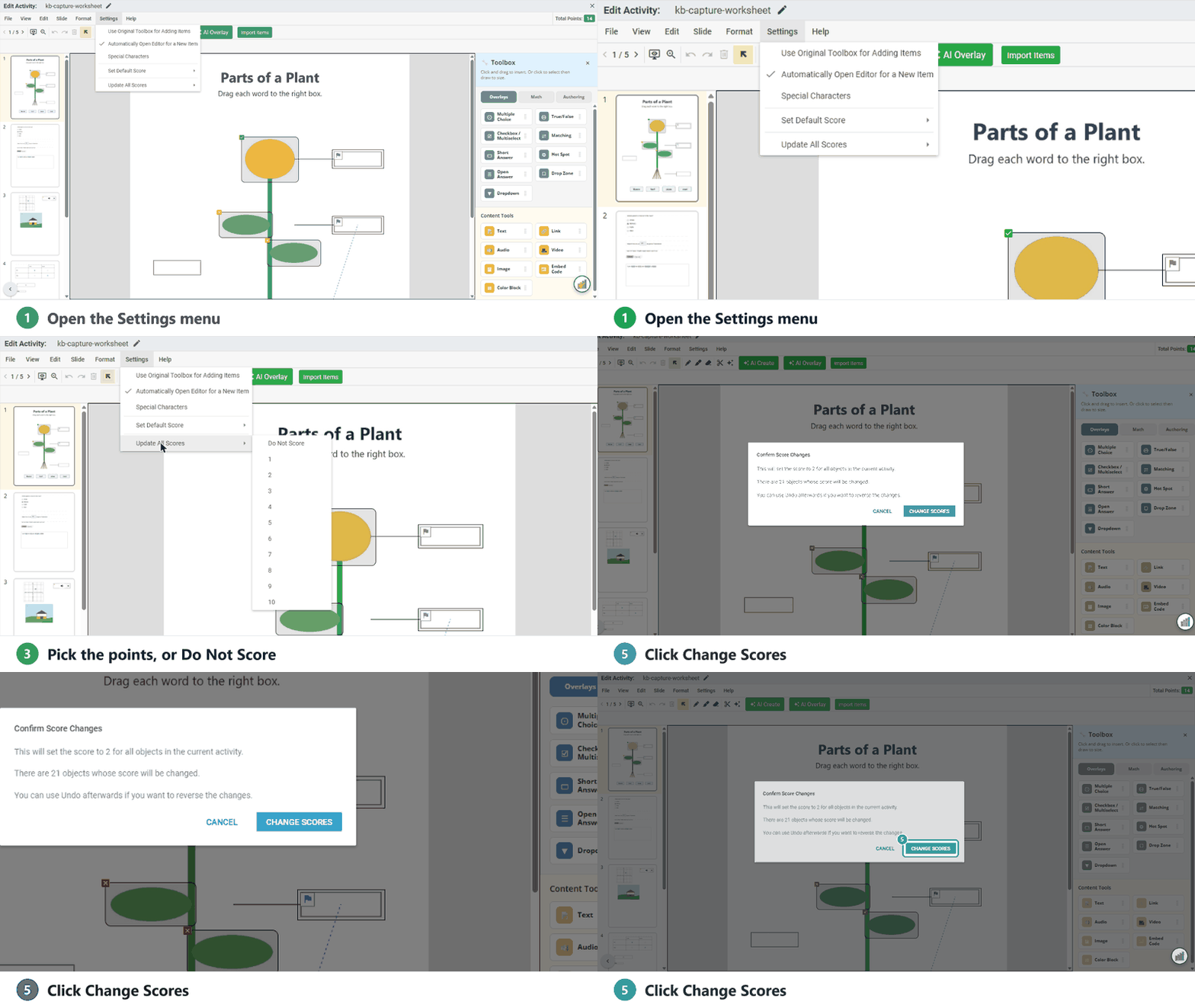
Changed your mind? Click Undo to put the old scores back. For more than 10 points, change questions one at a time: select the question and click the green number next to Points.
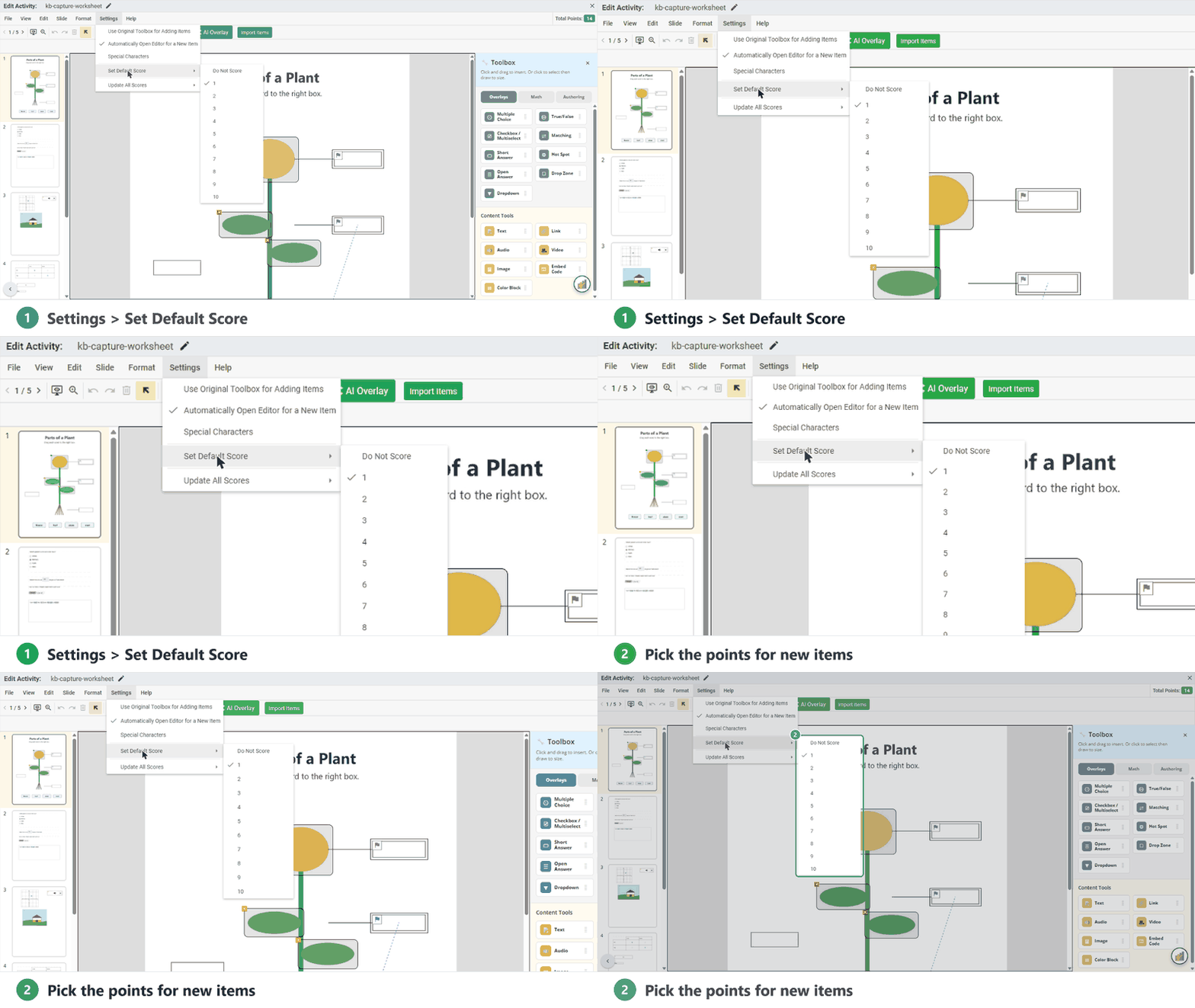
Set the points for new questions
Click Settings, point to Set Default Score, and choose 1 to 10 or Do Not Score. Update All Scores doesn’t change the default, so set both if you’ll keep adding questions.
More help
Was this article helpful?
That’s Great!
Thank you for your feedback
Sorry! We couldn't be helpful
Thank you for your feedback
Feedback sent
We appreciate your effort and will try to fix the article