|
|
Uploading Directly From Google Drive |
Import a File from Google Drive
You can bring Google Docs, Google Slides and other files straight from Google Drive into Classwork.com, with no need to download them or save them as a PDF first. Click + New File on the Activities page, choose Import Document, then click Google Drive.
Import a Drive file (Slide Editor)
Import Document keeps your file’s layout as the slide background, and you draw answer boxes on top in the Slide Editor.
- On the Activities page, click + New File.
- Click Import Document.
- Click Google Drive.
- If Google asks, sign in and allow Classwork.com to see the file you pick.
- Find the file in your Drive and select it.
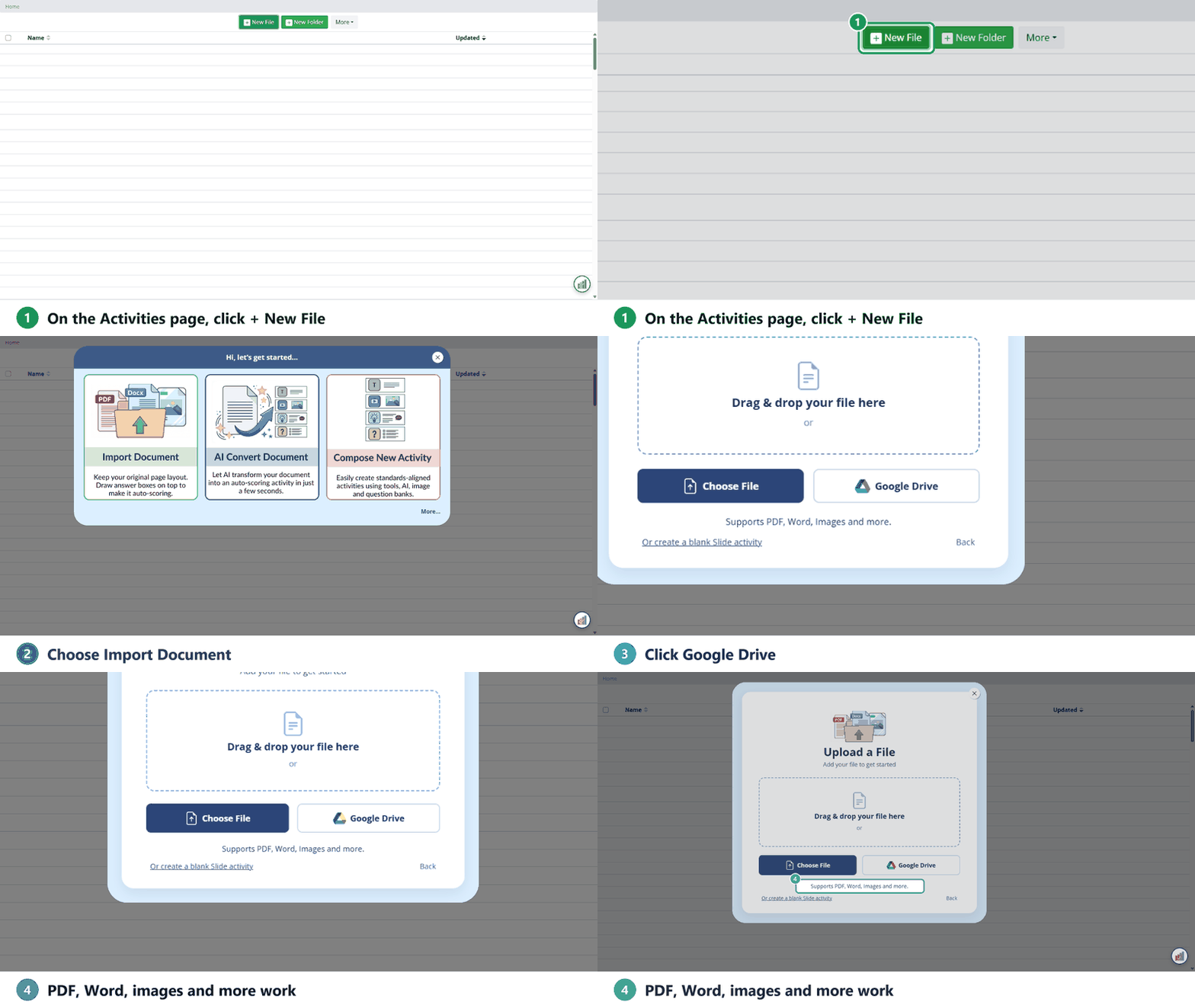
The window says it supports PDF, Word, images and more, so Google Docs, Google Slides, PDFs, Word files and pictures in your Drive all work.
Choose your pages
- In Confirm your selection below, every page is checked to start. Uncheck any page you don’t want, or use Select All.
- To put the selected pages on one slide, check Combine selected pages into a single slide.
- Click Submit.
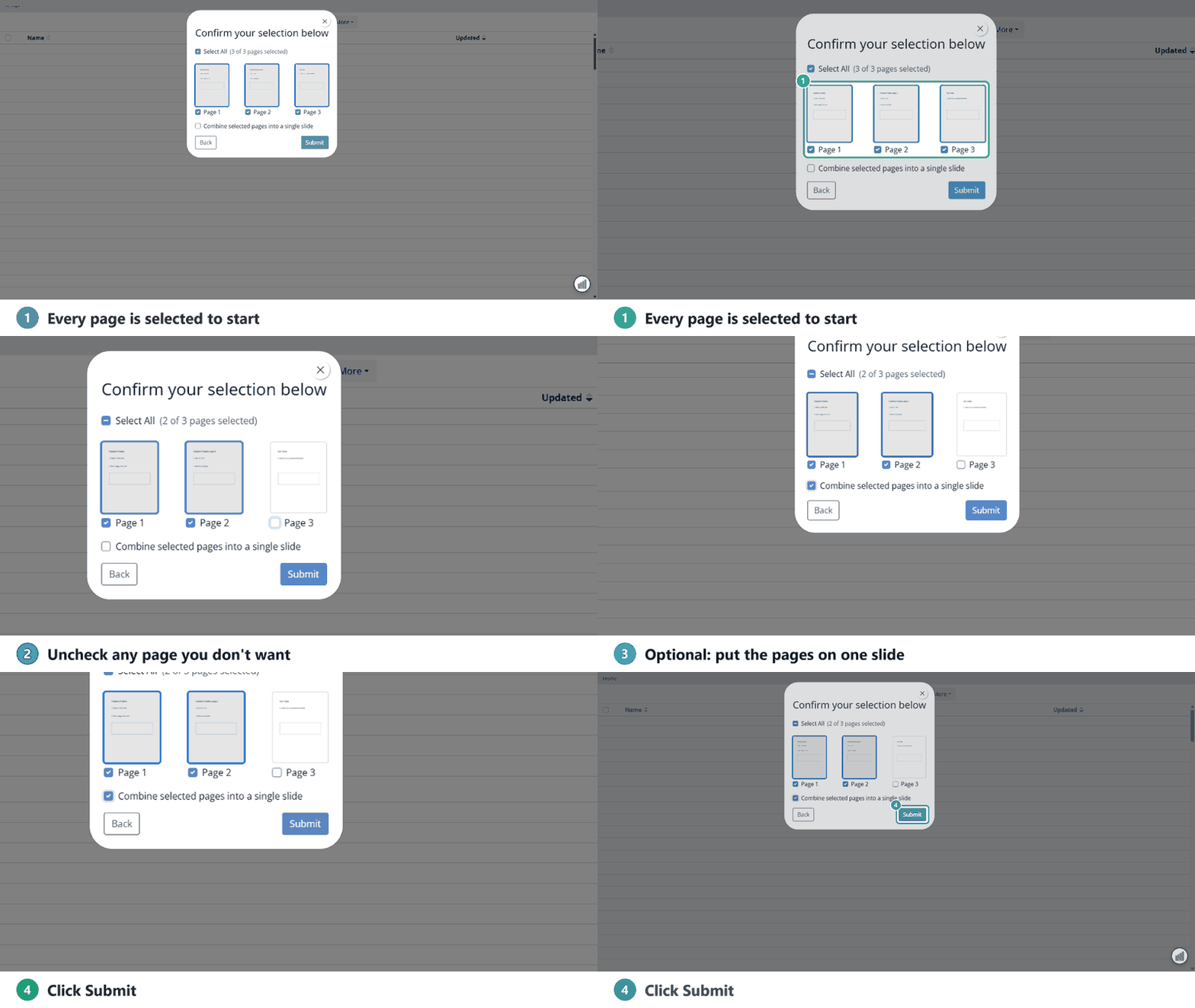
The Activity opens in the Slide Editor, ready for you to add questions.
Turn a Drive file into a Flex activity
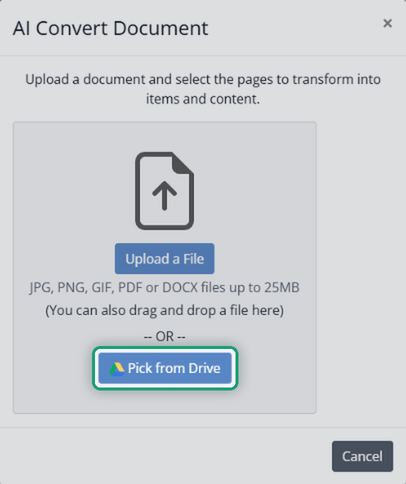
On a school or district license, AI Convert Document turns a document into an auto-scoring Flex activity. Click + New File → AI Convert Document → Continue with AI Convert, then click Pick from Drive and choose the file.
AI Convert pulls the questions and content already in your document into a scrolling Flex activity. It doesn’t keep the page layout or write new questions; to keep the original look, use Import Document instead.
Was this article helpful?
That’s Great!
Thank you for your feedback
Sorry! We couldn't be helpful
Thank you for your feedback
Feedback sent
We appreciate your effort and will try to fix the article