|
|
Can I Randomize Questions or Create Different Versions of the Same Test? |
Can I Randomize Questions or Create Different Versions of the Same Test?
Not automatically. Classwork.com can’t shuffle questions for each student or build test versions for you. You can make a second version of a test in a couple of minutes, though: copy the Activity, then reorder or change its questions and answer choices.
Mix up the answer choices
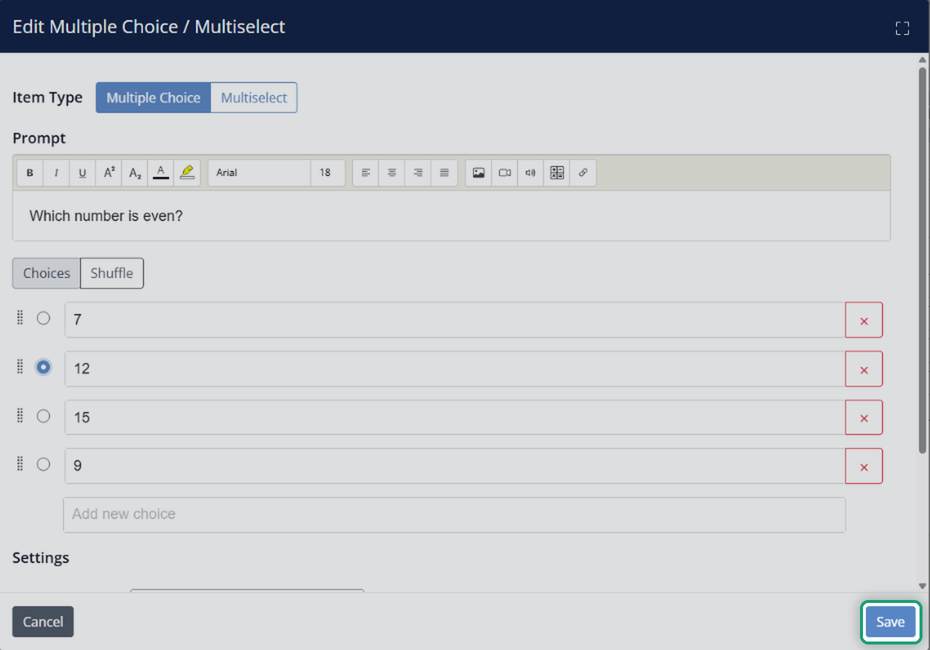
There’s no per-student shuffle: every student sees the choices in the same order. But you can quickly change the order of the choices in your copy, so Version B doesn’t match Version A:
- Flex Editor: in a Multiple Choice item’s edit window, click Shuffle. Each click mixes up the choices again.
- Slide Editor: a Dropdown has Shuffle Order, and Multiple Choice / Multiselect on the Tool Box Authoring tab has Shuffle.
Step 1: Copy the Activity
- On the Activities page, check the box next to the Activity.
- In the Activity Menu above the list, click Copy.
- Rename the copy (for example, add “Version B”). To put it in a folder, click Expand next to Home and pick one.
- Click Copy Activity.

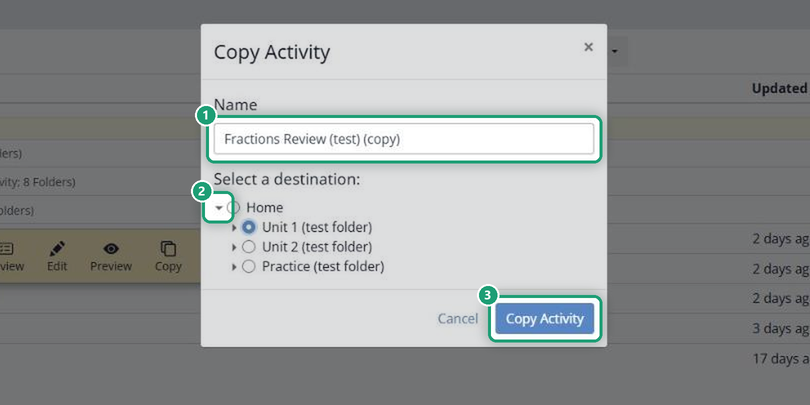
You can also copy from the Activity’s own page: click Activity Actions (the three dots) and choose Make a Copy. The copy is a separate Activity, so changes to it don’t affect the original or its Assignments. More in Copy - Activity Menu.
Step 2: Reorder or change the questions
Open the copy and click Edit Content.
Flex Editor
- In the item list on the left, click the … on the item you want to move.
- Click Move up, Move down, Move to top or Move to bottom. You can also drag an item by its handle.
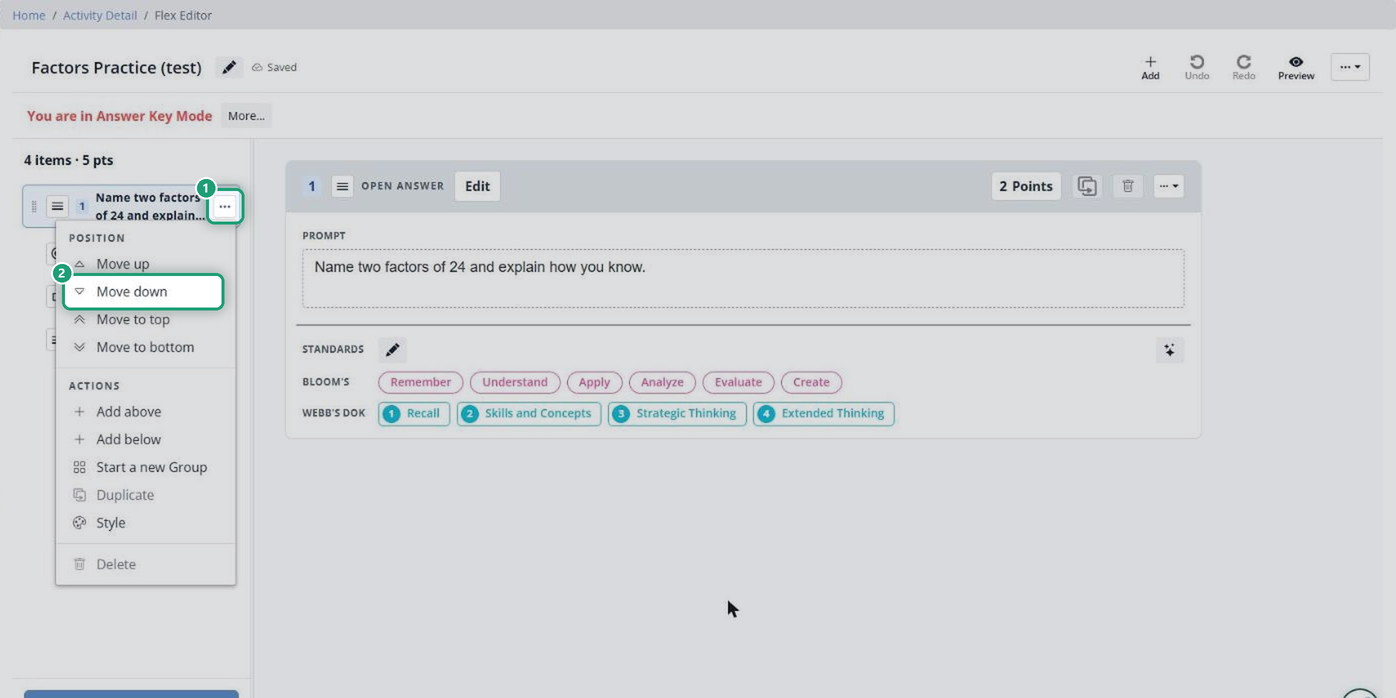
The item numbers update right away.
Slide Editor
- Click the slide’s thumbnail on the left.
- Open the Slide menu at the top and click Move Slide Up, Move Slide Down, Move Slide to Beginning or Move Slide to End.
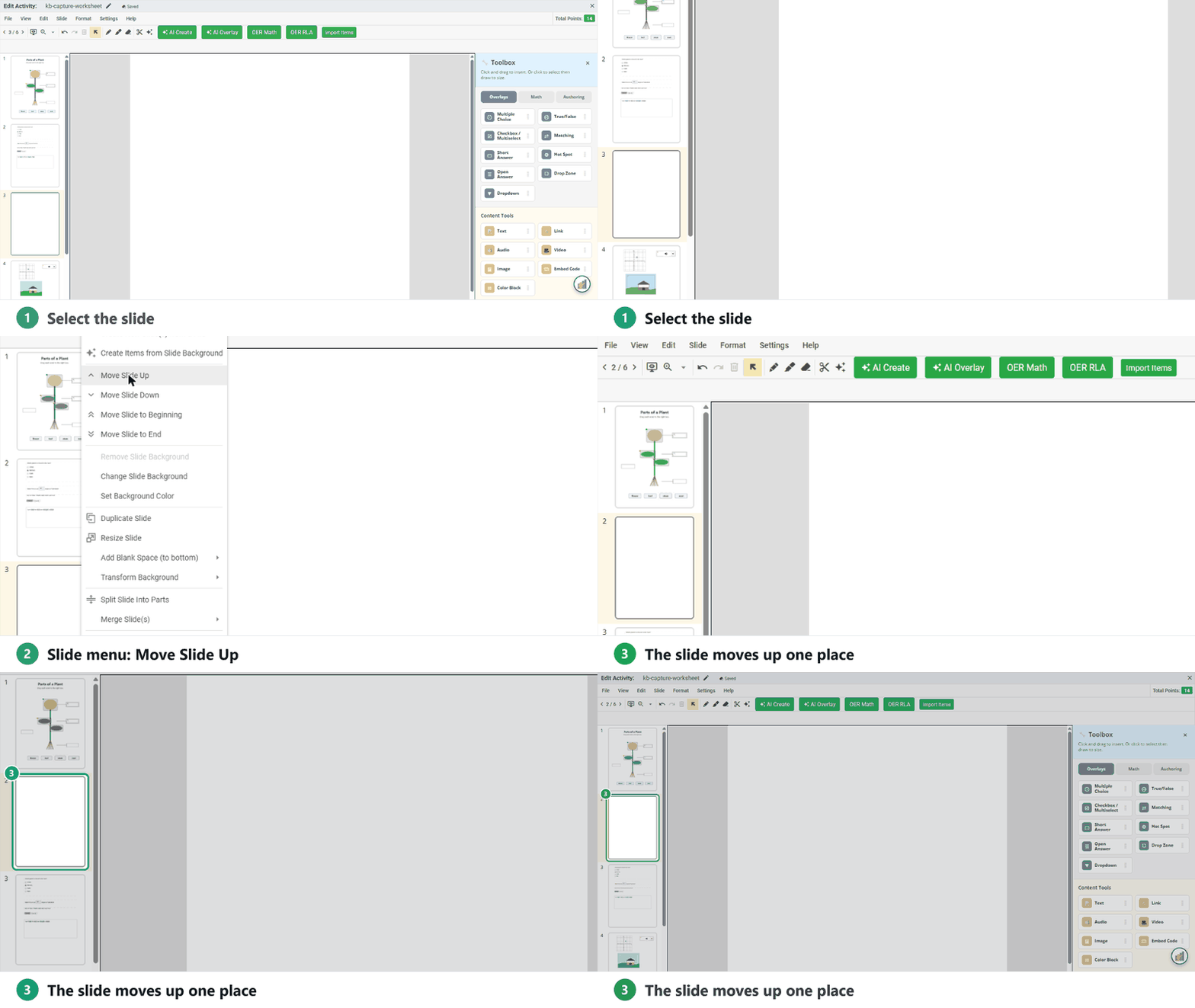
Questions on a slide move with it. You can also swap in different questions, change numbers in a problem, or reorder the answer choices to make the versions less alike.
Step 3: Assign each version
Assign each version on its own, for example Version A to one class or group and Version B to another. See Assign - Activity Menu.
Want built-in question randomizing or test versions? Tell us at support@classwork.com. Your feedback shapes what we build next.
Was this article helpful?
That’s Great!
Thank you for your feedback
Sorry! We couldn't be helpful
Thank you for your feedback
Feedback sent
We appreciate your effort and will try to fix the article