|
|
How Do I Use the Read Aloud (Text-to-Speech) Tool? |
How Do I Use the Read Aloud (Text-to-Speech) Tool?
The Read Aloud (Text-to-Speech) student tool reads the text in an activity out loud, so students can hear questions, answer choices and passages while they work.
It can help students who benefit from hearing written text while reading. It works similarly to accessibility tools like Read & Write or the JAWS Screen Reader.
How students use it depends on the activity type. In a Flex activity, students click any text to hear it in a natural-sounding voice. In a Slide activity, students select an area of the page, and each word is highlighted as it is read. In both, students can choose a voice and a reading speed.
Enable Read Aloud
The Read Aloud tool is enabled during the assignment creation process.
When creating or editing an assignment, go to the assignment settings and enable the Read Aloud option.

You can also enable Read Aloud for an existing assignment by opening the Activity Detail page and selecting Edit Assignment from the three-dot menu next to the assignment.
What Students See in a Flex Activity
When Read Aloud is on, students see Read Aloud at the top right of the activity. When they click it, a small bar opens that says Click any text to hear it.
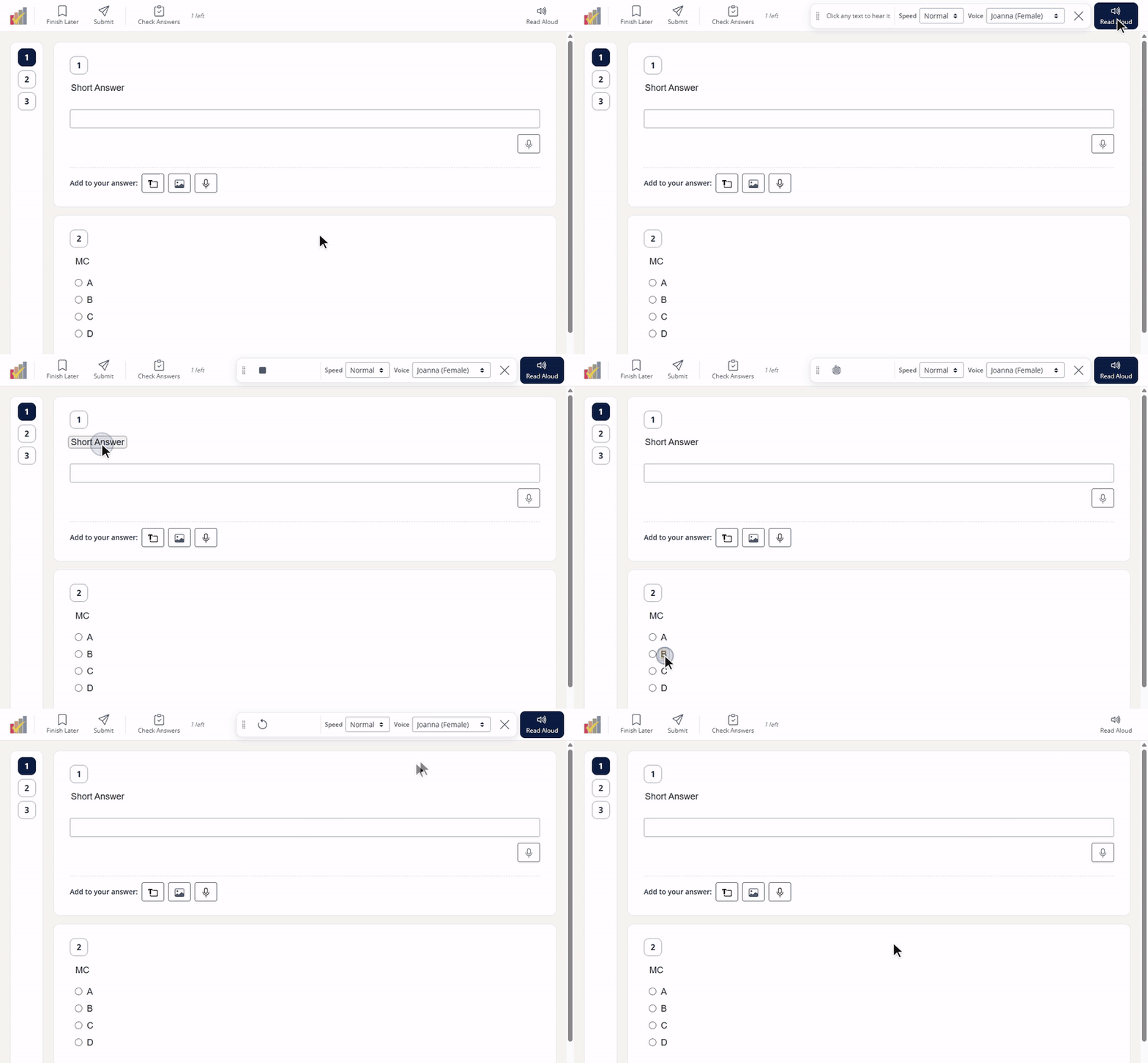
Students click any text on the page, such as the question or an answer choice, and hear it read in a natural-sounding voice. While Read Aloud is on, clicking an answer choice reads it instead of selecting it.
From the bar, students can:
- Choose a Speed: Slowest, Slow, Normal or Fast.
- Choose a Voice: Automatic (the default), the English voices Joanna (Female) and Gregory (Male), or the Spanish voices Lupe (Español) and Pedro (Español).
- Click Read it again to replay the last text.
- Drag the bar to move it out of the way.
- Click the X to turn Read Aloud off, so clicks select answers again.
As the text is read, it’s outlined and highlighted in yellow so students can follow along.
Hear it in Spanish
Students can pick a Spanish voice, Lupe or Pedro, from the Voice menu. Then whatever they click is read aloud in Spanish, even if the Activity is written in English. The words on the screen stay in English; only what students hear is in Spanish.
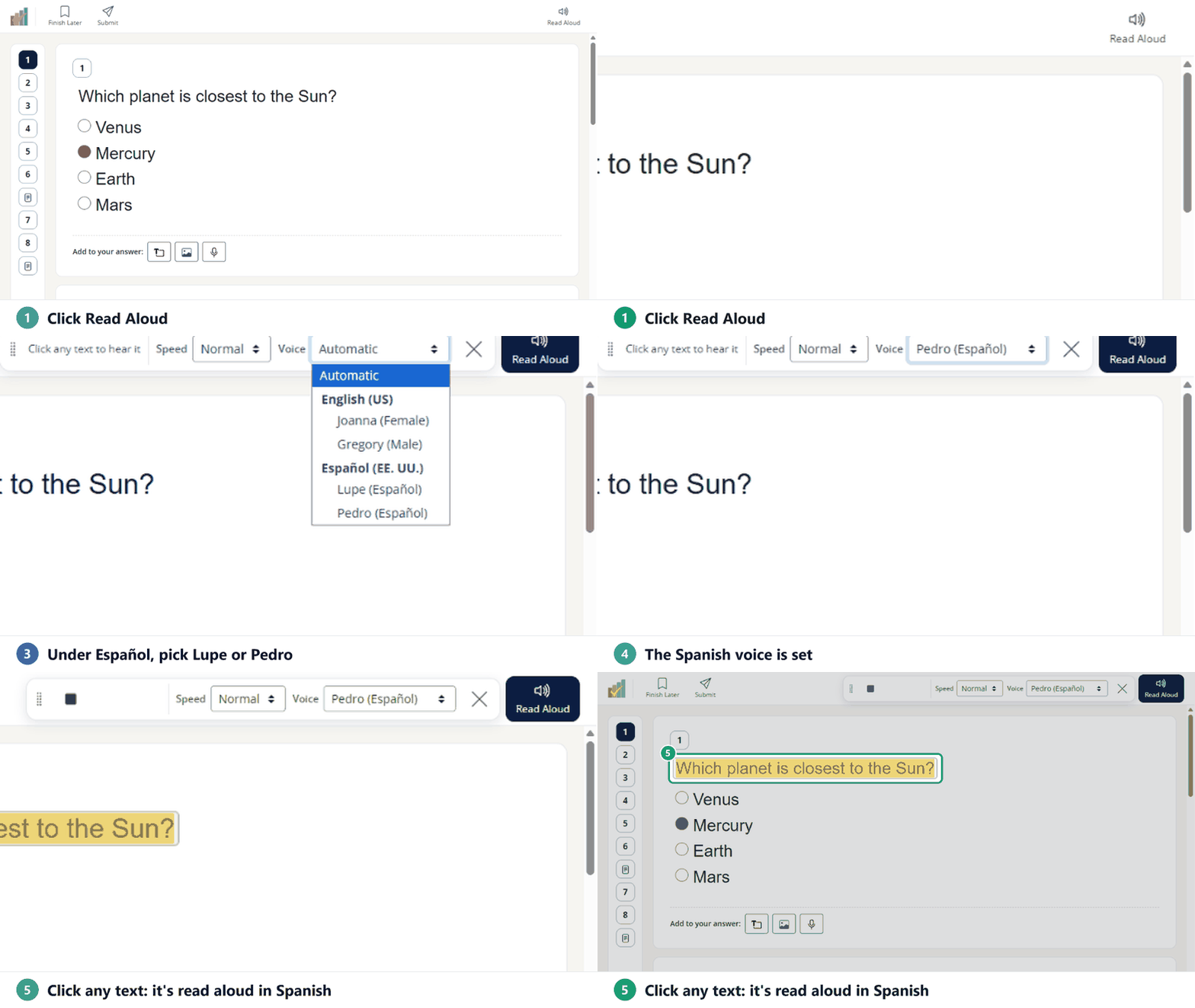
Spanish voices highlight the whole line at once; English voices highlight one word at a time. The Spanish voices work in Slide activities too.
What Students See in a Slide Activity
When Read Aloud is enabled, students will see a new tool icon in their assignment toolbar.

Clicking the icon opens the Read Aloud panel. The cursor will change to crosshairs so the student can select the text they want to hear.
The student should click and drag to highlight the area of text.

After releasing the mouse, Classwork extracts the text and begins reading it aloud.
If the reading does not capture the text correctly, the student should draw a slightly larger selection box so that the full characters are included.
The Read Aloud tool uses optical character recognition (OCR), so results may vary depending on the clarity of the uploaded image or background.
Students can pick a Spanish voice in the panel too, and English text is read aloud in Spanish.

Reading Teacher Text (Slide)
In a Slide activity, students can also use Read Aloud with Teacher Text blocks.
To do this, the student simply highlights the text they want to hear and then clicks the Read Aloud icon. The selected text will appear in the Read Aloud panel and begin playing.
Audio Controls (Slide)
As the text is read, each word is highlighted so students can follow along.
Students can control playback using the audio controls in the Read Aloud panel.
They can:
- Pause and resume playback
- Change the reading voice
- Adjust the playback speed
The selected voice and speed remain active while the assignment is open, but reset between sessions.
The Read Aloud Panel (Slide)
The Read Aloud panel can be moved by dragging the title bar.
Students can also expand the panel using the expand button to make the text easier to read.
When finished, students may close the panel or simply select another area of text to continue listening.
Why Use Read Aloud?
The Read Aloud tool helps support students who benefit from hearing written text. It can improve accessibility and reduce the need for teachers to record audio versions of assignments.
Was this article helpful?
That’s Great!
Thank you for your feedback
Sorry! We couldn't be helpful
Thank you for your feedback
Feedback sent
We appreciate your effort and will try to fix the article