|
|
How Do I Use Notifications? |
How Do I Use Notifications?
Applies to: Flex Editor & Slide Editor
Think of Notifications as your submissions inbox. Each time a student turns in an Assignment you gave them, it shows up here, and the green number next to Notifications in the left menu goes up. It’s your signal that there’s work to review.
The fastest way to review new work
- Click Notifications in the left menu.
- Click Unread by Date.
- Check the boxes next to the submissions you want to review (or the box at the top to select them all).
- Click Review in the upper right. The first one opens.
- Use the arrow next to the student’s name to go to the next one.
- Click Close when you’re done to go back to Notifications.
- Check the ones you reviewed and click Mark as read.
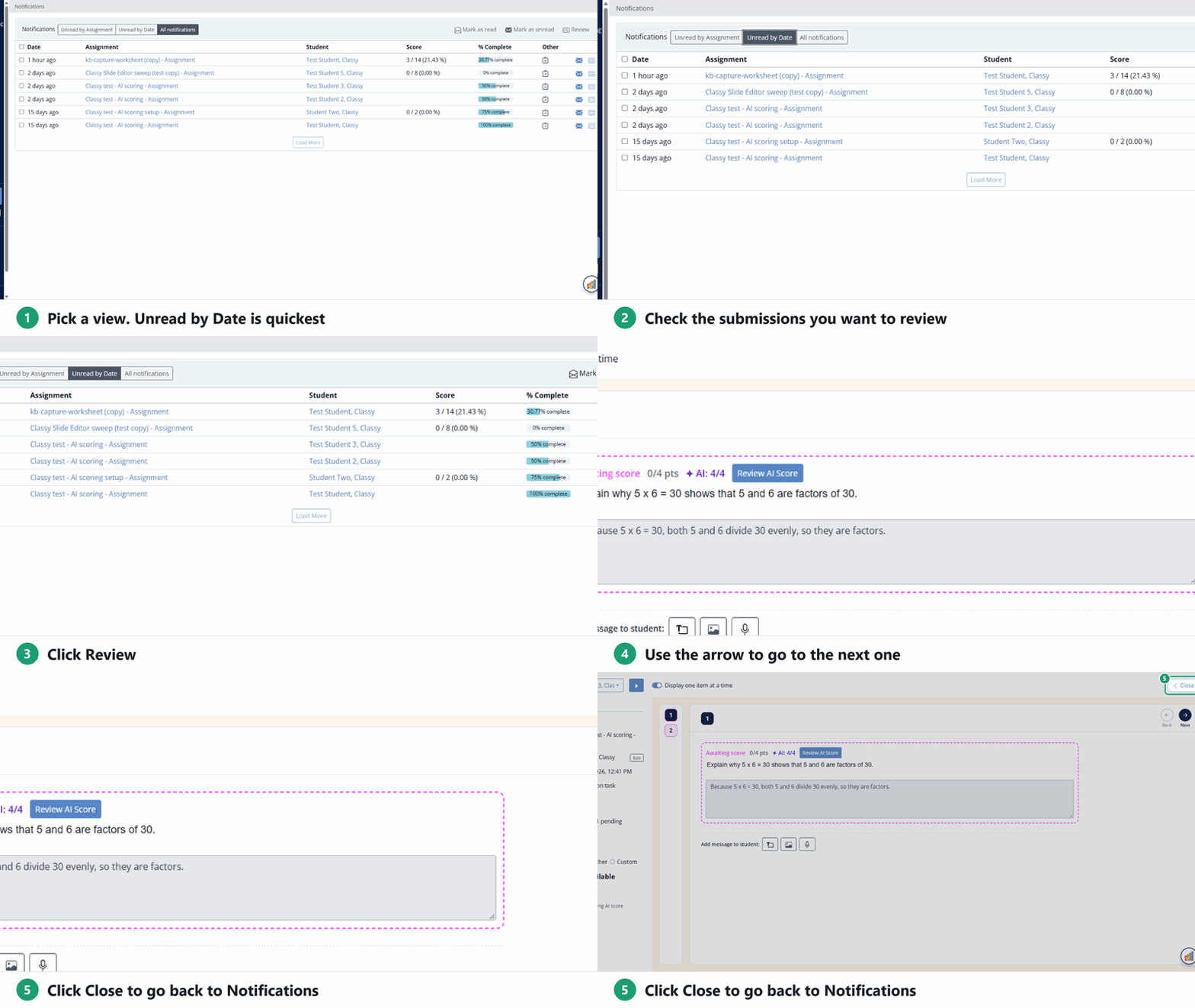
Reviewing a submission doesn’t mark it read, so the last step is what clears your count.
What’s on the list

- Date: when the work was turned in.
- Assignment: the Assignment’s name.
- Student: who turned it in.
- Score: the score when it was turned in. It’s blank while a score is still waiting on you.
- % Complete: how much of the Assignment the student answered.
- Other: an icon when there’s something to note, such as a question you need to score by hand. Point at the icon to see what it means.
- Envelope: a closed envelope means unread. Click it to mark that one read.
- Review: open that one submission.
Click Load More at the bottom to see older notifications.
Change the view
- Unread by Assignment: unread submissions grouped under each Assignment.
- Unread by Date: unread submissions, newest first.
- All notifications: read and unread, newest first. This view also has Mark as unread.
Go back to your Activities
Click Activities in the left menu.
Are you new to Classwork.com? Welcome!
Click here to start your 30 day risk-free PRO trial today.
Was this article helpful?
That’s Great!
Thank you for your feedback
Sorry! We couldn't be helpful
Thank you for your feedback
Feedback sent
We appreciate your effort and will try to fix the article