|
|
How Do I Use the Embed Code Tool? |
Use the Embed Code Tool
The Embed Code tool allows you to place content from other websites directly inside your Activity. Many educational platforms provide an Embed or Share option that generates HTML code. You can paste that code into Classwork and display the resource within your slide.
Insert Embed Code
- In the Tool Box, click Content.
- Select Embed Code.
- Click and drag on your slide to draw the area where the content should appear.
- Paste the HTML snippet into the Embed Code field.
You can choose how the embedded content displays:
- Inline: The content appears directly inside the rectangle you drew.
- Floating: A button appears. When clicked, the embedded content opens beside the Activity so students can view both at once.
If you select Floating, enter a label for the button.
Always click Preview to confirm the content displays correctly.
If you only see a URL instead of the embedded content, you likely copied the wrong item. Most embeddable content begins with an <iframe> tag. Look for an Embed button on the original site, often shown as </>.
Embed Science Simulations
Many science simulations, including those from PhET Interactive Simulations, provide embed code.
- Open the simulation page.
- Click the </> icon under the title.
- Select Copy to clipboard.
- Paste the iframe code into the Embed Code object in Classwork.
If the simulation includes multiple pages and you want only one, add ?pages=1 to the end of the URL inside the iframe. Replace 1 with the page number you want.
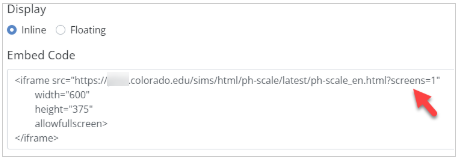
PhET simulations are licensed under CC-BY-4.0. Include proper attribution in a Teacher Text box, such as:
(Simulation Name) by PhET Interactive Simulations, University of Colorado Boulder, licensed under CC-BY-4.0 (https://phet.colorado.edu).
Classwork does not claim ownership of third-party content. Be sure to provide proper attribution when required.
Embed Desmos
Desmos provides embeddable math tools and graphing calculators.
- Open your Desmos graph.
- Click Share.
- Select Embed.
- Copy the full <iframe> tag.
- Paste it into the Embed Code object in Classwork.

Do not copy the URL alone. Make sure you copy the entire <iframe> snippet.
Desmos is copyright Desmos Studio PBC.
Classwork does not claim ownership of third-party tools. Provide attribution when required.
Embed Any Web Page
You can embed many web pages using an iframe.
Replace URL below with the website address you want to embed. Adjust width and height as needed. Then paste the full iframe code into the Embed Code tool.
<iframe src="URL"
width="800"
height="600"
>
</iframe>
Use Preview to confirm the page displays correctly inside your Activity.
Was this article helpful?
That’s Great!
Thank you for your feedback
Sorry! We couldn't be helpful
Thank you for your feedback
Feedback sent
We appreciate your effort and will try to fix the article