|
|
Creating Multiple Choice or Multiselect Question from Scratch |
Advanced Multiple Choice and Multiselect
In the Flex Editor, Multiple Choice and Multiple Select are always full, authored questions – you enter the question, answer choices, formatting, and scoring.
In the Slide Editor, there are two versions: a basic overlay that places bubbles or checkboxes on top of an existing background (such as a PDF or Google Slides file), and an authored version for building a question from scratch. This article covers the authored, from-scratch version.
Create an Advanced Multiple Choice Question
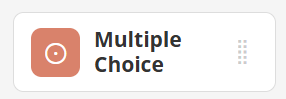
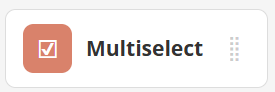
In the Flex Editor, click + Add and choose Multiple Choice or Multiple Select.
In the Slide Editor, open the Tool Box, click Authoring, then select Multiple Choice or Multiple Select.

 |  |
In the Slide Editor, your cursor turns into crosshairs; click once to place the question, or click and drag to set the size. The Edit Multiple Choice / Multiselect window opens.
Enter Question and Answer Text
- Click inside Write text here to enter the question.

- Use the text toolbar to format text, add images, or insert math equations.
- Enter answer choices below the question.
- Click the red X to remove an answer.
- Use Add Answer to include additional options.

Set the Answer Key
- Click the circle next to the correct answer to mark it correct.
- Use Shuffle to reorder answers. This changes the displayed order permanently. It does not shuffle per student.
- You may manually reorder answers by dragging the handle beside each answer.

Click Save to add the completed question to your activity.
Advanced Multiselect
Multiselect is set up the same way as Multiple Choice, but allows more than one correct answer.

When using Multiselect, you can limit the number of student selections.

If two answers are marked correct, students may select only two.
Partial Credit Options
To award partial credit, enable Allow Partial Credit.

Students earn proportional points based on correct selections.
If Subtract points for incorrect answers is enabled, students lose points for wrong selections. This discourages guessing.
Partial credit requires that you first limit the number of student selections.
Available Settings
At the bottom of the item editor, you can adjust these display settings:
- Orientation: Controls how answers are arranged.
- Label Type: Adds letters or numbers to answer inputs.
- Input Size: Adjusts the size of checkboxes or buttons.
- Font Size: Changes the size of the question and answer text.

Was this article helpful?
That’s Great!
Thank you for your feedback
Sorry! We couldn't be helpful
Thank you for your feedback
Feedback sent
We appreciate your effort and will try to fix the article