|
|
Using the Graphing Question Type |
This powerful tool is designed to allow students to answer questions by interacting with a Coordinate Plane. You can ask students to perform any of these actions:
- Setting Up the Coordinate Plane
- Plotting Points
- Selecting Points
- Plotting Lines
- Plotting Inequalities
- Plotting Parabolas
- Plotting Exponentials
- Matching Equations
You can choose which type of coordinate plane the students will see. You can choose a Four Quadrant Graph that includes all four quadrants or a Data/One Quadrant Graph that includes only Quadrant I. In either case, you have full control over the extent of each axis, and can set labels for each.
To provide a question to be answered, you can either upload a PDF with instructions already on it or add the instructions yourself using our Teacher Text.
Setting Up the Coordinate Plane
If you chose one of the interactions under Four Quadrant Graph, you will see these fields at the top of the editing dialog:

You can change the extent of each axis, and enter an optional label.
Since the Data/One Quadrant Graph interactions only include Quadrant I, the Min value is fixed at 0.

Changing the interval on Data/One Quadrant Graph interactions changes how often a line and label on the graph. Here is an example from a graph with the interval set to 2:

Plotting Points
The Plotting Points interactions allow students to click on the coordinate plane to draw the points you specify. You add points by clicking on directly on to the point of the coordinate plane.

The points you specify will appear on the plane, and in the list on the right-hand side.
You can edit the points in the list by entering new x and y values. You can remove points either by clicking the points on the coordinate plane or by clicking the "X" next to the point in the list.
If you check Limit the number of student selections, students will be able to plot up to the specified number of points (two in the above example) and further clicks will be ignored until they first delete a point.
Plotting Points - Student View
When students open this question type, they will see an empty coordinate plane and click directly on the grid to plot the requested points.
If your background image does not already include directions, be sure to add Teacher Text to tell students exactly which points to plot.

To receive full credit, students must plot all required points and no additional points.
If a student places a point incorrectly, they can remove it by clicking the point again.
Selecting Points
The Selecting Points interactions allow students to choose from a set of points that you have already plotted on the coordinate plane.
To add a point to the set from which the student will choose, click the point on the coordinate plane.

A point will appear as a hollow circle to indicate that it is NOT to be chosen by the student as a correct answer. To set the point to be a correct answer, click the point a second time. It will change to a filled circle, indicating it is now a correct answer. Points that are considered correct will be indicated with a check in the list to the right of the graph. You can uncheck a point to indicate that it should not be considered correct.
To remove a point, click it a third time. Alternately, you can click the "X" to the right of the point in the list on the right-hand side of the graph.
Checking Limit the number of student selections prohibits the student for choosing more than the number of correct answers you have chosen. In the above example, the student would be able to choose at most two answers.
Selecting Points - Student View
Students will see a graph with all of your points already plotted on it as hollow circles. Students will click to select the correct points based on the question they are asked.

Students will click any of the plotted points to select it as a correct answer. To de-select a point, they will click it a second time. To be scored correctly, the students must select all the correct points and none of the incorrect points.
Plotting Lines
The Plotting Lines interactions lets students draw lines on the coordinate plane to answer questions. You first set the answer key by drawing the desired lines.

To draw a line, click on the coordinate plane to place the first point. Move your mouse and click to place the second point.
Click and drag to move any of the points to a new position.
Click and release on a point to delete the entire line.
As you create lines, they will appear in a list on the right side of the graph. You may edit the points in the list. You may also delete a line by clicking the "X."
Checking "Limit the number of student selections" will limit the student to drawing at most the same number of lines you created for the answer key.
Plotting Lines - Student View
Students will start with an empty coordinate plane.

They will click to place the first point of a line, then move their mouse and click to place the second point. They can click and drag an existing point to move a line, or click and release on a point to delete the line.
To be scored correctly, the student must draw all the required lines. The drawn lines must be mathematically equivalent to the answer key though not necessarily drawn using the same points.
Plotting Inequalities
The Plotting Inequalities interaction allows students to place to points on the coordinate plane, by creating boundary lines and shading the correct region. You first set the answer key by defining the boundary line and inequality type.
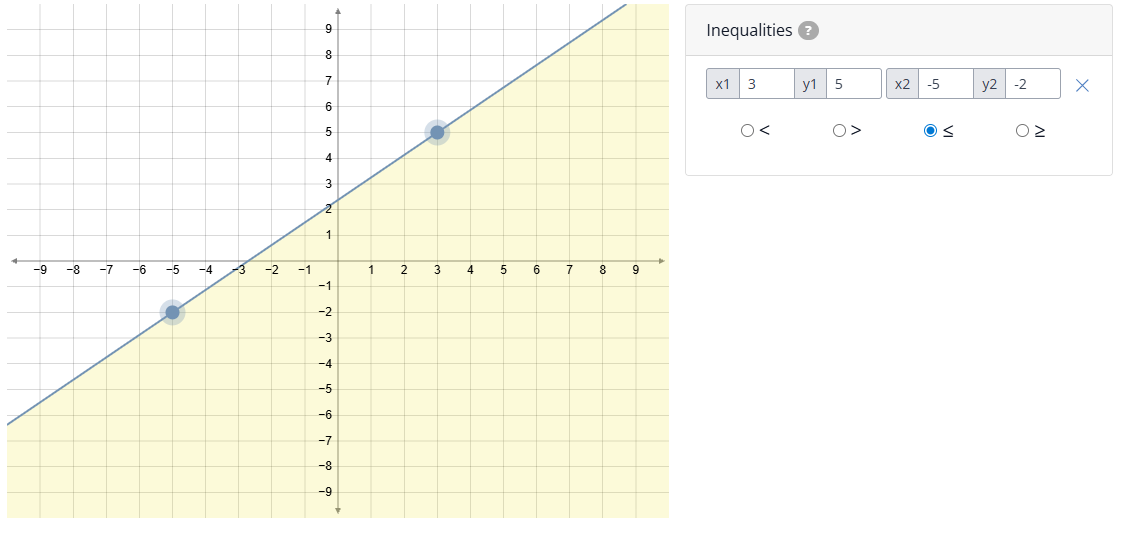
To create the boundary line, select two points on the coordinate plane. You can adjust the point values using the list on the right side of the graph.
Once the line is defined, choose the inequality symbol (<, >, ≤, or ≥) to determine whether the boundary line should be dashed or solid and which side of the line represents the solution.
As you create inequalities, they will appear in a list on the right side of the graph. You may edit the points or inequality type from this list. You may also delete an inequality by clicking the X.
If multiple inequalities are required, repeat these steps to add additional boundary lines
Plotting Inequalities - Student View
Students will start with an empty coordinate plane.
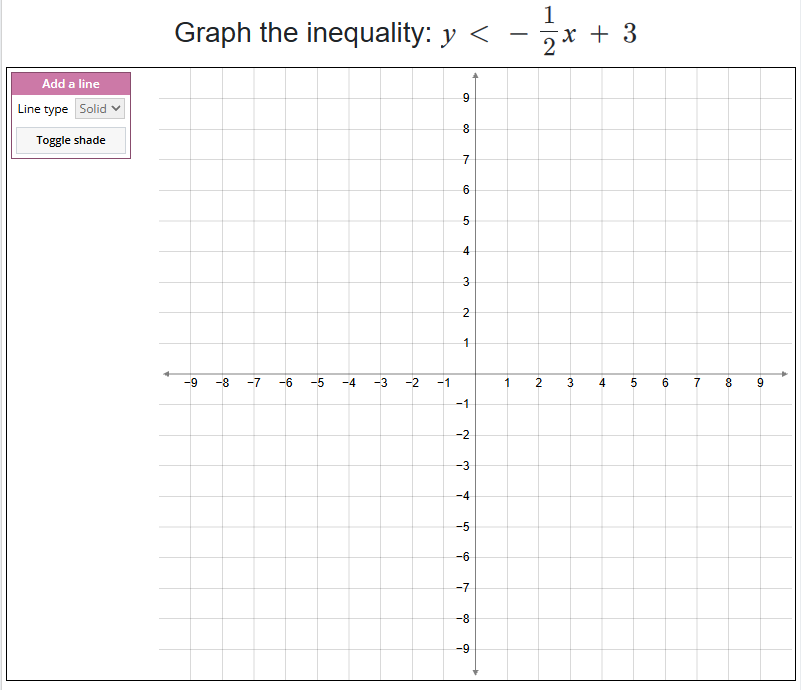
To graph an inequality, students will:
- Click to place the first point of a boundary line
- Click again to place the second point
- Choose whether the line is solid or dashed
- Use Toggle Shade to select which side of the line is shaded
Students can click and drag points to adjust a line, change the line type, or toggle the shaded region. They can repeat this process to create multiple inequalities if required.
To be scored correctly, students must:
- Create the correct boundary line(s)
- Use the correct line type
- Shade the correct region of the graph
Plotting Parabolas
The Plotting Parabolas interaction allows students to graph parabolas on a coordinate plane by placing key points. You first set the answer key by defining the parabola students are expected to create.
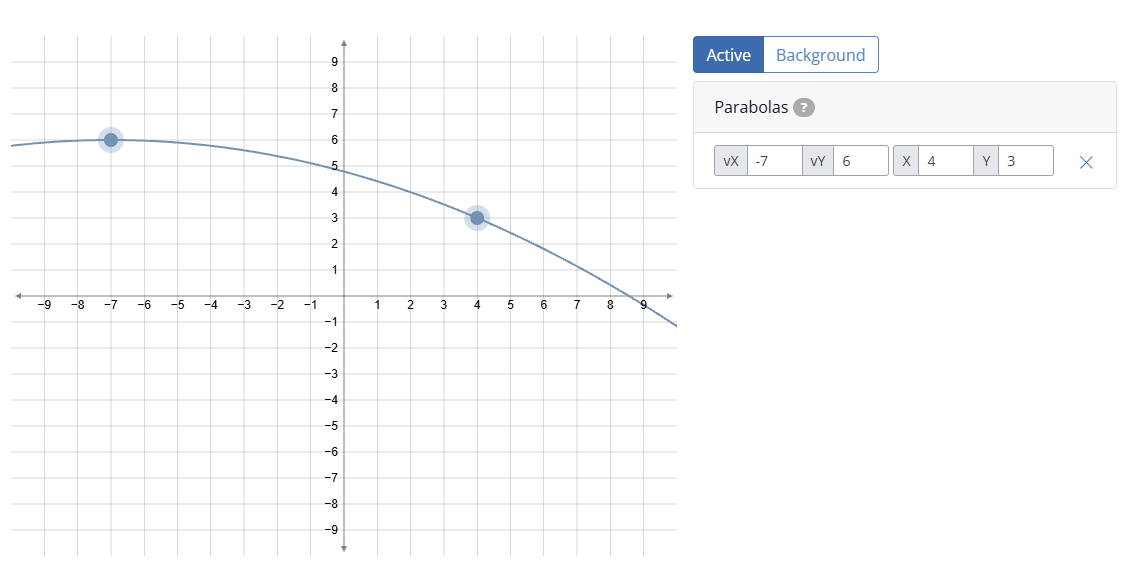
To create a parabola, click on the coordinate plane to place two points. A parabola will automatically form through those points. You can adjust the point values using the list on the right side of the graph.
You can toggle each parabola between Active and Background:
- Use Active for the parabola students are expected to graph.
- Use Background to display reference parabolas, lines, points, or exponentials that students can see before responding.
As you create parabolas, they will appear in a list on the right side of the graph. You may adjust the points or delete a parabola using the controls in the list.
If multiple parabolas are required, repeat these steps to add additional Active parabolas.
Plotting Parabolas - Student View
Students will start with a coordinate plane that may include background elements placed by the teacher.
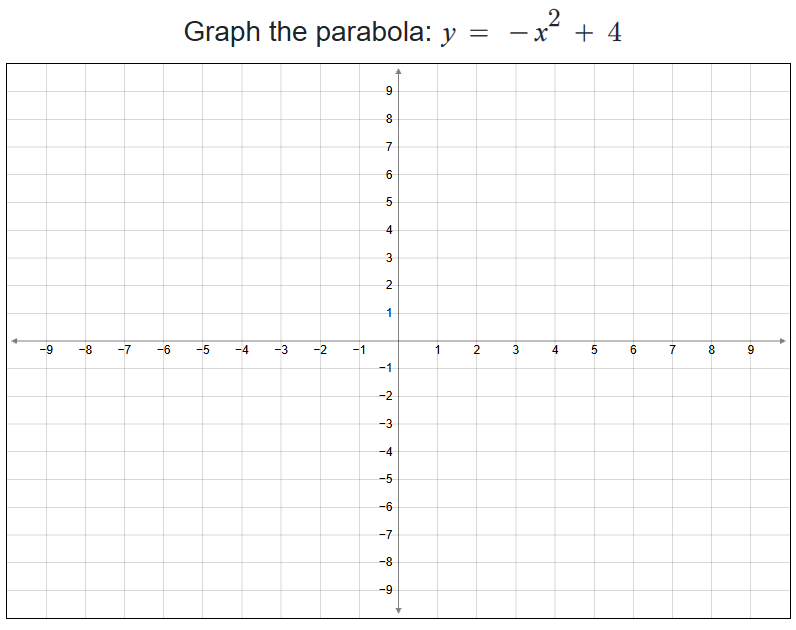
To graph a parabola, students will:
- Click to place the first point
- Click again to place the second point
- Adjust points by clicking and dragging as needed
Students can repeat this process to place multiple parabolas if required.
Background elements are provided for reference only and are not graded.
Plotting Exponentials
The Plotting Exponentials interaction allows students to graph exponential functions on a coordinate plane by placing key points. You first set the answer key by defining the exponential curve students are expected to create.
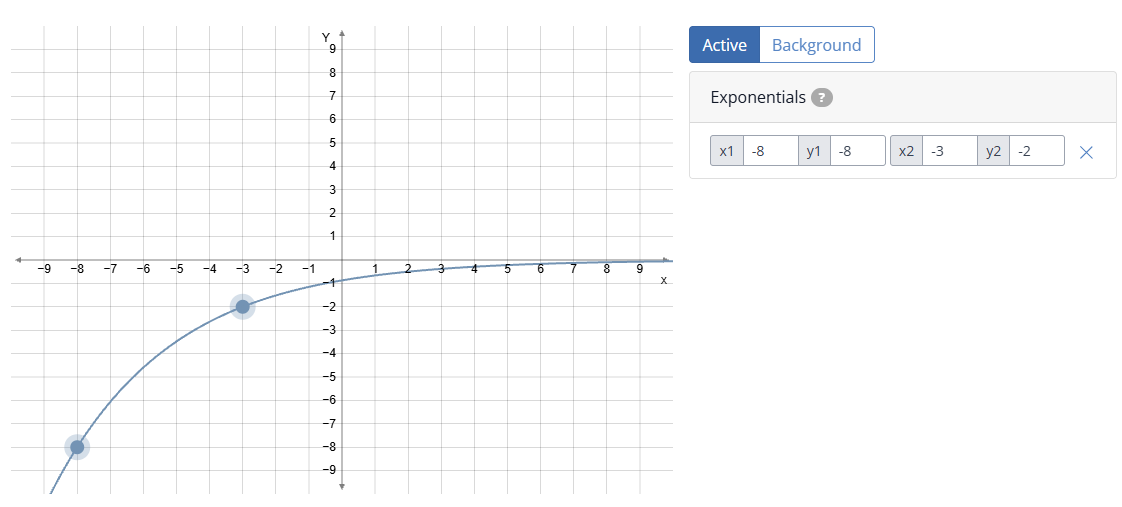
To create an exponential, click on the coordinate plane to place two points. An exponential curve will automatically form through those points. You can adjust the point values using the list on the right side of the graph.
Important: Both points must be on the same side of the y-axis. Exponentials cannot be created using one negative and one positive y-value.
You can toggle each exponential between Active and Background:
- Use Active for the exponential students are expected to graph.
- Use Background to place reference points, lines, parabolas, or exponentials that students can see before responding.
As you create exponentials, they will appear in a list on the right side of the graph. You may adjust the points or delete an exponential using the controls in the list.
Plotting Exponentials - Student View
Students will start with a coordinate plane that may include background elements placed by the teacher.
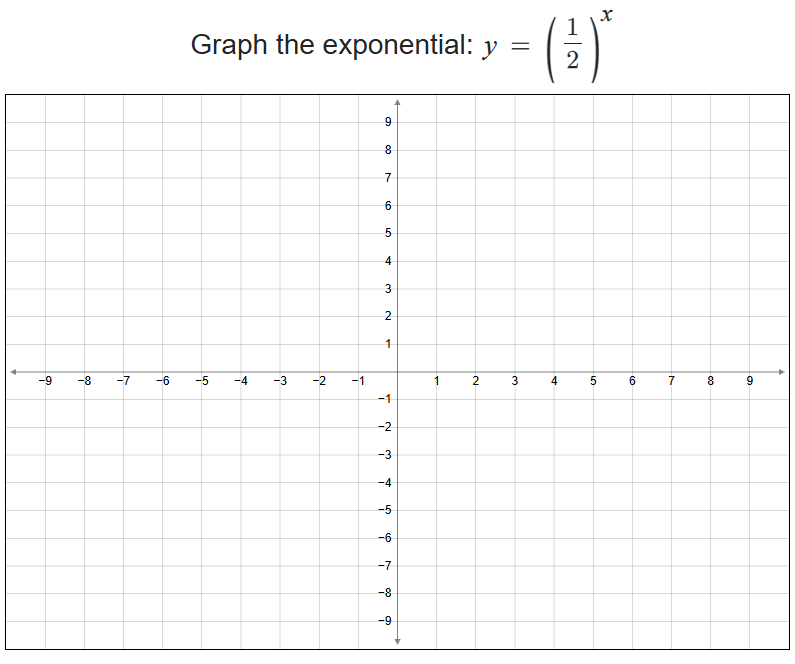
To graph an exponential, students will:
- Click to place the first point
- Click again to place the second point
- Adjust points by clicking and dragging as needed
Both points must remain on the same side of the y-axis.
Background elements are provided for reference only and are not graded.
Matching Equations
The Matching Equations interaction allows students to match equations to their corresponding graphs on a coordinate plane. You first set the answer key by graphing the equations students are expected to identify.
When using this interaction, both teachers and students choose one equation type for the entire question:
- Linear
- Quadratic
- Exponential
Each Matching Equations question supports multiple equations, but all equations must be of the same type. Mixing equation types in a single question is not supported.
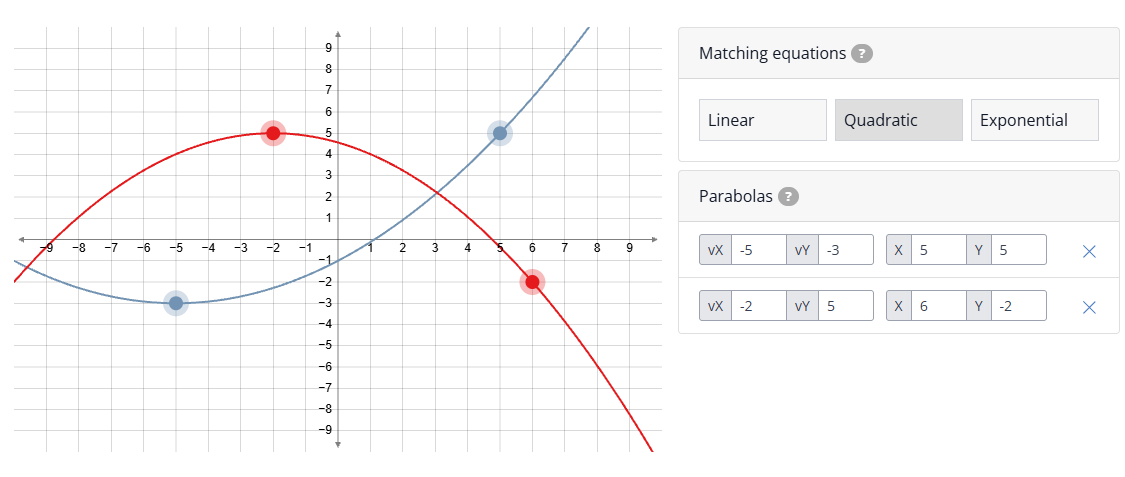
When creating a Matching Equations question, select the equation type you want to use (Linear, Quadratic, or Exponential).
You can then add multiple equations of that type to the coordinate plane. Each equation will be graphed and included as part of the matching set.
There is no Background option for this interaction. All equations placed on the graph are part of the answer key.
As you add equations, they will appear in a list on the right side of the graph, where you can edit or delete them as needed.
Matching Equations - Student View
Students will start with a blank coordinate plane.
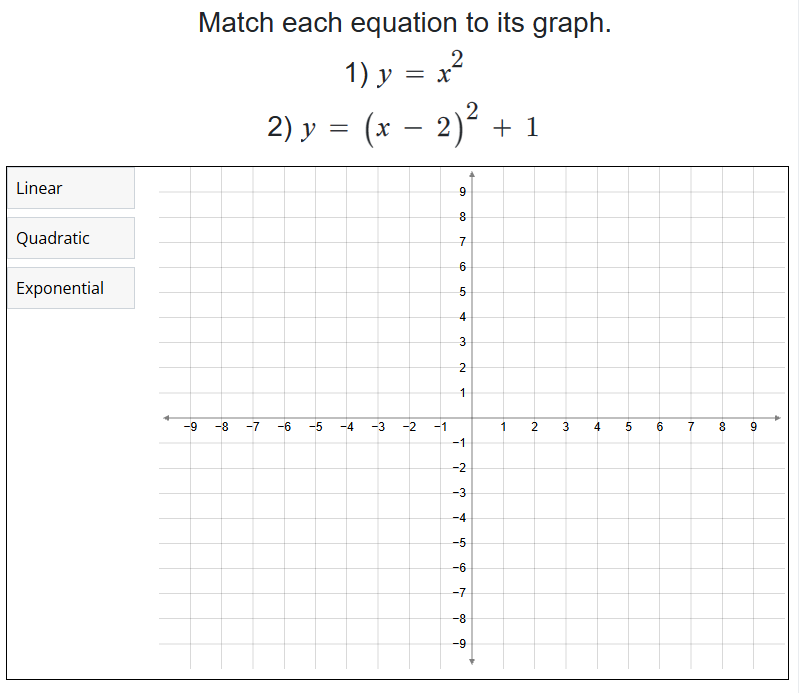
At the top of the graph, students will select which type of equation they are working with:
- Linear
- Quadratic
- Exponential
Once an equation type is selected, students will:
- Graph equations of that selected type on the coordinate plane
- Match each equation to its correct graph based on the question prompt
All equations in a single Matching Equations question must be of the same type. Students cannot mix Linear, Quadratic, and Exponential equations within the same question.
To be scored correctly, students must correctly match all equations in the set.
Conclusion
With a few clicks and a little thought, you can give your students auto-graded graphing questions using an interactive coordinate plane!
Was this article helpful?
That’s Great!
Thank you for your feedback
Sorry! We couldn't be helpful
Thank you for your feedback
Feedback sent
We appreciate your effort and will try to fix the article