|
|
Using the Match Table Grid Question Type |
Match Table Grid Question
Applies to: Flex Editor & Slide Editor
A Match Table Grid shows a grid: rows are the prompts, columns are the answer choices, and students pick the right cell in each row. It’s a quick way to ask several questions that share the same choices. Classwork.com scores it for you.
Flex Editor
- Click + Add.
- On the Add Item tab, click Match Table Grid.
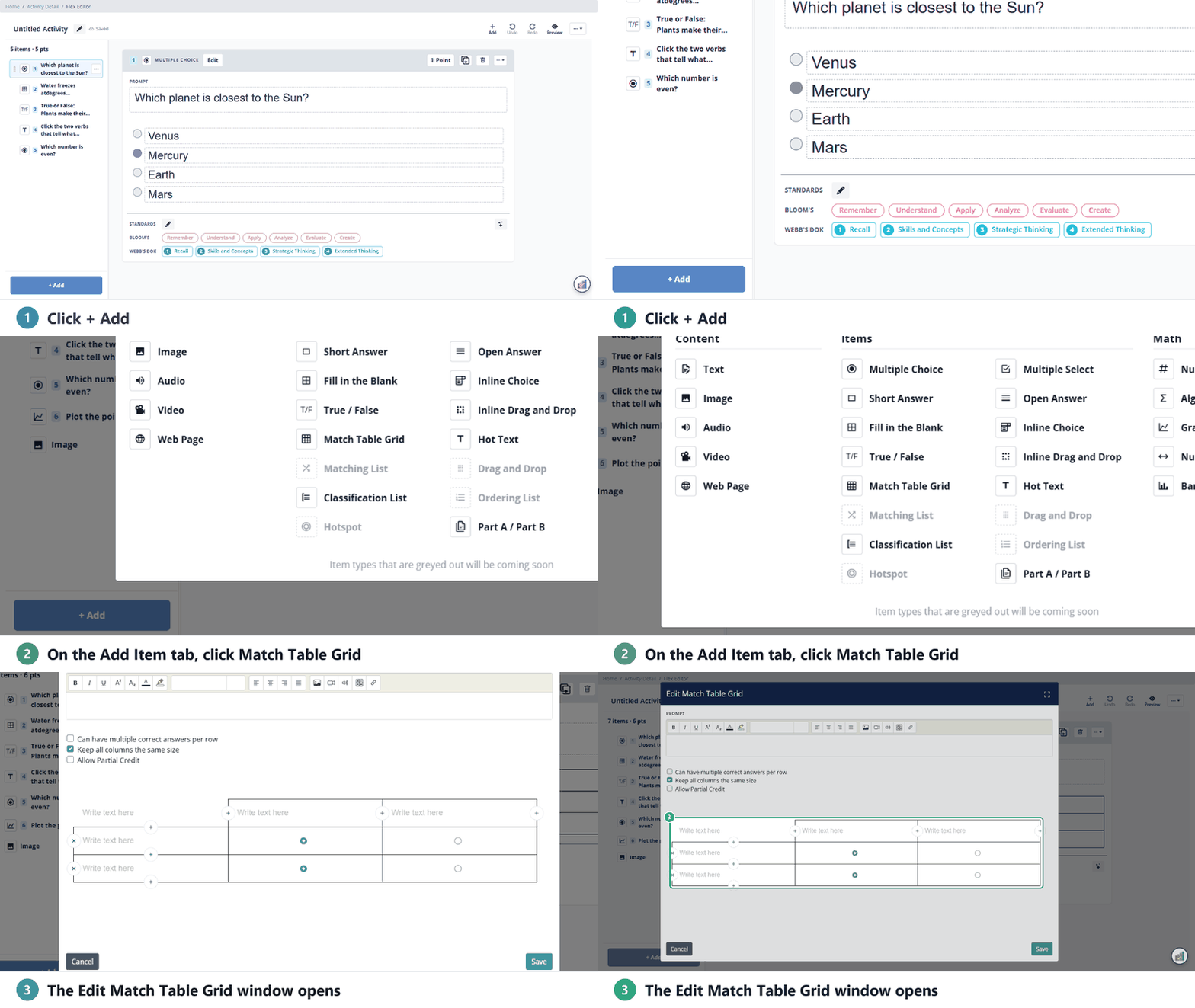
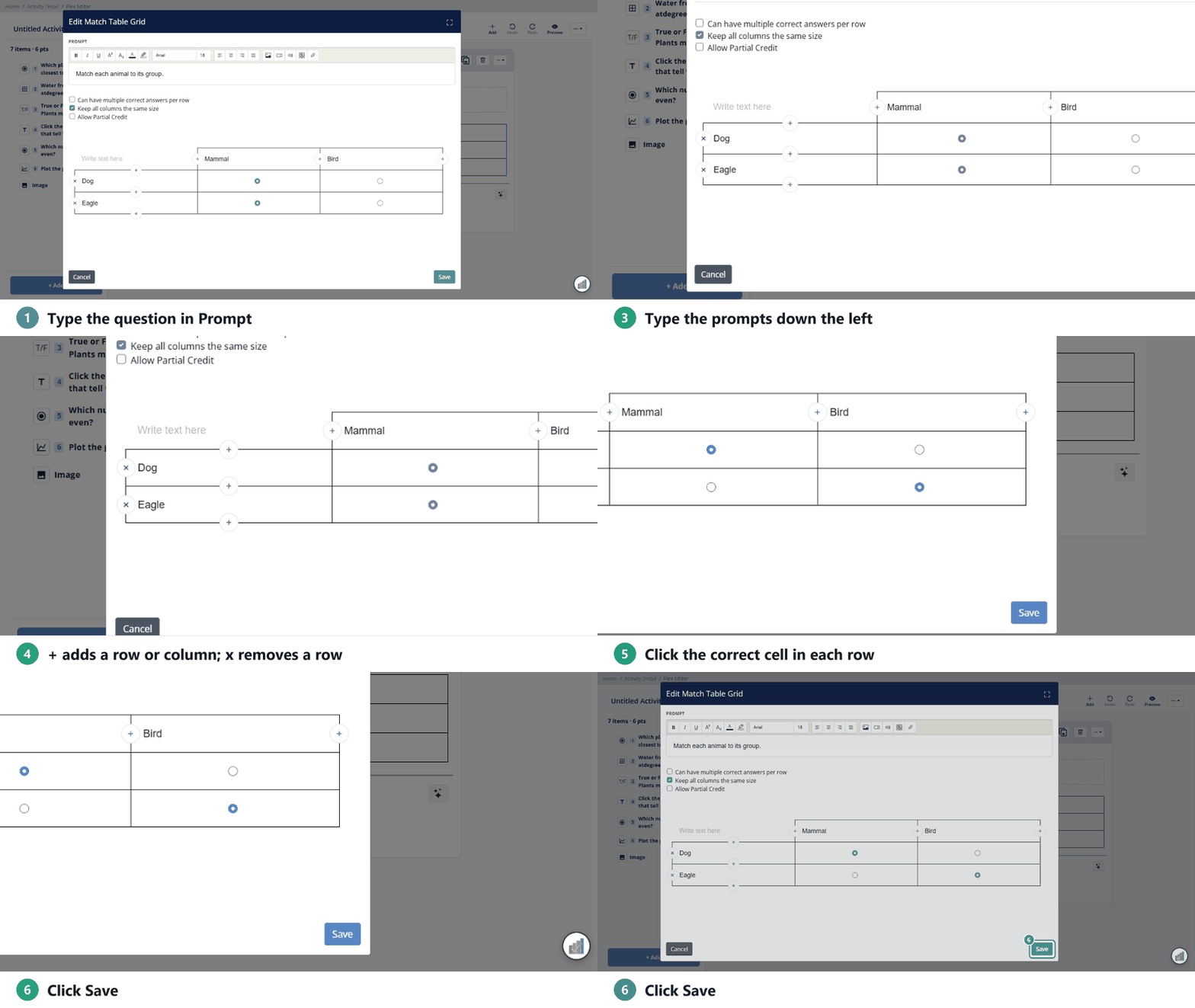
- Type the question in Prompt.
- Type the answer choices across the top row and the prompts down the left column. Click + to add a row or column, × to remove a row.
- In each row, click the cell for the correct answer.
- Choose your options (below), then click Save.
Slide Editor
- In the Tool Box, open the Authoring tab and click Match Table Grid.
- Click and drag to draw the grid. The Edit Match Table Grid Item window opens.
- Fill in the top row and left column. Use + to add rows or columns and × to remove them.
- Click the correct cells, then click Save.
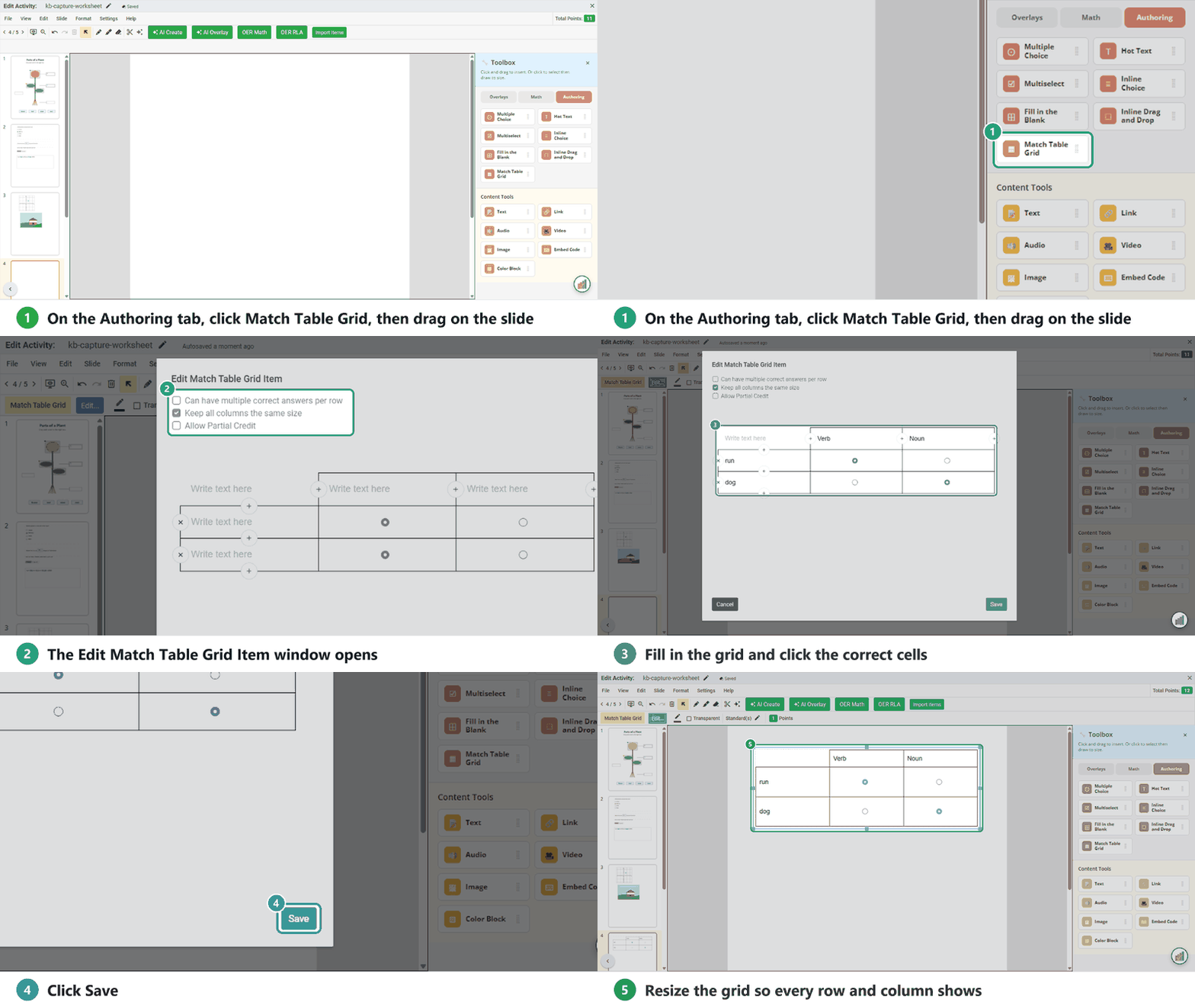
After saving, resize the grid on the page so every row and column shows. Use Preview to check it. The Slide window has no Prompt box: add directions with a Text box.
Options (both editors)
- Can have multiple correct answers per row: cells become checkboxes instead of single-choice circles.
- Keep all columns the same size (on by default).
- Allow Partial Credit: students earn part of the points for each correct match. For example, 2 of 3 correct earns two-thirds.
- Subtract points for incorrect answers (with partial credit, and selected by default): each wrong selection takes points away, which discourages guessing. Choose Do not subtract points for incorrect answers to turn it off.

What students see
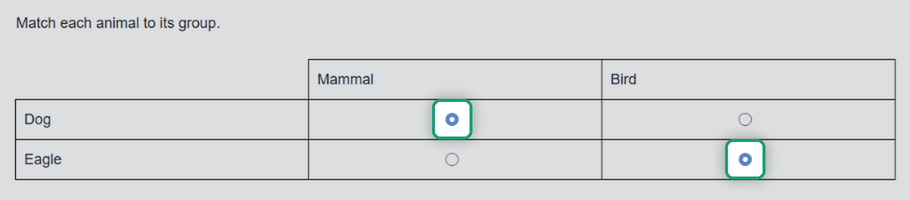
Students see the grid and click a cell in each row. Without partial credit, the question is correct only when every match is right.
Are you new to Classwork.com? Welcome!
Click here to start your 30 day risk-free PRO trial today.
Was this article helpful?
That’s Great!
Thank you for your feedback
Sorry! We couldn't be helpful
Thank you for your feedback
Feedback sent
We appreciate your effort and will try to fix the article