|
|
Using the Hot Text Question Type |
Hot Text Question
In a Hot Text question, you write a passage and make some words or phrases clickable. Students click the right ones, and Classwork.com scores it for you. It’s great for close reading, grammar and vocabulary.
Flex Editor
Add a Hot Text item
- Click + Add.
- On the Add Item tab, under Items, click Hot Text. The Edit Hot Text window opens.
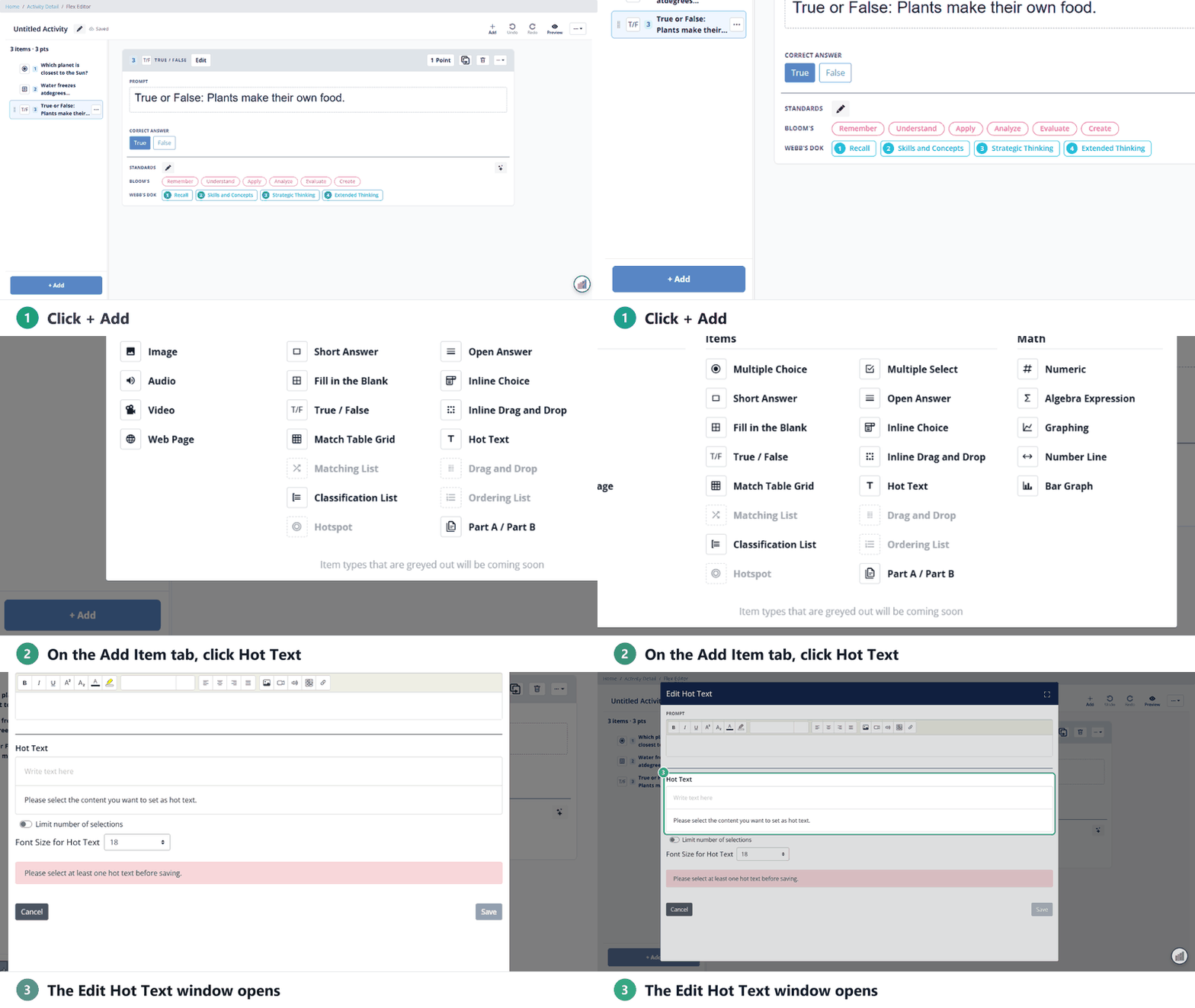
Write the question and passage
- In Prompt, type the instructions, for example “Click the two verbs that tell what happened.”
- Type or paste the passage into Write text here.
- Select a word or phrase students should be able to click, then check Hot text in the box that appears.
- Do this for every correct answer and every distractor. Each one is added to the list below the passage.
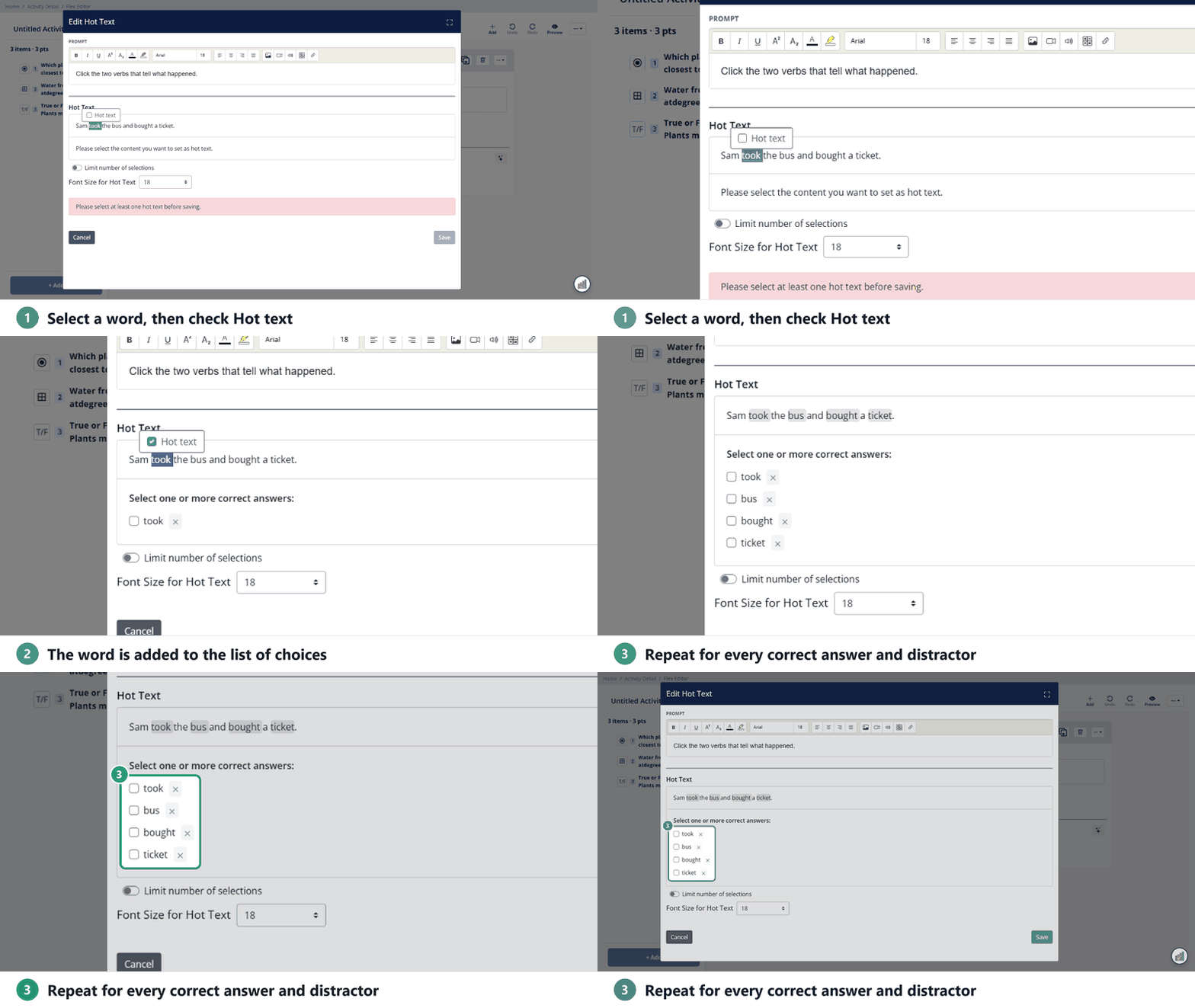
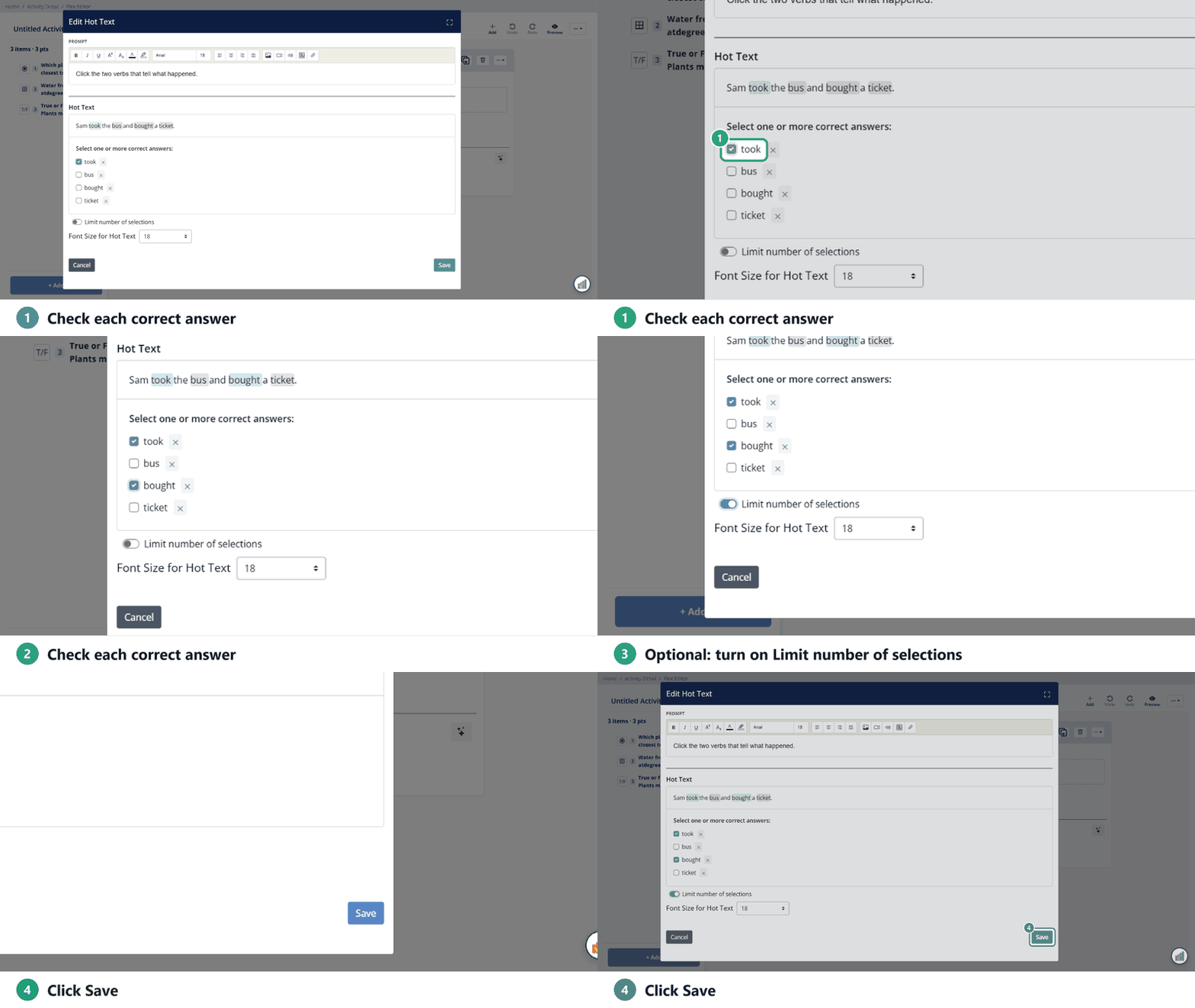
Mark the correct answers
- Under Select one or more correct answers, check each correct choice. Click the × next to a choice to remove it.
- Turn on Limit number of selections if you want (see below), and change Font Size for Hot Text if needed.
- Click Save.
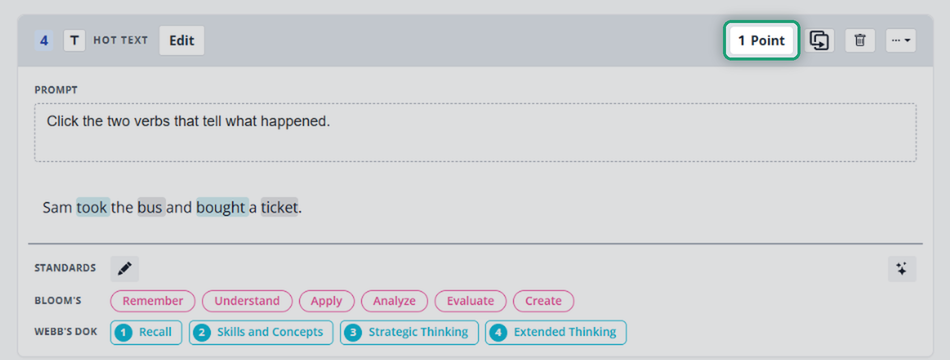
The item shows in your Activity with the choices highlighted: correct ones in blue, distractors in gray. It starts at 1 Point; click the points button to change it.
Slide Editor
Add a Hot Text question
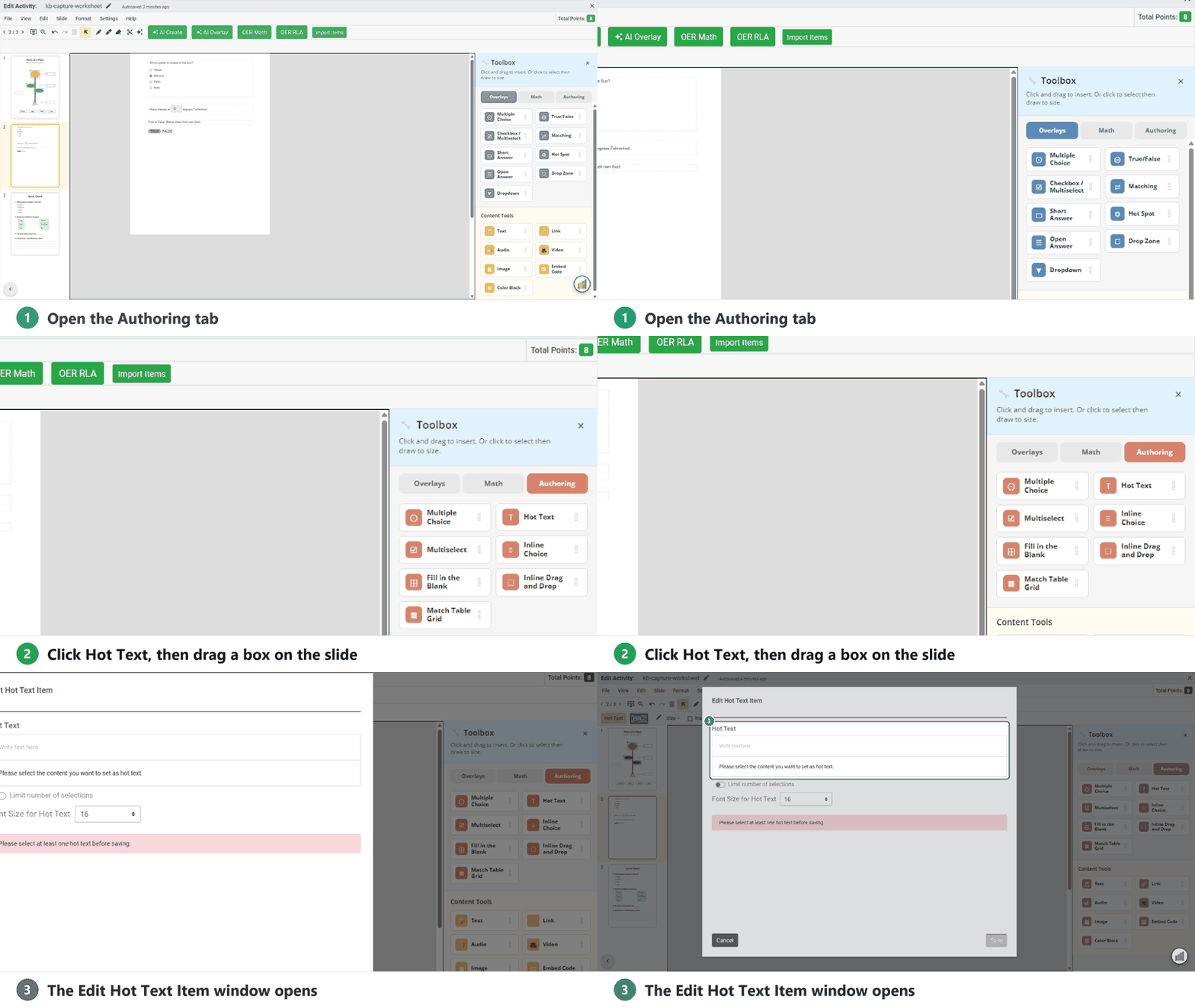
- In the Tool Box on the right, open the Authoring tab and click Hot Text.
- Your cursor turns into crosshairs. Click and drag to draw the question box. The Edit Hot Text Item window opens.
Make words clickable and mark the answers
- Type or paste your passage into Write text here.
- Highlight a word or phrase students should be able to click, and check Hot text in the menu that appears.
- Do this for every correct answer and every distractor. Each one appears in a list under the passage.
- Check the boxes next to the correct choices.
- Turn on Limit number of selections or change Font Size for Hot Text if you want, then click Save.
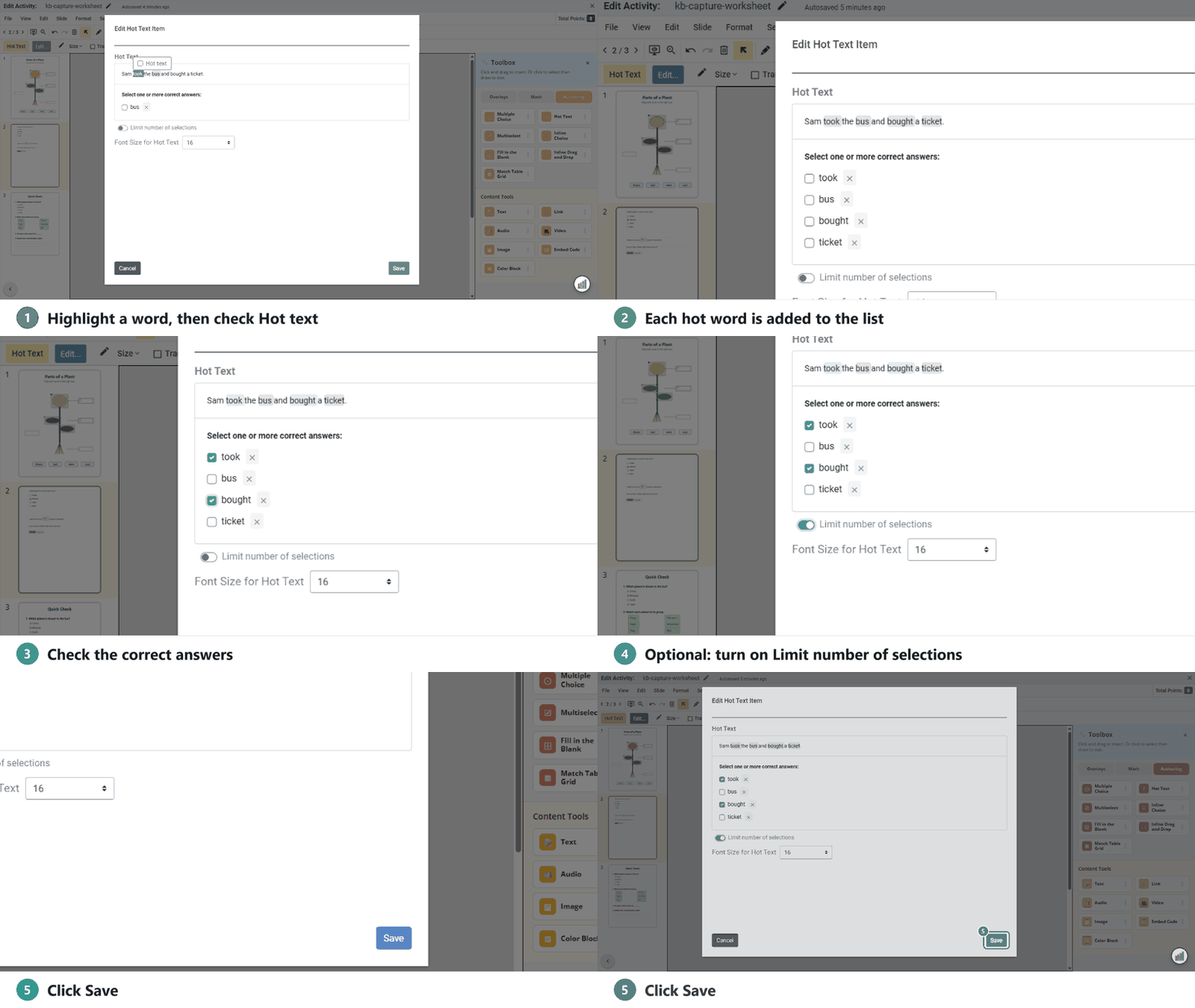
On the page, correct choices show in blue and the others in gray.
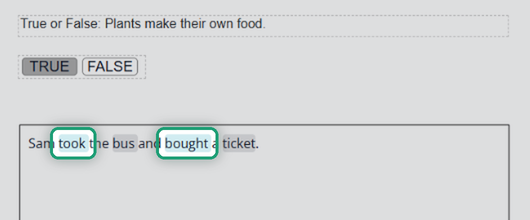
What students see
All clickable choices are gray. A click turns a choice blue and underlines it; another click clears it.
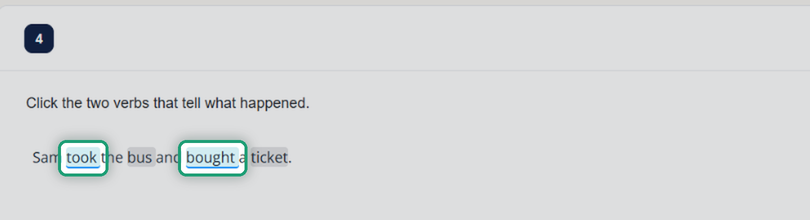
Limit the number of selections
Students can pick as many choices as they like. Turn on Limit number of selections to cap it at the number of correct answers. Once students reach the limit, they have to clear a choice before they can pick another.
Scoring
Hot Text is scored automatically. It’s correct only when every correct choice is selected and no wrong ones are. Students earn all the points or none.
Was this article helpful?
That’s Great!
Thank you for your feedback
Sorry! We couldn't be helpful
Thank you for your feedback
Feedback sent
We appreciate your effort and will try to fix the article