|
|
What is the Slides Display Type? |
Slides Display Type
The Slides display type gives you the flexibility to combine instruction, comprehension checks, and practice into a single Activity. You can start class in Classwork and end class in Classwork, without switching tools or printing handouts.
You can:
- Teach directly in Classwork by uploading existing slide decks.
- Add comprehension checks throughout your lesson.
- Incorporate practice, quizzes, exit tickets, study questions, and homework into your teaching materials.
- Paste existing Classwork Activities into Slide view.
- Play videos inside Slides without sending students out to YouTube.
- Add links to external websites and resources.
- Watch students take notes as they follow along.
Slides view and combining pages
When you create an Activity from a file, Classwork builds it in Slides view by default. Each page becomes its own slide, and students move through them one at a time.
If you want a single scrollable page instead, use the checkbox labeled Combine selected pages into a single slide. When this is checked, the pages you select are merged into one long slide.
- Slides (default): Each page stays separate and students click through slide by slide.
- Combine selected pages into a single slide: Selected pages are joined into one scrollable slide.
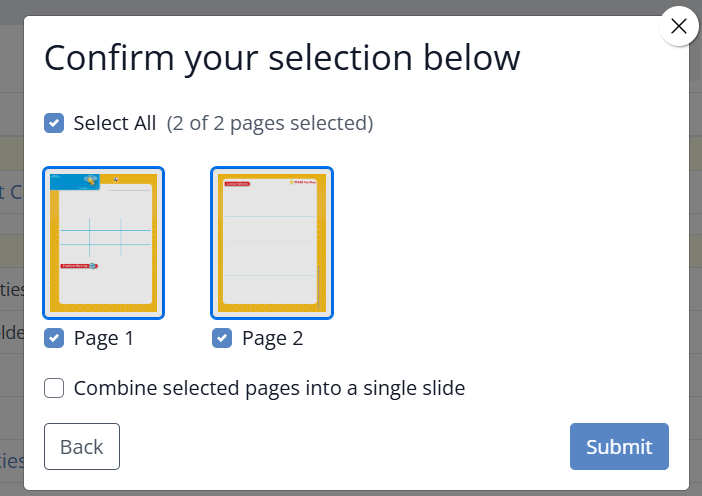
Note: This checkbox replaces the old “Scrolling view” option.
Both display types support auto-scored Activities. You can convert PDFs, slide decks, and mixed content into a digital Activity using either option.
Slide View Extra Features
Because Slides keeps pages separate, you get additional editing tools. You can:
- Reorder slides.
- Add slides.
- Remove slides.
- Combine pages from multiple documents.
- You can mix slides and vertical PDFs.
- Paste an existing Classwork Activity into a slide presentation.
Navigating Between Slides
When your Activity is created, you can navigate while editing in two ways:
- Use the slide navigation on the far left of the toolbar. Click the arrows to move forward and backward. Click the page count to open a dropdown and jump to a specific slide.

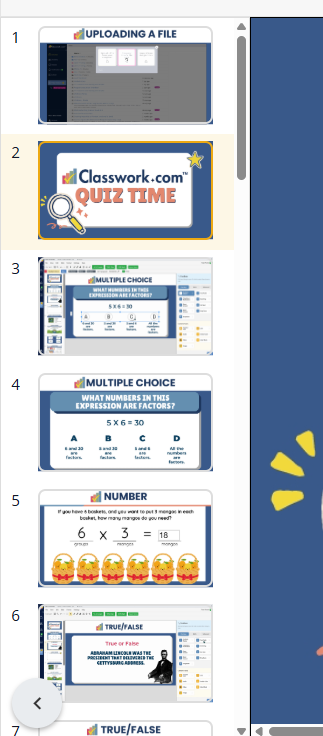
- Use the slide thumbnail panel on the left side of the editor. Scroll to view more thumbnails, then click a slide to jump to it.
Adding Slides
To add slides, open the Slide menu and choose one of these options:
- New Blank Slide
- Create New Slide(s) From a File

If you add a blank slide, it will be inserted near the slide you are currently editing. You can reorder slides at any time.
If you create slides from a file, you will be prompted to upload a file from your computer.

Select the pages you want to import, then choose where to place them using the dropdown under Where to add the new page(s)?

Use this workflow to blend existing content into your Activity or add new blank slides and build from scratch.
Removing a Slide
To delete a slide:
- Click the slide thumbnail so it is selected.
- Press the Delete key on your keyboard.
- Or use Edit → Delete.
- Or use Slide → Delete Slide.
 |  |
Reordering Slides
You can reorder slides in two ways:
- Click and drag slide thumbnails in the left panel.
- Open Slide in the menu bar and use the move controls.

The Slides display type gives you the structure of a slide deck with the power of interactive, auto-scored Classwork Activities.
Was this article helpful?
That’s Great!
Thank you for your feedback
Sorry! We couldn't be helpful
Thank you for your feedback
Feedback sent
We appreciate your effort and will try to fix the article