|
|
Using the Inline Choice Question Type |
Inline Choice Question Type
The Inline Choice question type lets you place drop-down selections directly within a sentence or text passage. Students choose the correct option in context, and the item is graded automatically for instant feedback.
It works especially well for reading passages, vocabulary, grammar, and context-based questions, but you can use it in any subject. Inline Choice works the same in the Flex Editor and the Slide Editor.
Create an Inline Choice Question
In the Flex Editor, click + Add and choose Inline Choice.
In the Slide Editor, open the Tool Box, click Authoring, then select Inline Choice.
 |  |
In the Slide Editor, your cursor turns into crosshairs; click once to place the question, or click and drag to set the size. The Edit Inline Choice window opens.
Build Your Sentence
Type your sentence or passage in the Write Text here box. Place your cursor where you want a drop-down to appear, then click Add Dropdown – the dropdown is created wherever your cursor is.
For example, type Once upon a time, there was a princess named Cinderella. and insert a dropdown for time and another for Cinderella.
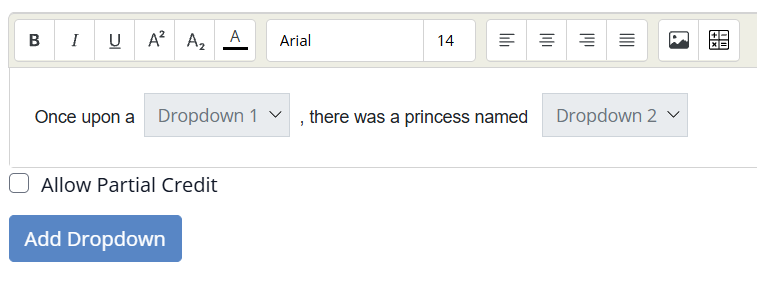
Add Answer Choices
After inserting a dropdown, add its choices at the bottom of the window:
- Type each answer choice.
- Mark the correct answer with the circle to its left.
- Remove a choice with the red trash can on the right.
PRO tip: type the correct answer first (it’s selected as correct by default), then click Shuffle to randomize the order.
In the Selection Prompt field, customize what students see before they choose, or leave it as Select…. That’s what appears in the sentence before the student picks an answer.
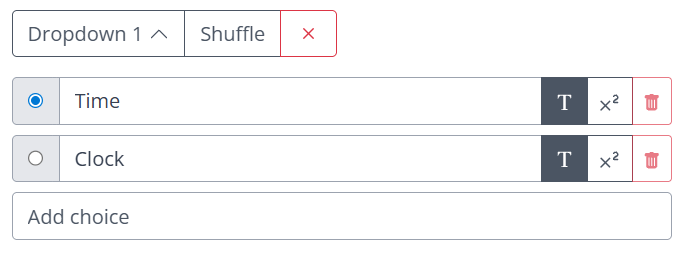
Helpful Editing Tools
This toolbar helps when editing an Inline Choice item:

- Click the caret (^) next to a Dropdown label to collapse its answer choices when you need more room on your screen.
- Click the x to delete an entire dropdown.
Click Save. Your Inline Choice item will look like this – the dropdowns are automatically sized to fit the longest answer.

What Students See
When the student begins the Assignment, they see the dropdown menus within the sentence:

To answer, the student clicks each Select… box and chooses from the dropdown. Their selection replaces the Select… prompt.

Students must answer every dropdown correctly to receive the points for the question.
When to Use Inline Choice
Reach for Inline Choice whenever students need to select words or phrases within the context of a sentence or passage. It’s great for assessing comprehension, vocabulary, grammar, and precise understanding of content. You’ll find so many uses for it!
Was this article helpful?
That’s Great!
Thank you for your feedback
Sorry! We couldn't be helpful
Thank you for your feedback
Feedback sent
We appreciate your effort and will try to fix the article