|
|
Sharing My Activities with Other Teachers |
Share an Activity
If you want to share an Activity with another teacher, you can turn on Sharing and send them a link. They can preview your Activity and copy it into their own Classwork account.
This is also how you copy an Activity from a co-teacher into your own account.
Turn On Sharing for an Activity
- Click Activities in the left navigation menu.
- Locate the Activity you want to share and check the box next to it.
- When the Activity toolbar appears, click the Sharing icon.

- In the dialog window, toggle Sharing for this activity is currently to On.
- Click Copy to copy the generated link.
- Paste the link into an email, document, or message to your colleague.
Important: Sharing is for teachers. If you want students to complete the Activity, create an Assignment instead.
What Other Teachers See
When someone clicks your sharing link, they will see the Activity in Teacher Preview mode.
If they are not logged in, they will see a prompt to sign up or log in before copying the Activity.

If they are already logged in, they will see a button at the top that allows them to copy the Activity into their account.

When they copy it, they receive their own version. They can edit their copy, but your original Activity remains unchanged.
Turn Off Sharing
To turn off sharing:
- Go to Activities.
- Select the Activity.
- Click the Sharing icon.
- Toggle Sharing for this activity is currently to Off.
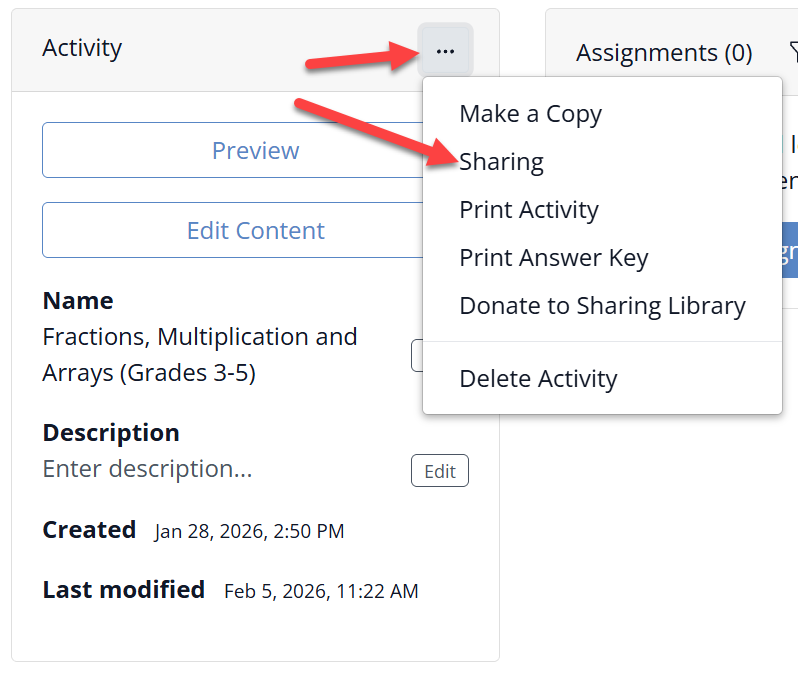
You can also access sharing settings from the Activity options menu.
Can Other Teachers See My Student Work?
No. Sharing an Activity only shares the content you created. Your Assignments and student responses remain private unless you are using the Co-Teacher feature.
Share Multiple Activities or a Folder
You can share more than one Activity at a time, including entire folders.
- Go to your Activities page.
- Select the checkboxes next to the Activities or folders you want to share.

- Click the Sharing icon in the toolbar.

The dialog will indicate that you are sharing multiple Activities.

Click Share selected activities to generate a block of sharing text. Click Copy and send that text to your colleagues.

Import Shared Activities
If you receive a sharing text block from another teacher, follow these steps to import the Activities:
- Go to your Activities page and open the folder where you want the copies to appear.
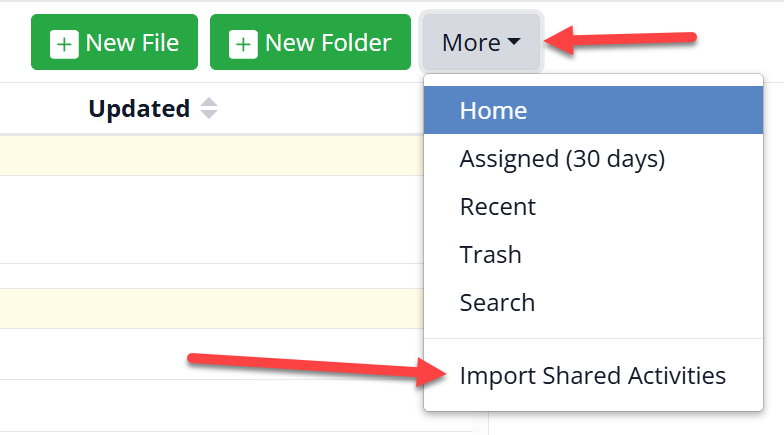
- Click More and select Import Multiple Activities.
- Copy the sharing text you received.
- Paste it into the field.
- Click Import from sharing text.

Review what will be imported, then click Import new share(s).

The Activities will now appear in your account. Changes you make to your copies do not affect the original Activities.
If you need to import additional share lists, click Start Over and repeat the process.
Was this article helpful?
That’s Great!
Thank you for your feedback
Sorry! We couldn't be helpful
Thank you for your feedback
Feedback sent
We appreciate your effort and will try to fix the article