|
|
How Do I Preview My Activity? |
Preview an Activity Before Assigning
Preview mode lets you test an activity before assigning it to students. It helps you confirm formatting, interactions, and student tools so you can see exactly what students will see.
Preview from the Activities Page
- On the Activities page, click the checkbox to the left of your activity name.
- A toolbar will appear.
- Click the eye icon for Preview.

Preview from the Activity Editor
While editing an activity, you can preview it in two ways:
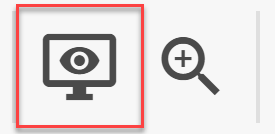
- Click the Preview icon on the toolbar.
- Use the keyboard shortcut Ctrl + F2.
Preview from the Activity Detail Page
- Open the Activity Detail page for the activity.
- Click Preview on the left side of the page.

Preview after Assigning
After an activity is assigned, you can enter preview mode from the Assignment Detail screen:
- Open the assignment.
- Click the eye icon on the left toolbar.

What you can test in preview mode
Preview mode is useful for testing the student experience, including:
- Student tools on the toolbar
- Answering each question
- Scrolling through the activity
- Testing hyperlinks
- Listening to audio
- Practicing audio recording (if included)
- Checking answers
Exit Preview Mode
To exit preview mode, click the X in the upper-right corner of the page.

Pro Tip
Some teachers use preview mode to record a short walkthrough video for students that demonstrates how to use tools inside the assignment.

Was this article helpful?
That’s Great!
Thank you for your feedback
Sorry! We couldn't be helpful
Thank you for your feedback
Feedback sent
We appreciate your effort and will try to fix the article