|
|
Using the Teacher Text Tool |
Teacher Text Tool
The Teacher Text tool allows you to add text anywhere on your Activity. Students can see this text, but they cannot edit it. This makes it a great way to add instructions, reminders, accommodations, hints, or additional information.
Add Teacher Text
- In the Tool Box on the right, click Text.
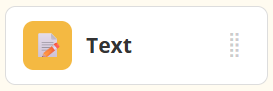
- Your cursor will turn into crosshairs. Click once to place the text box, or click and drag to draw the size you want.
- Once placed, the Text editor will open automatically. Click inside the box and begin typing.
You can adjust font style, size, color, boldness, alignment, and more. You can also insert images or math formulas directly into the Teacher Text box.
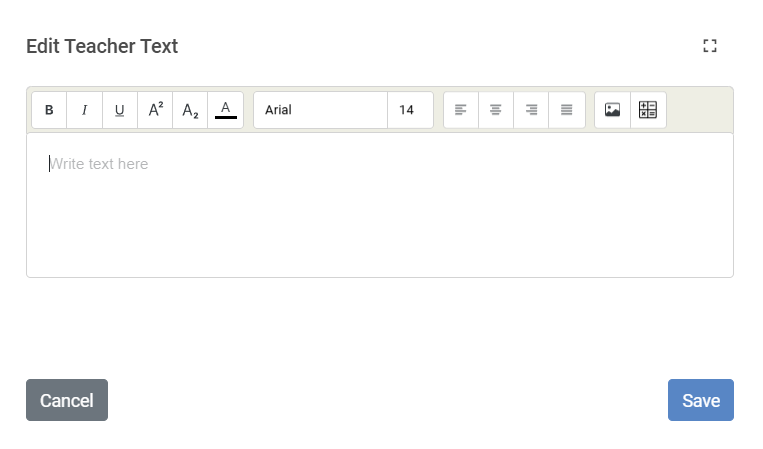
Click Save when finished.
Teacher Text Toolbar Options
When the Teacher Text box is selected, you can use the toolbar to adjust additional settings:

- Fill Color: Change the background color of the text box or make it transparent using the bucket icon.
- Border Color: Adjust the border color or remove the border completely using the pencil icon.
- Draggable: Check the Draggable box if you want the Teacher Text to be movable by students, which allows you to create drag-and-drop style interactions.
Are you new to Classwork.com? Welcome!
Click here to start your 30 day risk-free PRO trial today.
Was this article helpful?
That’s Great!
Thank you for your feedback
Sorry! We couldn't be helpful
Thank you for your feedback
Feedback sent
We appreciate your effort and will try to fix the article