|
|
Viewing Event History for Student Submissions |
Viewing Event History for Student Submissions
Applies to: Flex Editor & Slide Editor
Submission History shows everything that happened to one student’s work: when they opened it, each auto-save, when they saved it for later, when they turned it in, and any time it was reopened or reset. Each line shows the score and how much was done at that moment, so you can see how the work came together.
Open the history
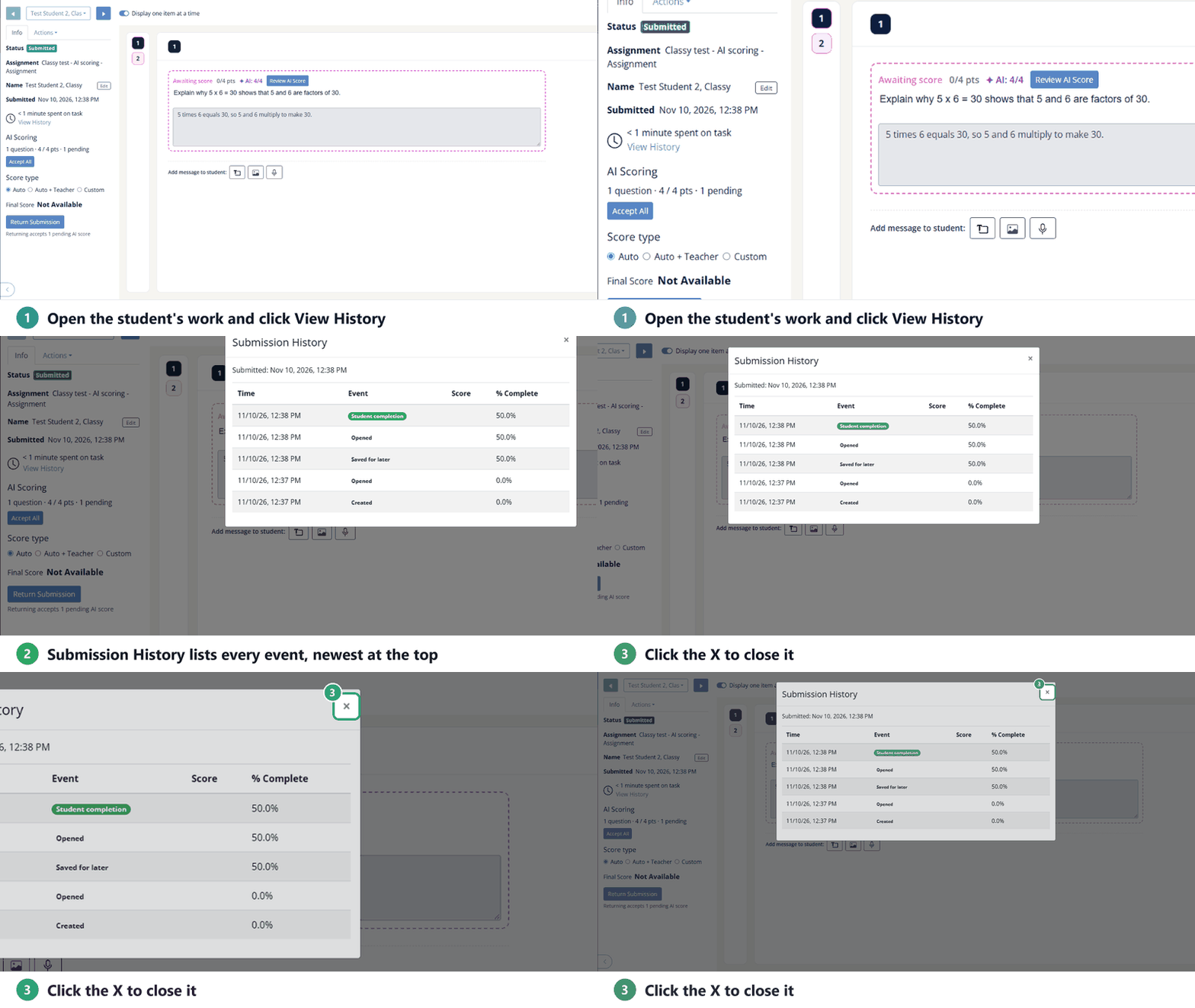
- Open the Assignment and click the student’s name to open their work.
- In the Info tab on the left, under the time spent on task, click View History.
- Click the × in the corner to close it.
Read the history
The newest event is at the top.
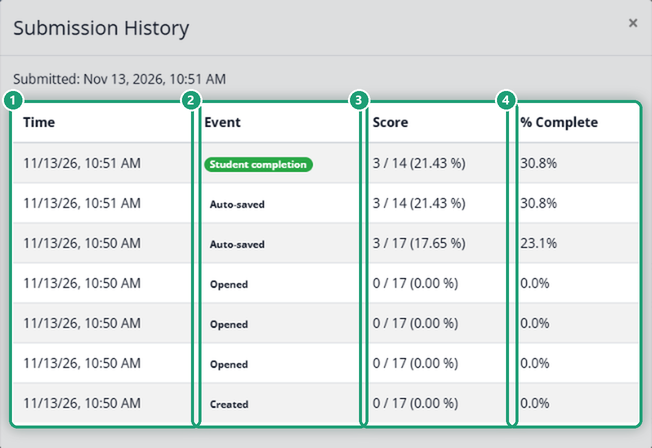
- Time: the date and time of each event.
- Event: what happened, such as Created, Opened, Auto-saved, Saved for later or Student completion (turned in).
- Score: the score at that moment. It can be blank while a score is waiting for you, for example an AI score you haven’t accepted.
- % Complete: how much of the Activity was answered.
If the Assignment uses Academic Integrity, the history also shows how many times the student left the Assignment, the total time away, and any text they pasted.
Watch a walkthrough
Are you new to Classwork.com? Welcome!
Click here to start your 30 day risk-free PRO trial today.
Was this article helpful?
That’s Great!
Thank you for your feedback
Sorry! We couldn't be helpful
Thank you for your feedback
Feedback sent
We appreciate your effort and will try to fix the article