|
|
Adding Audio to an Activity - Record Your Own or Upload |
Audio Tool
Use the Audio tool to add a clickable audio element to your Classwork.com Activity. You can either record audio directly in Classwork.com or upload an audio file from your computer. Students will play the audio while completing the Assignment.
Add Audio to Your Activity
- In the Tool Box on the right, click Audio.
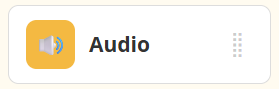
- Your cursor will turn into crosshairs. Click and drag to draw a box where you want the audio icon to appear.
- When you place the box, an audio icon will appear:

- The Audio window will open. From here, you can Record or Uploadaudio.

Record an Audio File
Use the Record tab to record audio directly in your browser (up to 5 minutes).
- Click the red circle to begin recording.
- Click the gray square to stop.
- Click Play to listen back. If you want to redo it, click Cancel and record again.
- When you are ready, click Add Audio to Activity. Students will play the recording by clicking the audio element in their Assignment.
Upload an Audio File
Use the Upload tab (next to Record) to add an audio file from your computer.

- Click Browse and select the audio file you want to upload.
- When the file name appears in the Upload an audio file field, click Add Audio to Activity.
Note: Uploaded audio files must be 10 MB or smaller. Common supported formats include .m4a and .mp3.
Listen to Audio in Preview
To test your audio, open the View menu and select Preview, then click the audio element.
If you need to redo your recording, exit Preview, delete the audio element from your Activity, and add it again.
Audio Options
The Audio tool includes settings that control what students see and how playback behaves. Click the audio element, then use the toolbar options.

Show controls on click
- The audio icon appears.
- The student must click the icon to see the Play/Pause controls.
- The audio will stop if the student clicks away from the icon or controls (even when clicking into a question).
- The controls are movable: students can drag them by clicking the patterned area to the left of the Play button.

Always Show Controls
- No audio icon appears.
- The Play/Pause controls are always displayed.
- The audio continues playing even if the student clicks somewhere else. Students must click Pause or Stop to end playback.

Autoplay on click
Enable this option if you want audio to start playing immediately when a student clicks the audio icon (so they do not have to press Play). If students want to replay the audio, they can still use the Play button afterward.

While you are editing the Activity, the audio control shown on the canvas is an approximation. It is a good practice to use Preview to confirm exactly what students will see.
You can also choose whether to make the audio block transparent (this hides the audio icon) and select the border color around the audio element.
Tip: If you set the audio element to be transparent and set the border to No Border, you can place it over something in your background (like a picture). Then add text telling students to click that object to hear the audio.
Was this article helpful?
That’s Great!
Thank you for your feedback
Sorry! We couldn't be helpful
Thank you for your feedback
Feedback sent
We appreciate your effort and will try to fix the article