|
|
Schoology: How Do I Fix a “Forbidden 403” Message When I Create an Assignment in Schoology? |
A Forbidden 403 page in Schoology has two usual causes. If students see it, grading is off on the material. If you see it, your Schoology email doesn’t match your Classwork.com email.
Students see the error: turn on grading
Schoology only sends Classwork.com what it needs to start the activity when grading is on. Edit the material in Schoology, check Enable Grading, and save.

You see the error: add your Schoology email
Schoology tells Classwork.com your email address, and Classwork.com finds your account with it. If the two emails differ, add your Schoology email to Classwork.com:
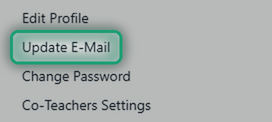
- In Classwork.com, click Account at the bottom of the left menu, then Update E-Mail.
- Under Add E-mail Address, type your Schoology email and click Add E-mail.
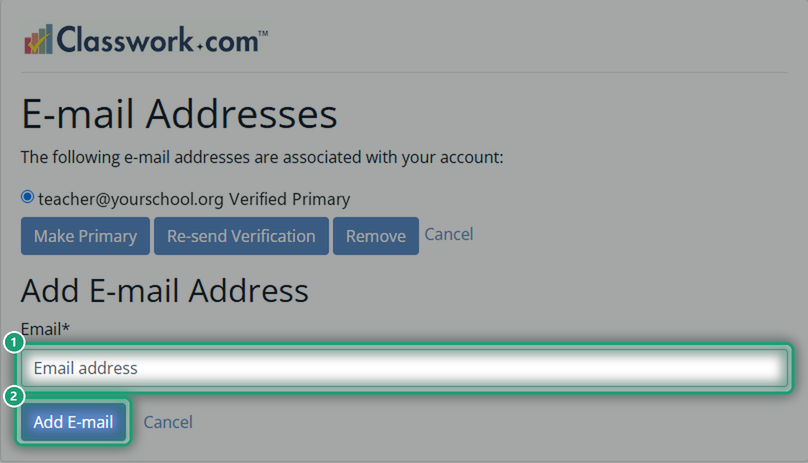
- The new address shows as unverified. Open the email Classwork.com sent to it and follow the link to verify it.
- Go back to Schoology and reload the assignment.
Now you can sign in with either email, and Schoology assignments open for you.
Are you new to Classwork.com? Welcome!
Click here to start your 30 day risk-free PRO trial today.
Was this article helpful?
That’s Great!
Thank you for your feedback
Sorry! We couldn't be helpful
Thank you for your feedback
Feedback sent
We appreciate your effort and will try to fix the article