|
|
How Do I Assign My Activity to Multiple Classes? |
How Do I Assign My Activity to Multiple Classes?
You can assign a single activity to multiple classes at the same time in Classwork.com. This allows you to manage assignments more efficiently without needing to recreate the assignment for each class.
If you have the Classes feature set up, you can simply select multiple classes during the assignment process and Classwork will automatically create a separate assignment for each class.
If you have not set up classes yet, see: Sync or Add New Classes (Setup Classes and Students)
Start the Assignment
Open the activity you want to assign. On the Activity Detail screen, click the blue Create an Assignment button in the Assignments section.

Step 1: Configure Assignment Settings
On the Create Assignment screen, you may want to edit the assignment name so it reflects the class or purpose of the assignment.
Choose your assignment delivery preferences, then click the blue Next button at the bottom of the screen.
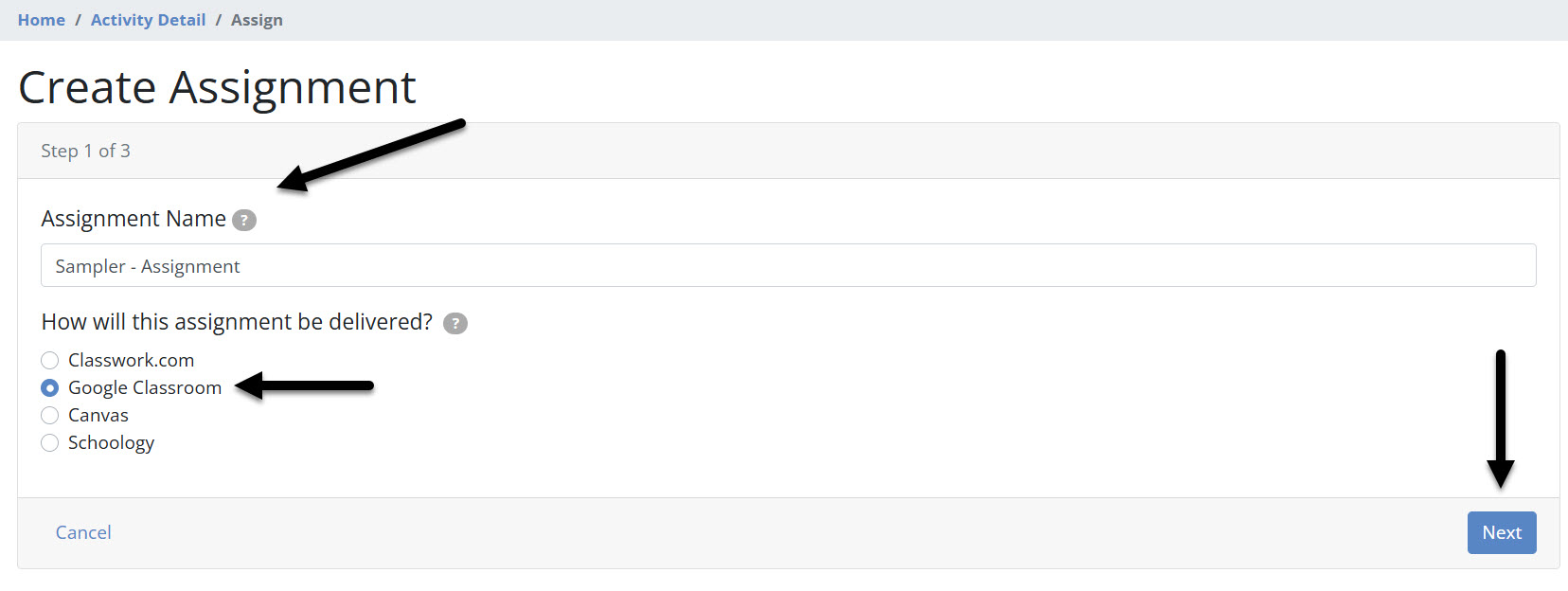
Step 2: Select One or More Classes
On the next screen, you will see your available classes.
You can assign the activity to multiple classes at the same time by checking the box next to each class.
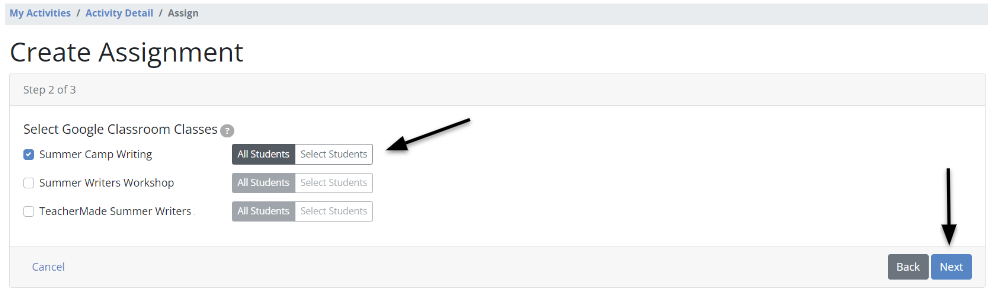
You can also choose how students receive the assignment:
- All Students — assigns the activity to every student currently in the class, as well as students who join the class later.
- Select Students — assigns the activity only to specific students you choose.
You can repeat this process across multiple classes in a single assignment workflow.
What Happens Next?
After you finish creating the assignment, Classwork will generate a separate assignment for each class you selected.
You will see a confirmation message:
Assignments created successfully
Classwork.com has created new assignments for each of the classes that you selected.
Click here to see the list of assignments for this activity.
Clicking the link will open the Activity Detail screen, where you will see the assignments organized by class.
Each class assignment can then be monitored independently so you can track student progress, submissions, and results for each class.
Was this article helpful?
That’s Great!
Thank you for your feedback
Sorry! We couldn't be helpful
Thank you for your feedback
Feedback sent
We appreciate your effort and will try to fix the article