|
|
Select Individual Students on the Review Submission Screen |
Select Individual Students on the Review Submission Screen
Applies to: Flex Editor & Slide Editor
When you’re looking at a student’s work, you don’t need to go back to the Assignment to open the next one. The student’s name in the top left corner is a drop-down, with an arrow on each side.
Jump to a student
- Click the student’s name at the top left.
- Pick the student you want from the list. Their work opens.
To go in order instead, click the arrow on the left (previous student) or the right (next student).
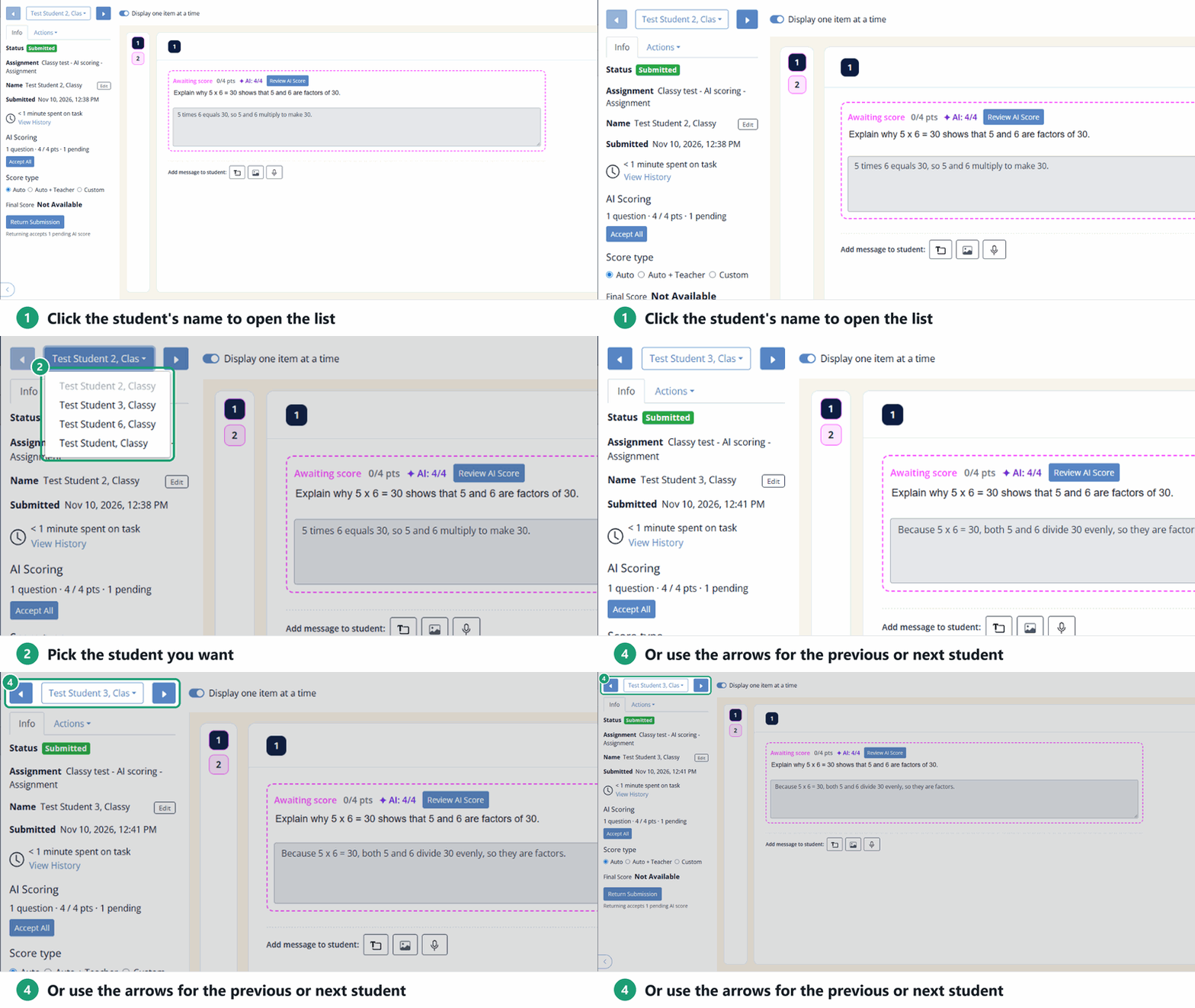
The list has every student with work on the Assignment. If there is only one, the list and arrows are greyed out. For what the green dot next to a name means, see What Does the Green Dot Mean?
Are you new to Classwork.com? Welcome!
Click here to start your 30 day risk-free PRO trial today.
Was this article helpful?
That’s Great!
Thank you for your feedback
Sorry! We couldn't be helpful
Thank you for your feedback
Feedback sent
We appreciate your effort and will try to fix the article