|
|
Using the Math Question Types |
Number, Fraction and Mixed Number Questions
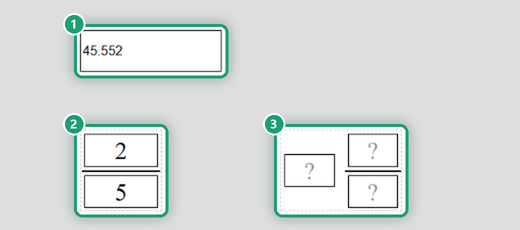
Classwork.com’s math questions collect a numerical answer and score it for you. In the Flex Editor, one Numeric item handles whole numbers, decimals, fractions and mixed numbers. In the Slide Editor, Number, Fraction and Mixed Number are three separate question types.
Looking for other math questions? See Algebra/Formula, Graphing, Number Line and Bar Graph.
Flex Editor: the Numeric item
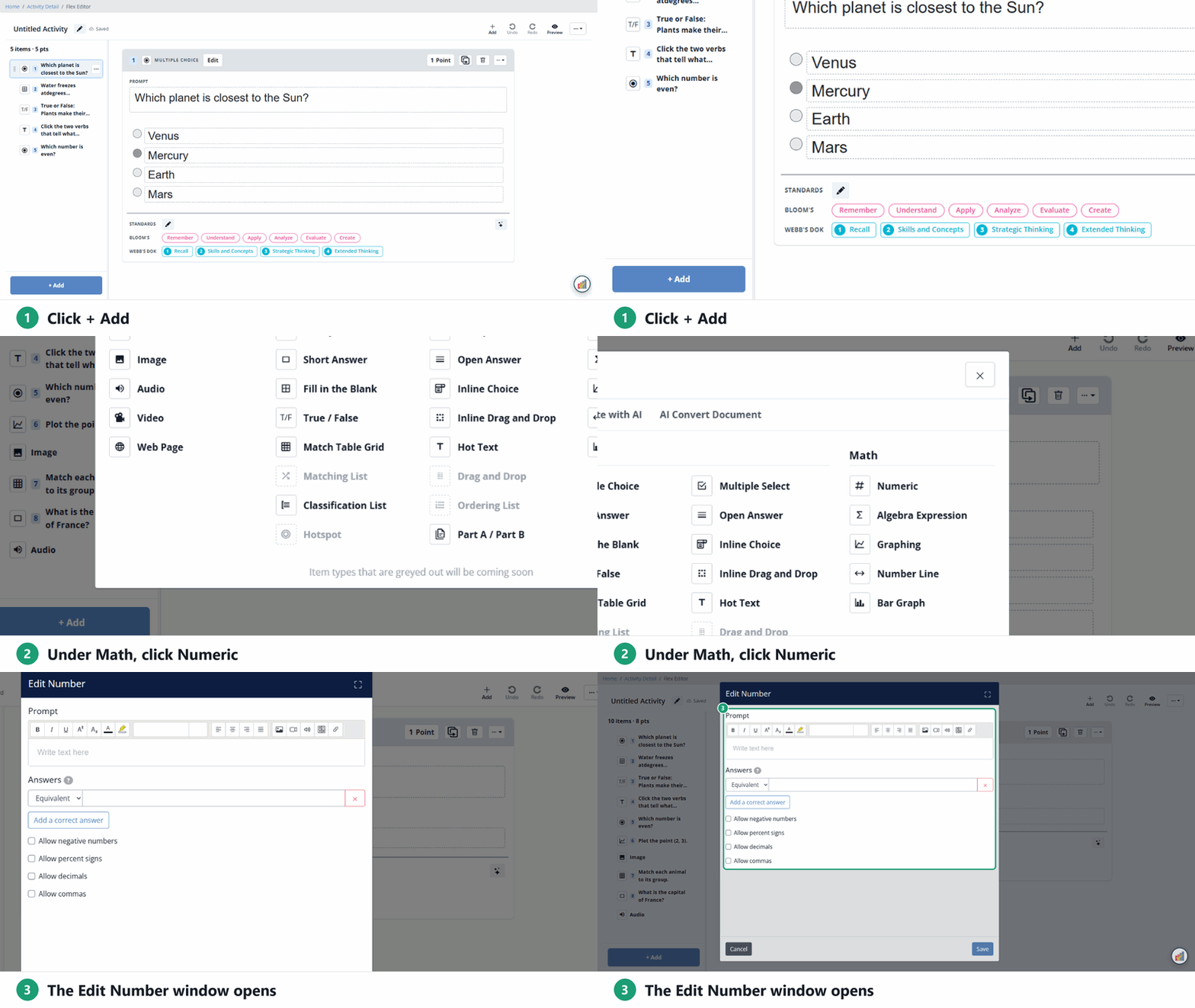
- Click + Add, open the Add Item tab, and under Math click Numeric.
- The Edit Number window opens. Type the question in Prompt.
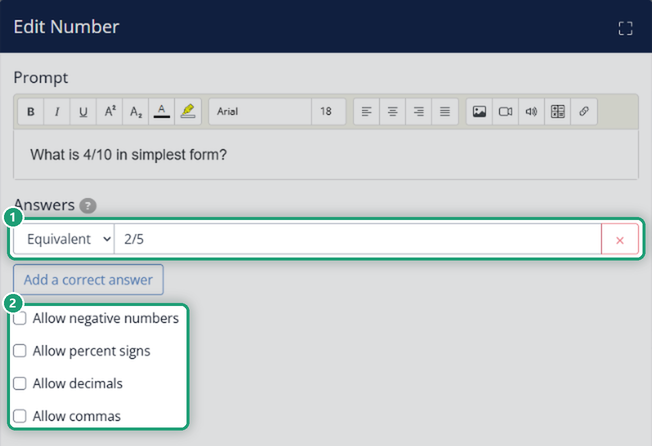
- Under Answers, type the correct answer and pick its scoring type from the dropdown beside it (Equivalent is the default; see below). Click Add a correct answer to accept another answer.
- If students will need them, check Allow negative numbers, Allow percent signs, Allow decimals or Allow commas. They’re off to start.
- Click Save.
What students can type
- A whole number or decimal: 5 or 5.4
- A fraction: 2/5
- A mixed number: 5 2/5
Answers must be in numeric form. 5 2/5 works, but 5 and 2/5 or 5 & 2/5 doesn’t. Write your correct answers the same way. The Numeric item doesn’t have the stacked fraction box (numerator over denominator) that the Slide Editor’s Fraction and Mixed Number types have, so for young students working with fractions, a Slide activity may be easier.
Scoring type
- Exact: the response must match your correct answer exactly.
- Equivalent: any mathematically equivalent value is accepted (for example, 0.50 for 0.5, or 4/10 for 2/5).
- Rounded: responses are scored rounded to the number of decimal places in your answer.
- Range: any response from a low value to a high value (inclusive) is accepted.
Slide Editor: Number, Fraction and Mixed Number
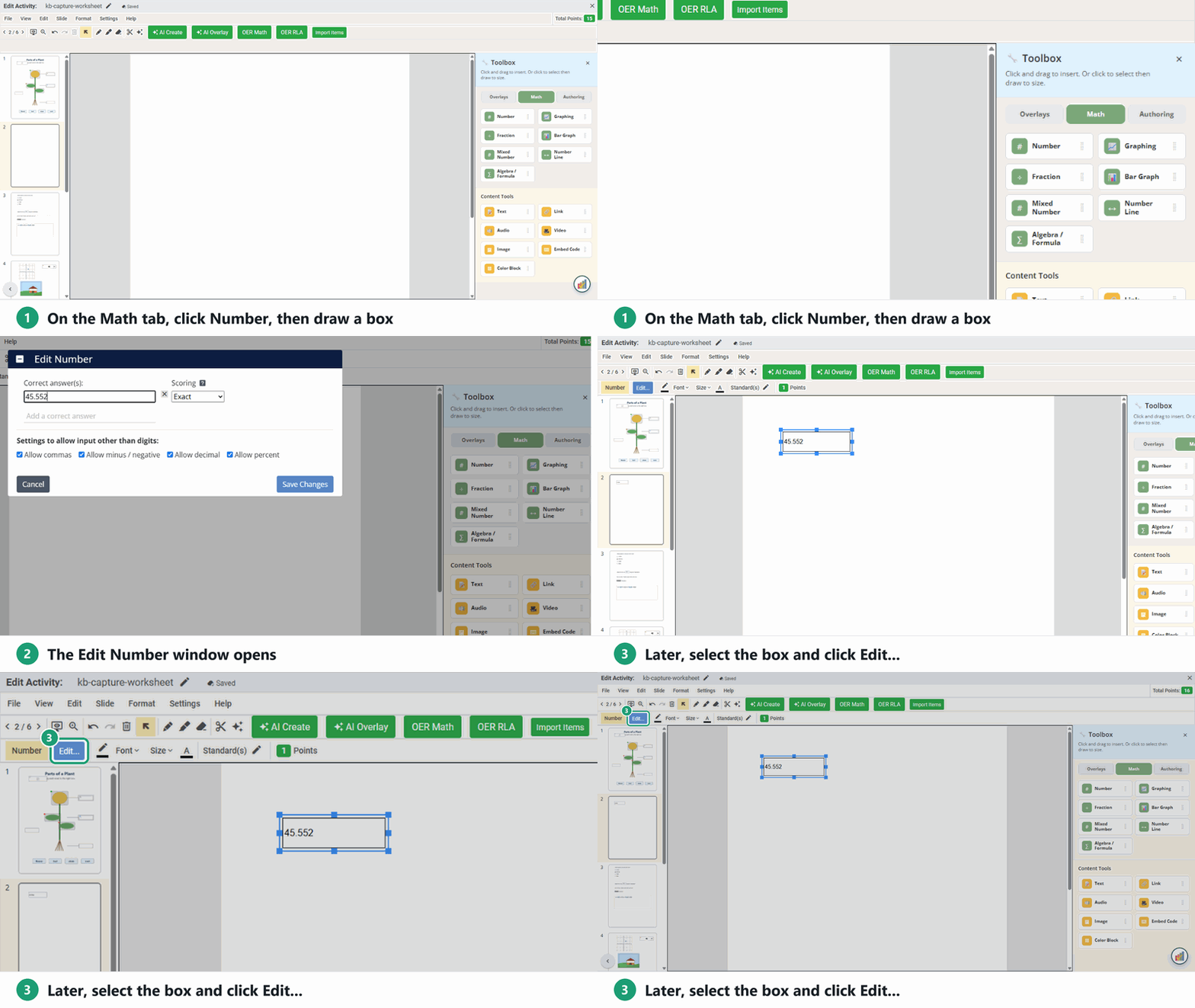
- In the Tool Box on the right, click the Math tab.
- Click Number, Fraction or Mixed Number.
- Click and drag on the slide to draw the answer box. Its window opens (Edit Number, Edit Fraction or Edit Mixed Number).
- Enter the correct answer(s) and click Save Changes. To change it later, select the box and click Edit... in the toolbar.
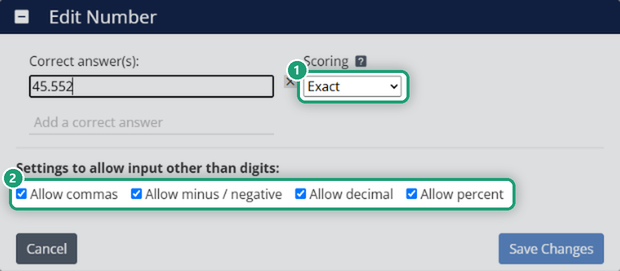
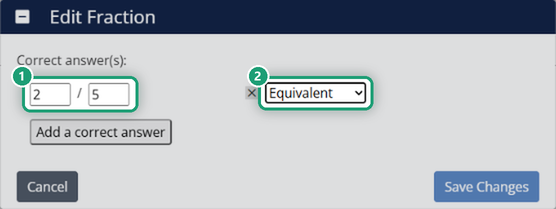
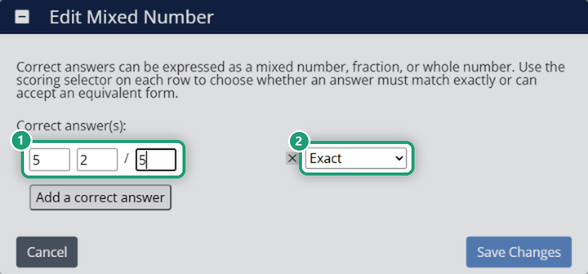
Each type has its own window. In every one, click Add a correct answer to accept other answers (up to 10).
| Type | Correct answers | Scoring type |
|---|---|---|
| Number | Any number. Under Settings to allow input other than digits: Allow commas (1,000), Allow minus / negative, Allow decimal and Allow percent (%). All four start checked. | Exact (default), Equivalent, Rounded or Range |
| Fraction | A fraction, typed as top and bottom numbers. Students type in a stacked fraction box. | Exact (default) or Equivalent |
| Mixed Number | A mixed number, fraction or whole number (whole number, then top and bottom). | Exact (default) or Equivalent |
Rounded uses the decimal places you type: a correct answer of 45.552 accepts responses that round to 45.552. Range adds a low and a high box; anything between them (inclusive) is correct. To accept only certain forms of a fraction, choose Exact and add each form as its own correct answer.
Video: the Number question
Was this article helpful?
That’s Great!
Thank you for your feedback
Sorry! We couldn't be helpful
Thank you for your feedback
Feedback sent
We appreciate your effort and will try to fix the article