|
|
Using the Hotspot Question Type |
Hot Spot Question Type
A Hot Spot is a clickable area on top of an image or page. Students click the right spots, and Classwork.com scores it for you. Use it for prompts like “Click on the state of Texas,” “Which of these are predators?” or “Identify the tibia,” or to have students point to evidence in a passage.
Hot Spot is in the Slide Editor and is coming soon to the Flex Editor.
Add a Hot Spot
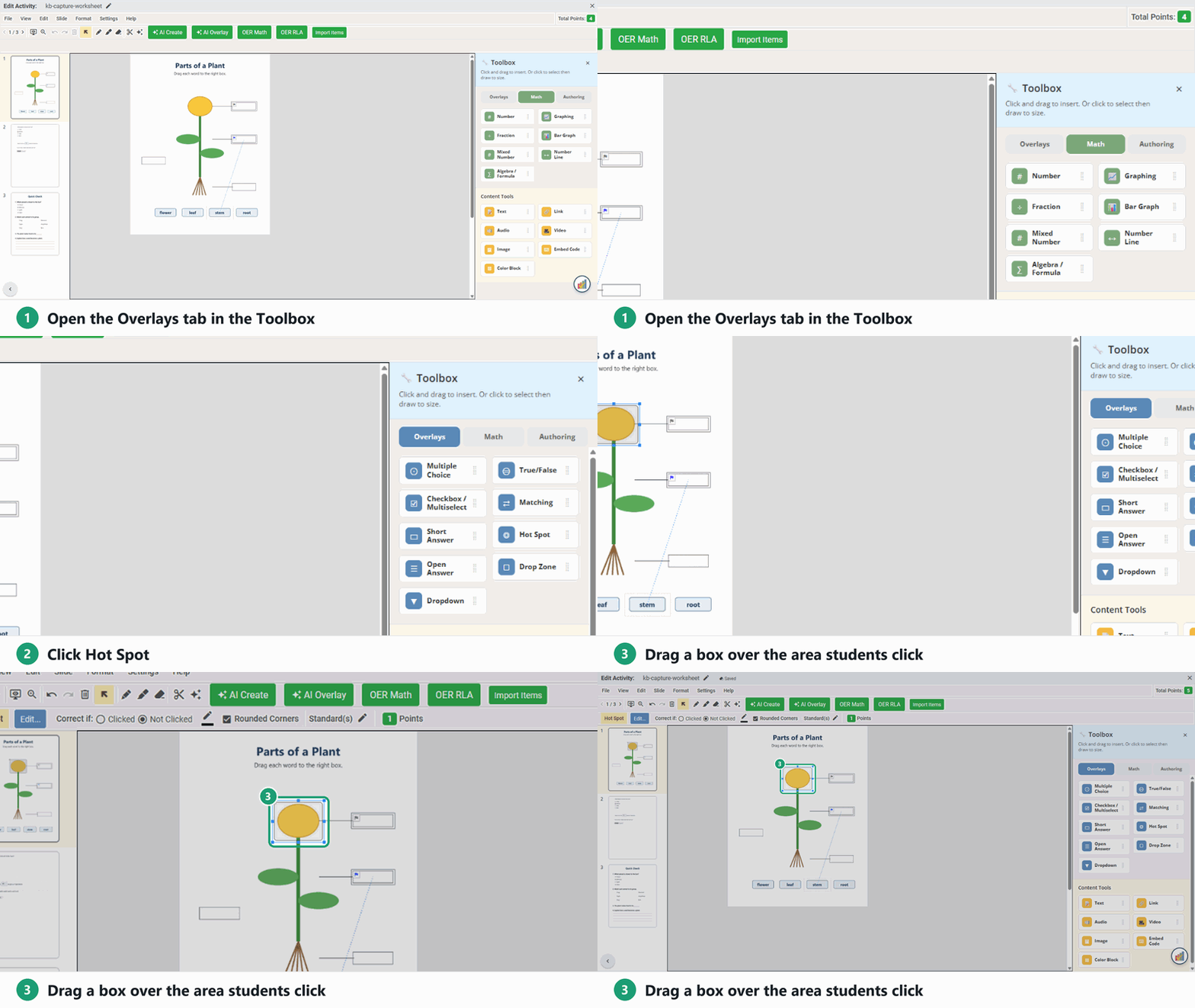
- In the Tool Box on the right, open the Overlays tab and click Hot Spot.
- Your cursor turns into crosshairs. Click and drag over the spot on the page.
- A new Hot Spot starts as Correct if: Not Clicked. Repeat for each spot. To copy a Hot Spot you already drew, select it and press Ctrl+D.
Set the answer key
Select a Hot Spot and use the toolbar above the page:
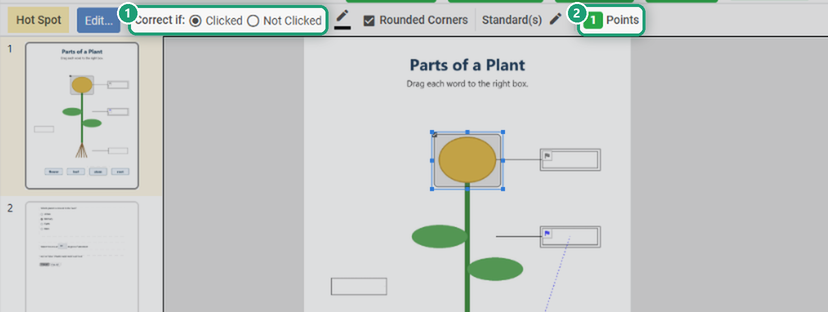
- Correct if: Clicked when students should click it.
- Correct if: Not Clicked when students should leave it alone.
- Change the Points and turn Rounded Corners on or off.
- Click Edit... for the same choice in a window, with tips on grouping.
You can change a Hot Spot’s border color, but not the color inside it.
Tip: preview the Activity to see the Hot Spots as students do, and make them big enough to click easily.
Group Hot Spots into one question
Grouped Hot Spots count as one question: students must get every Hot Spot in the group right to earn the points.
- Click the first Hot Spot to select it.
- Click another Hot Spot to add it to the group. Keep clicking to add more. (Don’t hold Shift: that selects several items to align them instead.)
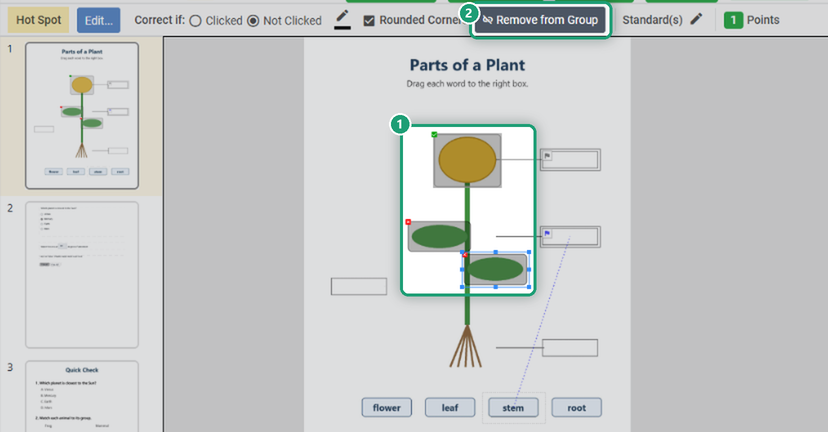
- Selecting any Hot Spot in a group highlights the whole group, and the toolbar shows Remove from Group.
- To take one out, select it and click Remove from Group.
Choose how a group works
Select any Hot Spot in the group, click Edit... in the toolbar, pick an option, and click Save Changes:
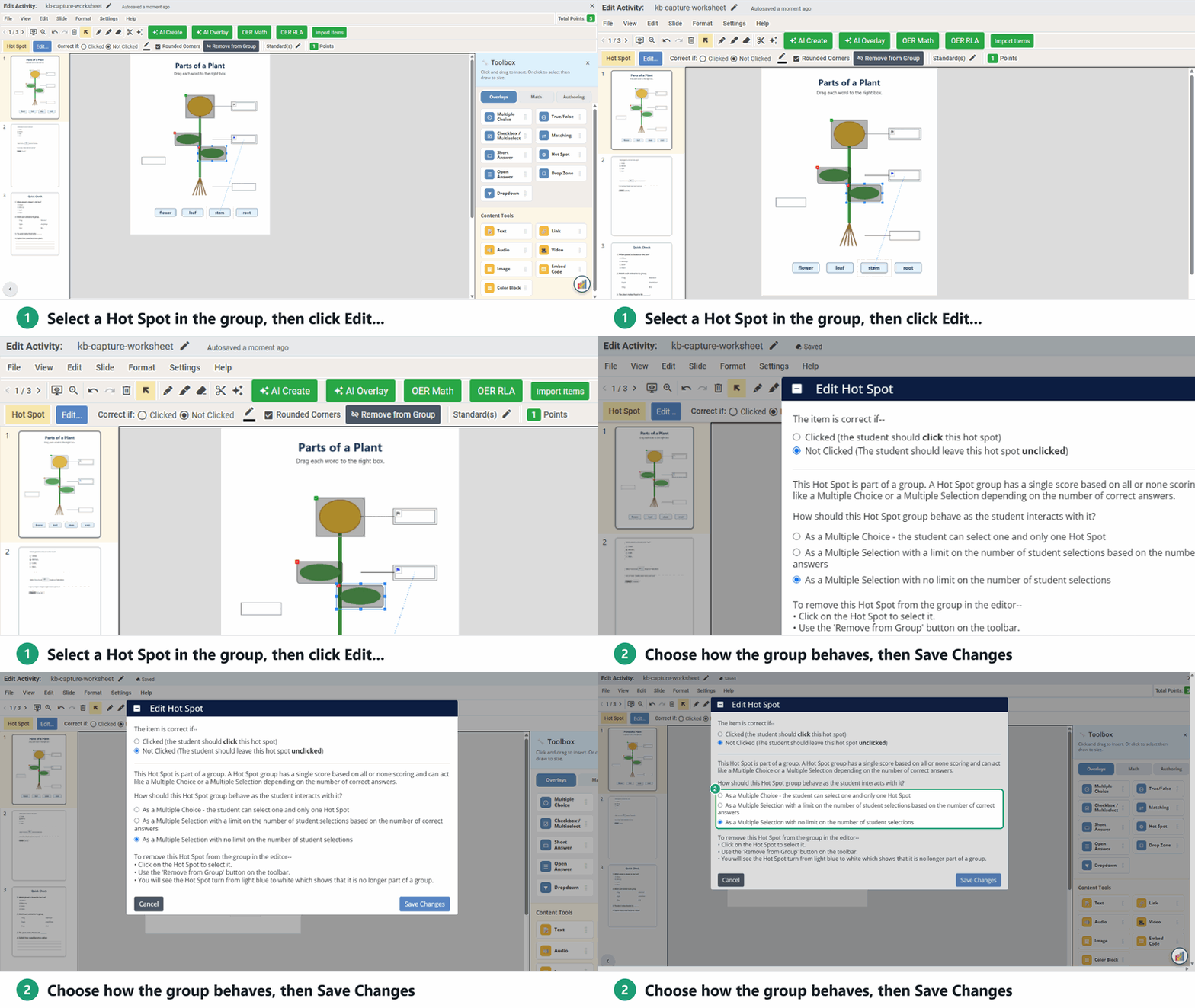
- Multiple Choice: students can pick only one Hot Spot.
- Multiple Selection, limited: students can pick only as many Hot Spots as there are correct answers.
- Multiple Selection, no limit (the default): students can pick any number.
Was this article helpful?
That’s Great!
Thank you for your feedback
Sorry! We couldn't be helpful
Thank you for your feedback
Feedback sent
We appreciate your effort and will try to fix the article