|
|
Using the Short Answer Question Type |
Short Answer
The Short Answer question type creates an auto-graded text box designed for one- or two-word responses. It is not intended for long sentences or paragraphs.
If you want students to write longer responses, use Open Answer. Open Answer responses are not auto-scored at this time.
Add a Short Answer box
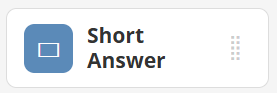
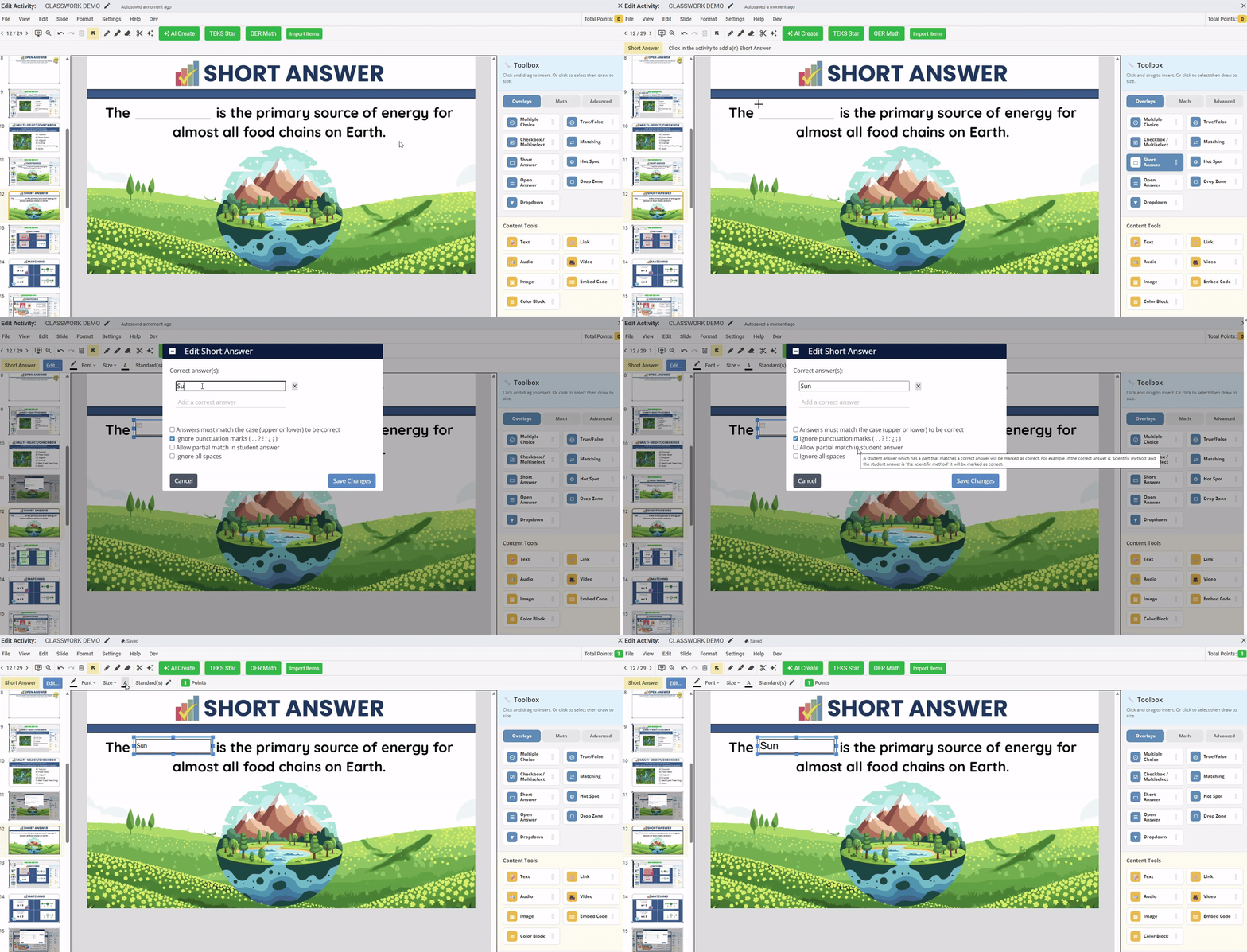
- In the Tool Box on the right, under Overlays, click Short Answer.
- Click once to place the text box, or click and drag to draw the size you want.
 |  |
When Short Answer is selected, your cursor will turn into crosshairs. The toolbar will prompt you to place or draw the text box.
After placing the box, a settings window will appear.
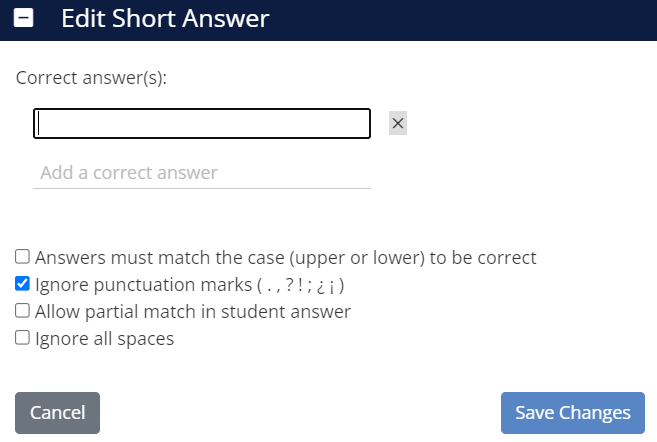
Short Answer settings
- Correct answers: Enter one or more correct answers. To remove an answer, click the X next to it.
- Upper/Lowercase Lettering: Require correct capitalization for a response to be marked correct.
- Ignore Punctuation: Ignore punctuation when grading student responses.
- Partial Match: Mark a response correct if it contains the keyword(s) you entered.
Example: If the correct answer is Yellowstone and a student types Yellowstone National Park, it can still be marked correct. - Ignore all spaces: Ignore spaces in student responses when grading.
When you are finished, click Save Changes.
Align Short Answer boxes
To align multiple Short Answer boxes:
- Click the first Short Answer box.
- Hold Shift and click the other boxes you want to align.
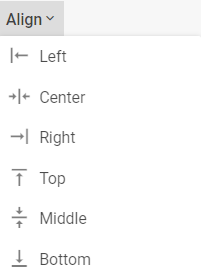
- In the toolbar, open the Align dropdown.
- Select the alignment you want.
Are you new to Classwork.com? Welcome!
Click here to start your 30 day risk-free PRO trial today.
Was this article helpful?
That’s Great!
Thank you for your feedback
Sorry! We couldn't be helpful
Thank you for your feedback
Feedback sent
We appreciate your effort and will try to fix the article