|
|
Using the Open Answer Question Type |
Open Answer Question Type
The Open Answer question type creates a large response box for longer written answers such as sentences, paragraphs, and essays. Students can enter extended responses, and during grading the box becomes scrollable for easier review.
Open Answer works the same in the Flex Editor and the Slide Editor.
Add an Open Answer
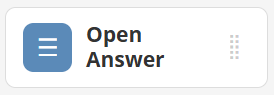
In the Flex Editor, click + Add and choose Open Answer.
In the Slide Editor, open the Tool Box on the right, under Overlays, and click Open Answer.
 |  |
In the Slide Editor, your cursor changes to crosshairs; click and drag to draw the Open Answer box on your Activity.
Once added, your toolbar will look like this:

Edit Settings
Click Edit in the toolbar or double-click the box to open settings.
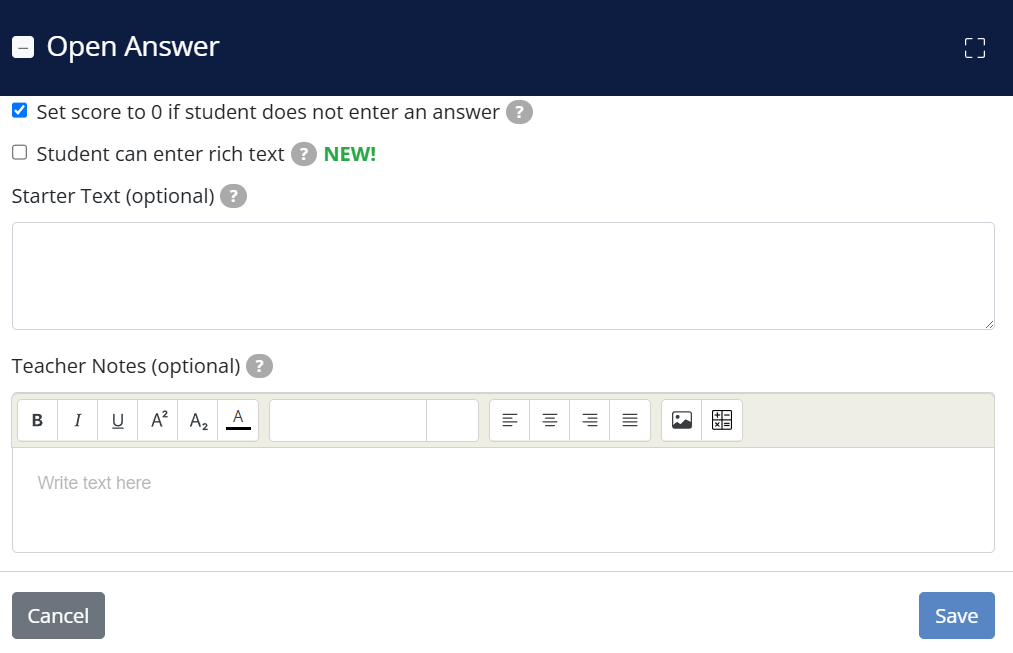
- Set score to 0 if student does not enter an answer: Automatically assigns 0 points if the student leaves the response blank.
- Students can enter rich text: Enables formatting options such as font styles, sizes, and alignment. If disabled, students enter plain text only.
- Starter Text: Displays placeholder text before the student begins typing. It disappears once they start their response. If you need instructions to remain visible, use Teacher Text above the Open Answer box.
- Teacher Notes: Add scoring rubrics or private notes. Students will not see this content. It appears when reviewing submissions.
Click Save when finished.
Point Values
Open Answer questions default to 0 points and are not auto-scored.
To assign a point value:
- Select the Open Answer box.
- Click the green point value in the toolbar.
- Enter the desired number of points.
When students submit, Open Answer questions display Teacher Scored. You will assign points manually during grading, unless you turn on AI Scoring (below).
AI Scoring (PRO)
Instead of grading every response by hand, you can turn on AI Scoring – a PRO feature for Open Answer questions.
AI evaluates each student’s written response against the criteria or rubric you define, then returns scores and actionable feedback for your review. The AI does the first pass, and you review and finalize.
The question needs a point value first. To set it up, see AI Scoring for Open Answer Questions.
Grading Open Answer Questions
Open each student submission and click the student’s response.
Select Set Score, enter the point value, and click Save.
The assigned points will be added to the student’s total score.
If AI Scoring is enabled, the AI provides a suggested score and feedback for each response. Review it, adjust if needed, and finalize.
Was this article helpful?
That’s Great!
Thank you for your feedback
Sorry! We couldn't be helpful
Thank you for your feedback
Feedback sent
We appreciate your effort and will try to fix the article