|
|
Using the Drag and Drop Question Type |
Drag and Drop
The Drag and Drop tool helps you turn standard exercises into interactive Activities students enjoy.
Two common use cases are:
- Labeling (example: parts of a plant, layers of the earth)
- Categorization (example: parts of speech, living vs. non-living)
This workflow is similar to our Matching question type. If you already know Matching, you are in good shape.
Keyboard shortcuts
- Spacebar: Re-selects the last tool you used so you can place the same object again without re-clicking it in the Tool Box.
- Ctrl + D: Duplicates a selected object. Press it multiple times to make multiple copies.
Practice activities
Here are two example Activities created with Drag and Drop:
- Labeling a Plant: Practice Classwork.com Activity
- Organize the Parts of Speech: Practice Classwork.com Activity
If you want to recreate these from scratch, here are the PDFs:
How Drag and Drop works
A Drag and Drop interaction has two parts:
- Draggable items (what students move)
- Drop Zones (where students drop them)
To build Drag and Drop, you will use:
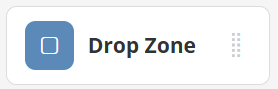
- Drop Zone (Tool Box → Overlays)
- Snipping Tool (toolbar)
 |  |
Step 1: Create draggable items
There are three ways to create draggable items:
- Items you add using Image or Teacher Text
- Items already on your uploaded background that you want students to move
- Items you copy from another Activity using the Snipping Tool
Option A: Make Image or Teacher Text draggable
After placing an Image or Teacher Text object, use the Options bar to enable Draggable.

➽ Be sure to check the box next to Draggable to activate.
Option B: Use the Snipping Tool to create draggables
If your Activity already contains words or images you want students to move, use the Snipping Tool.

Click the Snipping Tool to turn your cursor into crosshairs, then click and drag to select the item you want to make draggable.

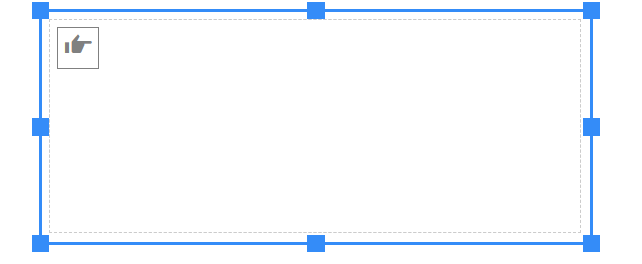
Once an item is draggable, a pointing hand icon appears in the upper-left corner of the object.
Option C: Copy draggables from another Activity
Open the Activity that contains the item you want to copy. Use the Snipping Tool to select the item, then copy it (Ctrl + C). Open the destination Activity and paste it (Ctrl + V).
Step 2: Create Drop Zones
In the Tool Box, select Drop Zone. Your cursor will change to crosshairs. Click and drag to draw Drop Zones anywhere on your Activity.
➽ Use Ctrl + D to duplicate a Drop Zone and move copies into place.

Each Drop Zone appears as a gray box with a small flag in the upper-left corner. When selected, its Options bar appears beneath the toolbar.

Use the Paint Can to change the fill color, the Pencil to change the border, and Clear Link to remove all connections from the Drop Zone.
Allow multiple items in a Drop Zone
By default, one draggable item can be attached to each Drop Zone. For categorization Activities, you may want to allow multiple items in a single Drop Zone. To do that, check Allow multiple items.


Step 3: Connect draggables to Drop Zones
After you create draggables and Drop Zones, connect them so the item can be auto-scored.
- Click and drag the hand icon inside a draggable item.
- Drag it to the correct Drop Zone and release the mouse button.
- A blue line will appear to show the connection.
- Repeat until each draggable item is linked to a Drop Zone.
When connected, your Activity will look similar to this:


Detach a draggable item
To detach an item from a Drop Zone, select the draggable item and click Clear Link in the Options bar.

Point values
Each connected Drag and Drop pair is worth 1 point by default. If you have 6 draggables connected to 6 Drop Zones, the total will be 6 points.
To change the point value, select a draggable item, then click the green point value in the toolbar and choose a new value.

What students see
Students see a cleaner version of Drag and Drop. The blue linking lines are not visible to them.

Students click and hold a draggable item, drag it to a Drop Zone, and release. When a draggable item is over a Drop Zone, the zone highlights. If released over a valid Drop Zone, the item snaps into place (unless you enabled Allow multiple items).

That is it. Once you build one Drag and Drop Activity, they become quick to make.
Congratulations! You’ve made it to the end  You now know how to create a Drag and Drop question. Go give it a try and let us know what you think! Once you know how to do it, they really are quick to make.
What Your Students See
When your students open a Drag and Drop assignment, they will see a much cleaner version of Drag and Drop. All the blue lines and links will be invisible to them.
All they have to do is click on one of the draggable options, hold the mouse button down, drag it where they want it to be, and release the mouse button. When they drag it over a Drop Zone, the Drop Zone will highlight. Release the mouse button and the item will snap into place (unless you selected Allow multiple items in the Drop Zone.) Once they are done, their Assignment will look like this:
Your students will take to Drag and Drop Activities like chocolate to ice cream so be sure to include them whenever you can. In the coming days, I’ll be making Drag and Drop videos and reading your feedback in the forum. Enjoy!!!
Was this article helpful?
That’s Great!
Thank you for your feedback
Sorry! We couldn't be helpful
Thank you for your feedback
Feedback sent
We appreciate your effort and will try to fix the article