|
|
Using the Matching Question Type |
Matching Question Type
The Matching item allows students to create one-to-one matches by drawing a line between two related items.
Each item can only be matched once. This makes Matching ideal for pairing terms with definitions, values with representations, or concepts with examples.
Add a Matching Item
In the Tool Box on the right, under Overlays, click Matching.
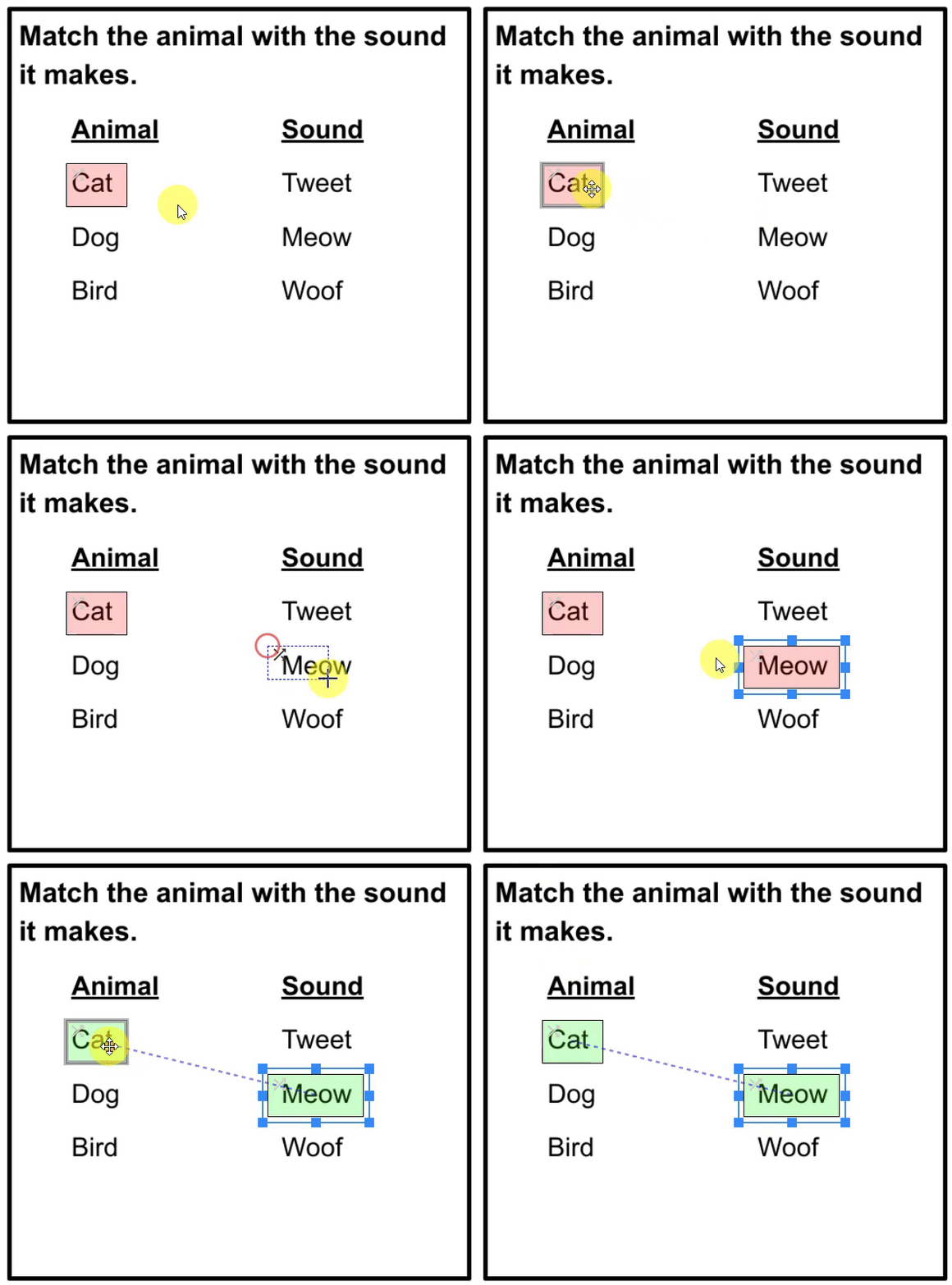
Click and drag to draw a box around the first item you want students to match.
- The box will turn red, indicating it is ready to be matched.
 |  |
Your cursor will turn into crosshairs. The toolbar will prompt you to click in the activity to add a Matching box.
When you click, an answer box will appear. Resize it using the blue border handles.
Create Multiple Matching Boxes
- Press the spacebar after creating a box to stay in the tool and draw another.
- Select a box and press Ctrl + D to duplicate it. This is helpful when you need multiple boxes of the same size.
- Once all boxes are created, drag them into position.
Connect Matched Pairs
Click one box, then click its match. A dotted blue line will appear and both boxes will turn green.
Disconnect Matches
Select one box in the pair and click Clear Link in the top toolbar. The blue line will disappear and the boxes will turn red again.

Change Point Value
Each matching pair is worth 1 point by default.
To adjust the value:
- Select one box from a matching pair.
- Click the green 1 in the top toolbar.
- Enter the new point value.
Repeat this process for each matching pair you want to adjust.
Was this article helpful?
That’s Great!
Thank you for your feedback
Sorry! We couldn't be helpful
Thank you for your feedback
Feedback sent
We appreciate your effort and will try to fix the article