|
|
Using the Multiple Choice Question Type |
Multiple Choice
The Multiple Choice question type allows you to create traditional single-answer questions, circle-the-answer items, and flexible response formats that are automatically graded.
Add a Multiple Choice Question
There are two ways to create a Multiple Choice question:
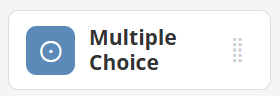
- In the Tool Box on the right, under Overlays, click Multiple Choice.
 |  |
- Click and drag inside your activity to draw the Multiple Choice box. The bubbles will appear automatically.
Depending on how you draw the box, the layout may adjust.

After placing the box, align the bubbles with your answer choices. You can resize the entire box or drag individual bubbles if spacing needs adjustment.
If placing bubbles over a preexisting PDF with lettered answer choices, consider using the Color Block Tool so original letters do not show behind the new bubbles.
Multiple Choice Settings
When a Multiple Choice item is selected, you can edit settings from the toolbar or choose Edit for additional options.

Available Options
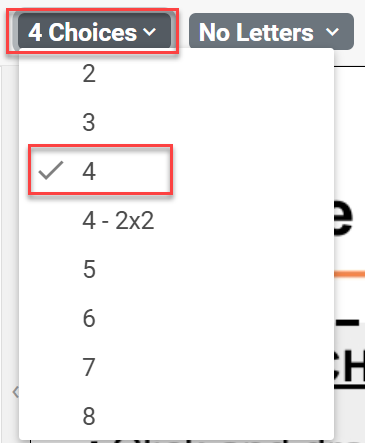
- Number of Choices:Change how many answer bubbles appear.
- All layouts are vertical except “4 Choices – 2x2.” Resize the box to automatically switch orientation between vertical and horizontal.
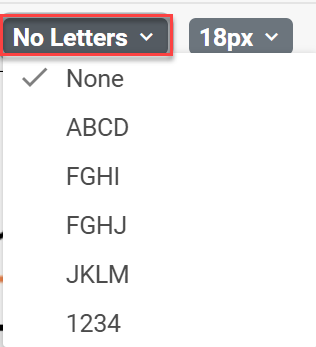
- Letters: Add letters or numbers to the bubbles if needed.
- Reset Positions: Restore bubbles to default positions if moved.
- Transparent: Make bubbles transparent so background content shows through.
- Item Points: Each item defaults to 1 point. Click the green point value to adjust. Enter 0 if the question should not be scored.
 |  |
Set the Correct Answer
Click the bubble that represents the correct answer. The selected bubble will turn gray.

Pro Tip: Students can select only one answer, but you can set multiple correct answers. Hold Shift while clicking additional bubbles to mark more than one as correct.
Was this article helpful?
That’s Great!
Thank you for your feedback
Sorry! We couldn't be helpful
Thank you for your feedback
Feedback sent
We appreciate your effort and will try to fix the article