|
|
Using the T / F (True / False) Question Type |
True / False Question Type
The True / False question type lets you quickly create an auto-graded question with two fixed answer choices.
Add a True / False Question
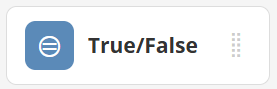
In the Tool Box on the right, under Overlays, click True / False.
 |  |
Your cursor will turn into crosshairs. Click once to place the question, or click and drag to draw the size you want.
Set the Correct Answer
Click the correct answer on your activity. The selected answer will turn gray.

True / False Options

- Edit: Customize labels or settings.
- Labels: Add premade or custom labels, then click Save Changes.
- Transparent: Makes the question transparent so the background shows through.
Click Save Changes when you are done.
Adjust Points
Each question is worth 1 point by default. To change the value, highlight the question and click the green 1 next to Points in the toolbar.
Enter 0 if you do not want the question scored.
Was this article helpful?
That’s Great!
Thank you for your feedback
Sorry! We couldn't be helpful
Thank you for your feedback
Feedback sent
We appreciate your effort and will try to fix the article