|
|
Using the T / F (True / False) Question Type |
True / False Question Type
A True / False question gives students two choices, and Classwork.com scores it for you. You can rename the two choices (Yes and No, or Acid and Base, for example), but there are always exactly two. For three or more choices, use Multiple Choice.
Flex Editor
- Click + Add, and on the Add Item tab click True / False.
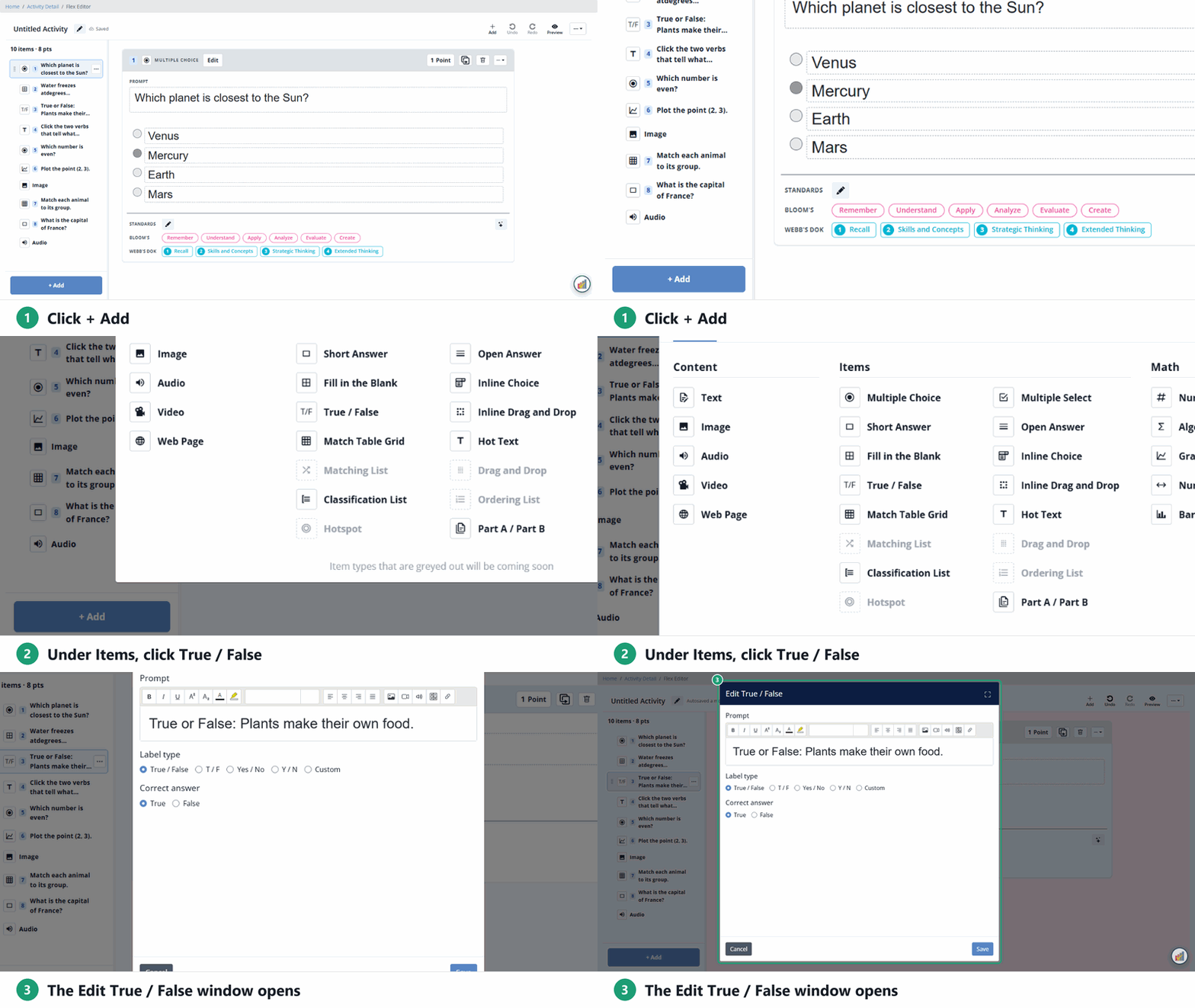
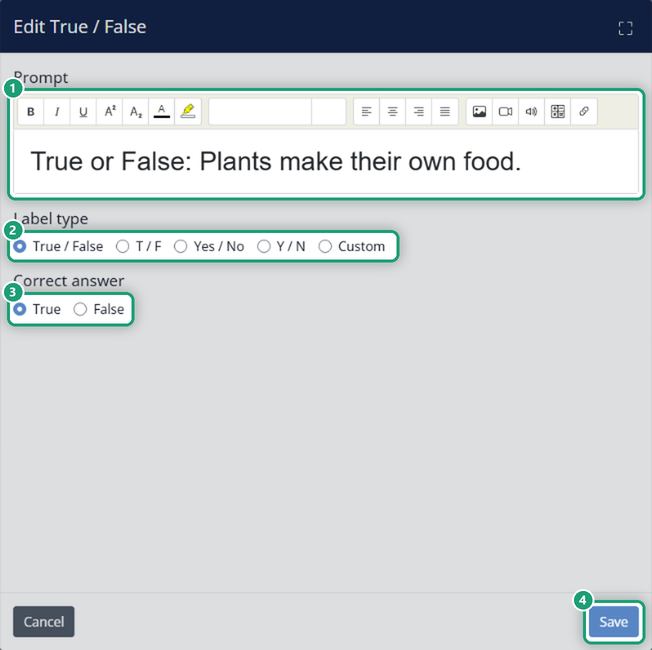
- In the Edit True / False window, type the statement in Prompt.
- Under Label type, keep True / False or pick T / F, Yes / No, Y / N or Custom.
- Under Correct answer, pick True or False.
- Click Save.
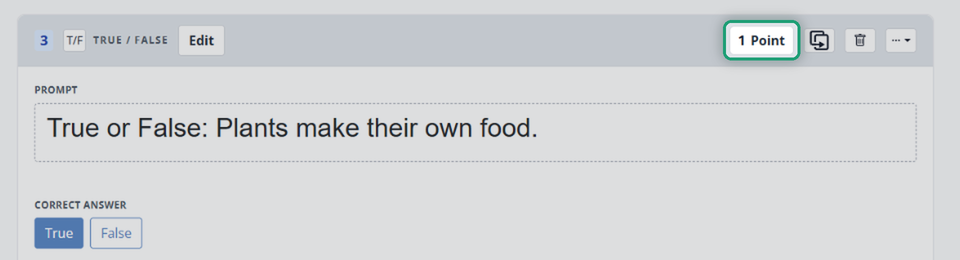
The question starts at 1 Point. To change it, click the points at the top of the question and type a new value.
Slide Editor
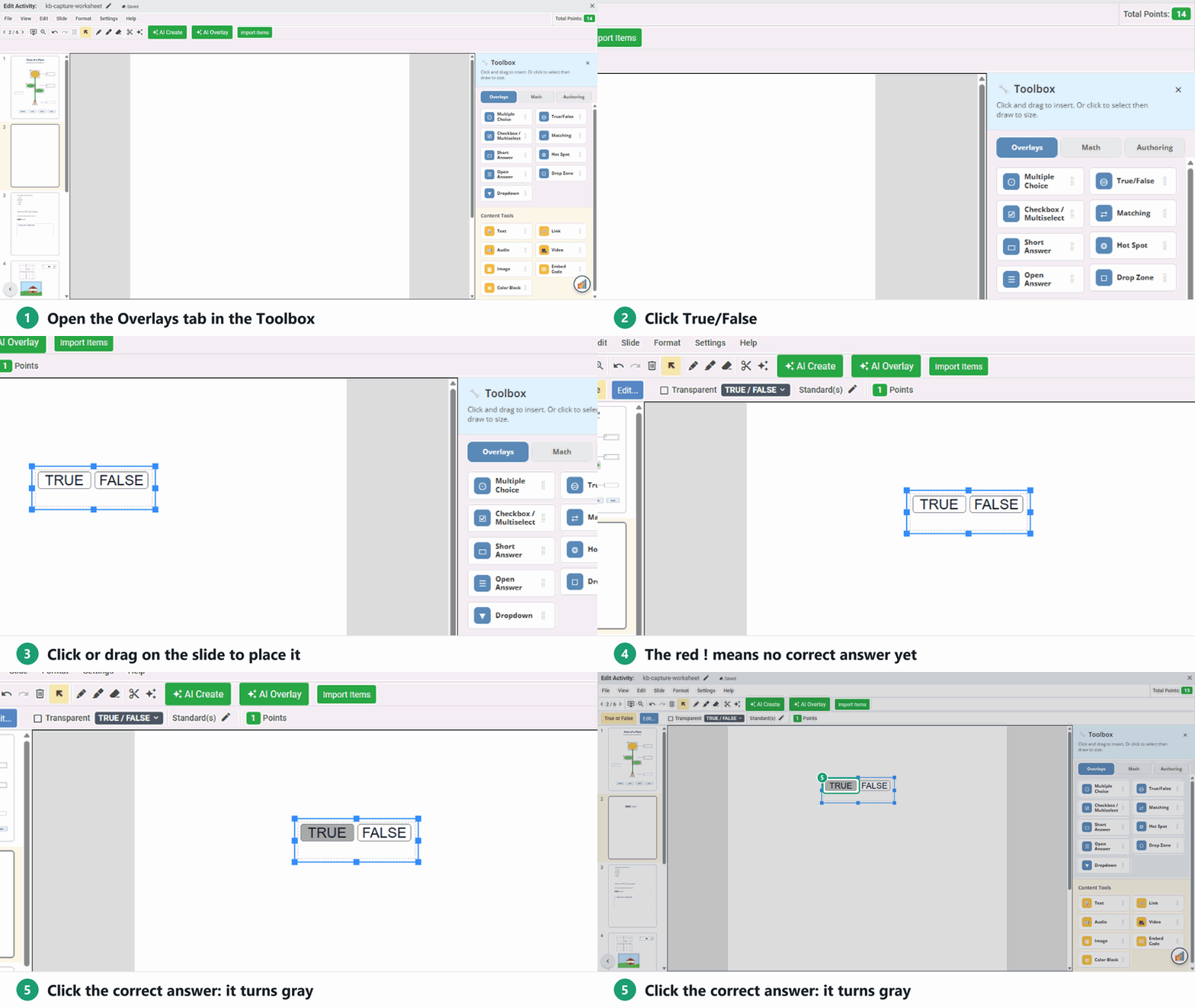
- In the Toolbox on the right, open the Overlays tab and click True/False.
- Click once on the slide to place the question, or click and drag to size it. The TRUE and FALSE buttons appear.
- Click the correct answer. It turns gray. (Until you pick one, a red ! shows on the toolbar.)
The overlay holds only the two answers. Put it next to a statement already on the page, or add one with Text under Content Tools.
Labels and other options
With the question selected, the toolbar shows:
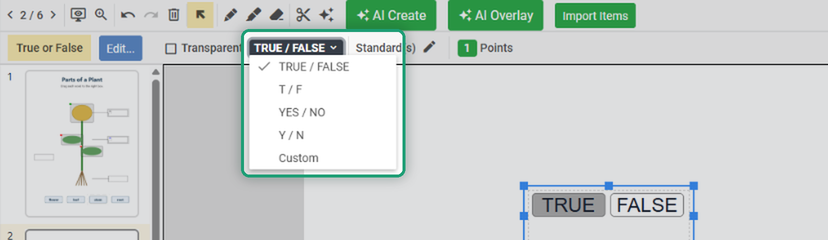
- TRUE / FALSE drop-down: pick other labels (T / F, YES / NO, Y / N) or Custom to type your own. Edit… opens the same choices in a window; click Save Changes when you’re done.
- Transparent: lets the page show through the question.
- Points: each question is worth 1 point to start. Click the green number next to Points and type a new value.
A question worth 0 points is still checked, but it doesn’t add to the score.
More help
Was this article helpful?
That’s Great!
Thank you for your feedback
Sorry! We couldn't be helpful
Thank you for your feedback
Feedback sent
We appreciate your effort and will try to fix the article